
What Ink Cartridge Does Brother J1800DW Use?
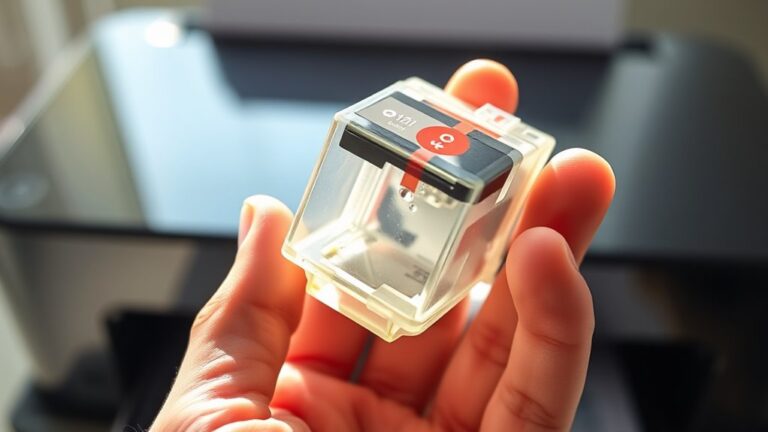
You use Brother LC203 or LC205 ink cartridges in your Brother J1800DW printer. These cartridges come in both standard and high-yield versions, so you can pick what best fits how much you print.
Whether you print occasionally or a lot, there’s an option for you.
These cartridges are available in black, cyan, magenta, and yellow. That means you get vibrant, reliable colors every time.
You can go with genuine Brother cartridges for top quality or trusted third-party options if you want to save some money.
Using the right cartridge is key to keeping your printer running smoothly. It helps avoid clogs and poor print quality.
Keep exploring to find helpful tips on installation and troubleshooting common issues.
Key Takeaways
- Brother J1800DW uses LC203 and LC205 series ink cartridges in black, cyan, magenta, and yellow colors. Both standard and high-yield versions (LC203XL) are compatible with the J1800DW printer.
- Genuine Brother cartridges ensure optimal print quality and printer performance. But if you’re looking to save some money, reputable third-party and remanufactured cartridges can also work, as long as they’re compatible with the J1800DW.
- Just make sure to confirm the cartridge model and compatibility before you buy. This helps avoid any installation issues or potential damage to your printer.
Overview of Brother J1800DW Ink Cartridge Types
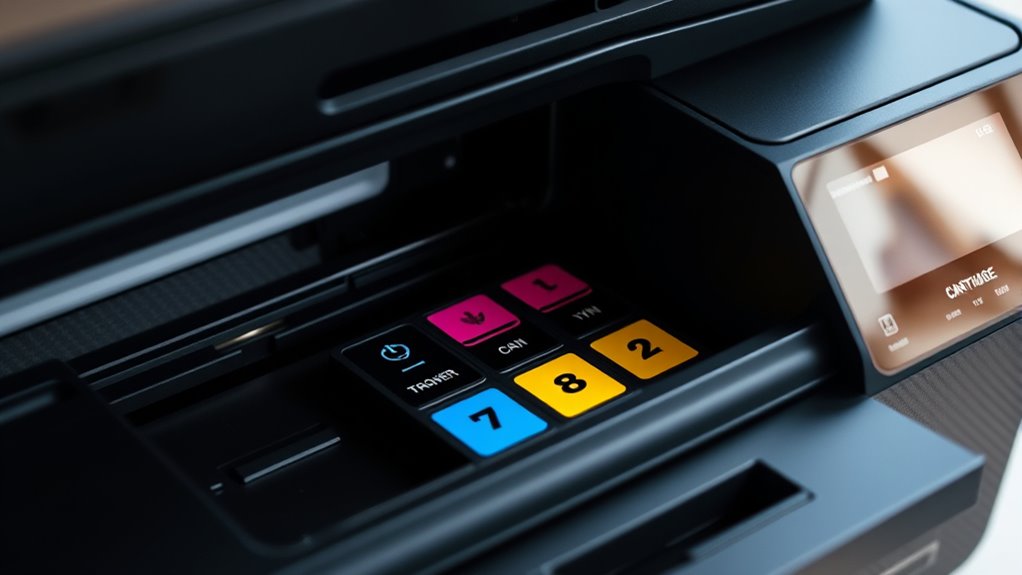
Although the Brother J1800DW uses a variety of ink cartridges, you’ll typically choose between standard and high-yield options. The standard cartridges offer a lower page yield, making them a good fit if you print occasionally or in small volumes.
On the other hand, high-yield cartridges hold more ink and let you print more pages before needing a replacement. This saves you time and money if you print frequently.
Both types are designed to fit the J1800DW perfectly, ensuring smooth operation and sharp print quality. While the cartridges come in individual colors—black, cyan, magenta, and yellow—you can replace only the colors you use up, reducing waste.
Knowing these options helps you select the best cartridge based on your printing habits and budget. It’s all about finding what works for you!
Genuine Brother Ink Cartridges Compatible With J1800DW
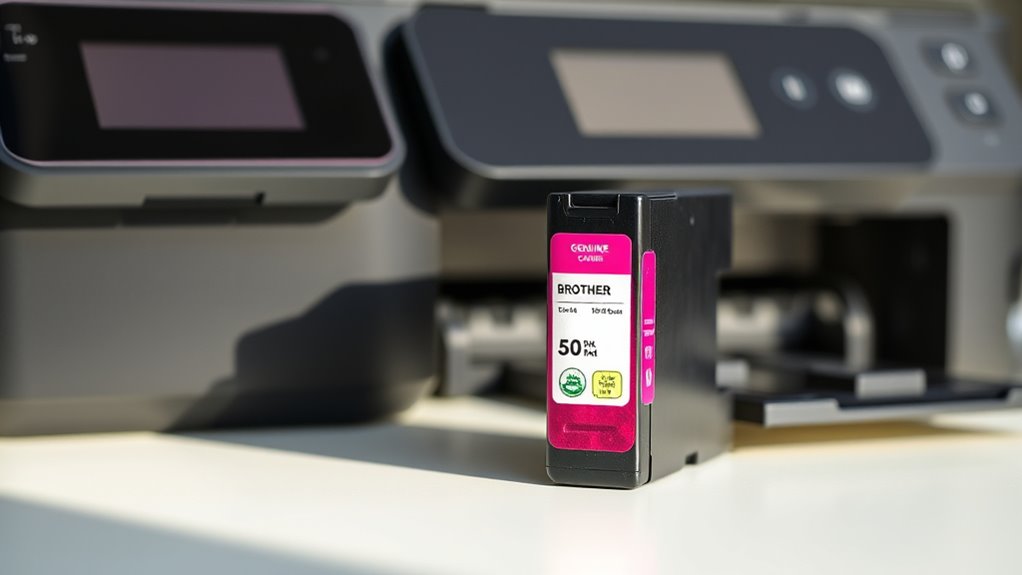
You’ll want to choose original Brother ink cartridges designed specifically for the J1800DW to guarantee peak performance.
The key models compatible with your printer include the LC203 and LC205 series. Using these genuine cartridges helps maintain print quality and reliability.
Original Brother Ink Options
When you choose original Brother ink cartridges for your J1800DW, you guarantee ideal print quality and reliable performance.
These cartridges are specially formulated to work seamlessly with your printer, ensuring sharp text and vibrant colors every time.
Plus, using genuine Brother ink helps prevent clogs and leaks, extending your printer’s lifespan.
Here’s a quick look at your original ink options:
| Ink Type | Color | Benefits |
|---|---|---|
| LC3017 | Black | High yield, crisp text |
| LC3017C | Cyan | Vivid, long-lasting color |
| LC3017M | Magenta | Bright and consistent |
Stick with these original cartridges to keep your J1800DW running smoothly and your prints looking professional.
Cartridge Model Numbers
Since selecting the right cartridge model guarantees compatibility and peak performance, you should know which genuine Brother ink cartridges work with your J1800DW.
The printer uses the Brother LC203 series cartridges. Specifically, LC203BK for black ink, LC203C for cyan, LC203M for magenta, and LC203Y for yellow.
These cartridges come in standard and high-yield versions, with the high-yield labeled as LC203XL, offering more prints per cartridge.
Sticking to these genuine cartridges ensures your printer runs smoothly, maintains print quality, and avoids potential damage or errors.
Using non-compatible cartridges might lead to poor color accuracy or printer malfunctions.
Third-Party Ink Cartridge Options for Brother J1800DW
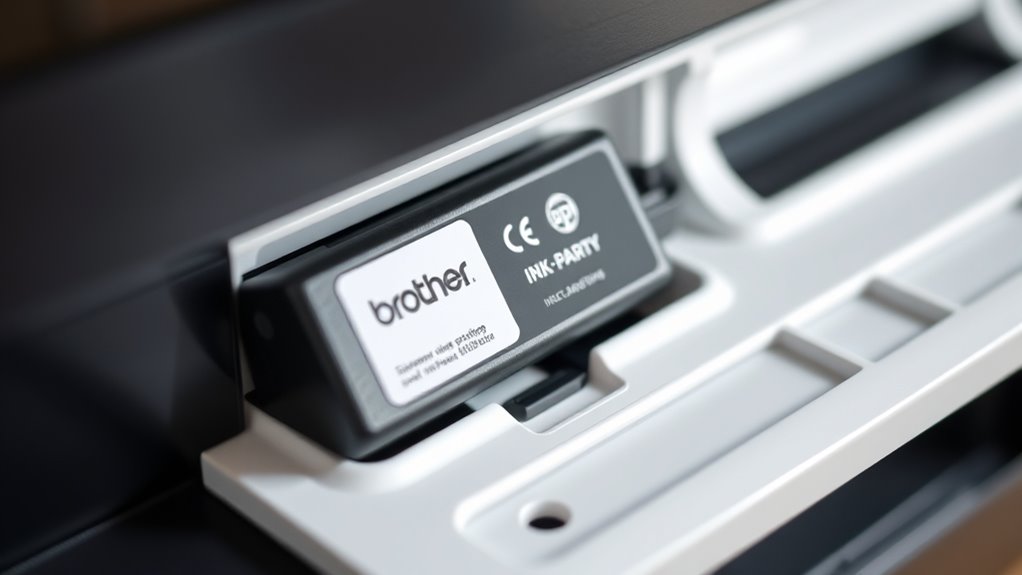
Although original Brother cartridges guarantee quality, many users turn to third-party ink cartridges for the J1800DW to save money without sacrificing performance. You’ll find several reputable brands offering compatible cartridges that fit your printer perfectly.
These alternatives often cost notably less while delivering comparable print quality and page yield. When choosing third-party options, look for those with positive reviews and reliable customer support to avoid issues like ink leaks or poor color accuracy.
Keep in mind that some sellers provide remanufactured cartridges, which can be eco-friendly and budget-friendly. However, always verify compatibility with the J1800DW to ensure smooth operation.
Using third-party cartridges can be a smart way to reduce expenses while maintaining professional print results. It’s worth doing a little homework so you get the best value without any headaches.
How to Identify the Correct Ink Cartridge Model
To find the right ink cartridge for your Brother J1800DW, start by locating the exact printer model number on your device. Then, check the manufacturer’s specifications to see which cartridge models are compatible.
This guarantees you pick the correct cartridge every time. It’s a simple step that saves a lot of hassle down the road!
Locate Printer Model Number
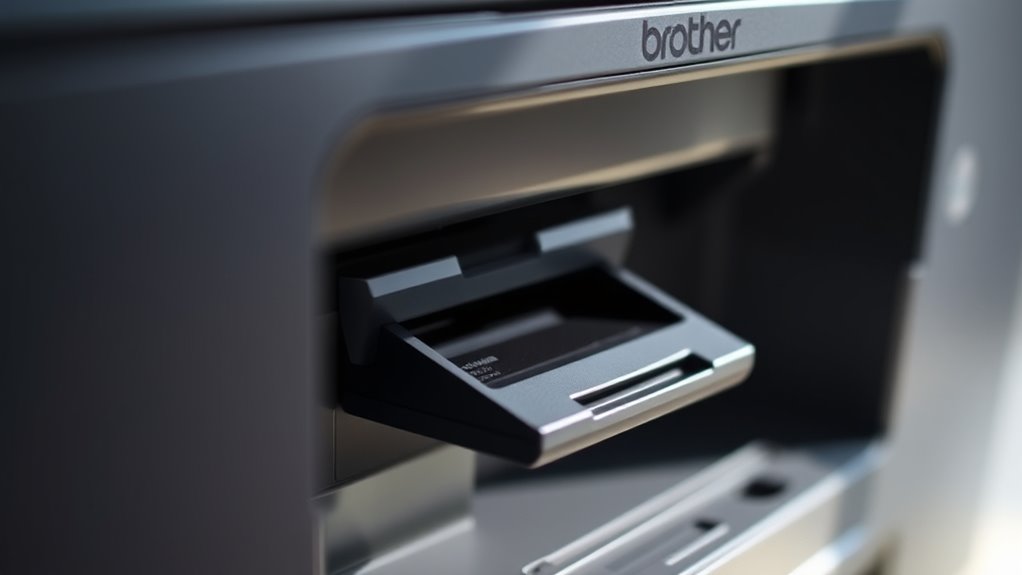
Before you buy an ink cartridge for your Brother J1800DW, you need to find the exact model number on your printer. This number is usually located on the front, top, or back of the device.
Look for a label or sticker that clearly displays “Brother” along with a combination of letters and numbers, such as “J1800DW.” If you can’t spot it right away, check inside the printer’s cartridge access area or on the printer’s control panel screen, if available.
Knowing the precise model guarantees you choose the right cartridge compatible with your device. Avoid confusing similar models, as using the wrong cartridge may cause printing errors or damage.
Taking a moment to locate this number helps you buy the correct ink quickly and avoid returns. It’s a small step that saves a lot of hassle later on!
Check Manufacturer Specifications
Once you’ve found your Brother J1800DW model number, the next step is to check the manufacturer’s specifications to identify the correct ink cartridge model. Start by visiting Brother’s official website or consulting the printer’s user manual. These resources provide accurate details about compatible cartridges.
Look specifically for cartridge model numbers like LC203 or LC205, which are commonly used in the J1800DW series. Avoid guessing or buying cartridges labeled for other models, as they might not fit or function properly.
If you’re unsure, Brother’s customer support can confirm the exact cartridge you need. By verifying the manufacturer’s specs, you ensure you buy the right ink, maintain print quality, and avoid potential printer damage. This simple check saves time and money in the long run.
Tips for Installing Ink Cartridges in Brother J1800DW
Although installing ink cartridges in your Brother J1800DW is straightforward, taking a few careful steps guarantees a smooth process and ideal print quality.
First, power off your printer and open the front cover gently to access the cartridge area. Remove the old cartridges by pressing the release lever. Then, carefully unpack your new cartridges without touching the nozzles or electrical contacts to avoid damage.
Power off and open the front cover, then remove old cartridges by pressing the release lever carefully.
Insert each cartridge firmly into its slot until you hear a click. Make sure the color cartridges match their designated spots. Close the cover securely and power on the printer.
Finally, run a test print to confirm proper installation. Handling cartridges with clean, dry hands and avoiding excessive force prevents damage and guarantees your Brother J1800DW performs at its best.
Troubleshooting Common Ink Cartridge Issues
If you encounter print quality problems or cartridge errors, troubleshooting common ink cartridge issues can often resolve them quickly. First, check if the cartridge is properly seated; a loose cartridge can cause errors or poor printing.
Next, inspect the cartridge for protective tape or plastic still attached—remove it carefully. If printouts appear faded or streaky, run the printer’s cleaning cycle to clear clogged nozzles.
You can also try removing and reinstalling the cartridge to ensure good contact. If problems persist, reset the printer by turning it off, unplugging it for a minute, then restarting.
Finally, confirm you’re using the correct Brother J1800DW ink cartridge model. Using incompatible cartridges may trigger errors or even damage your printer.
Frequently Asked Questions
How Often Should I Replace the Ink Cartridge in Brother J1800DW?
You should replace the ink cartridge in your Brother J1800DW when print quality declines or the printer alerts you.
Typically, this happens after printing several hundred pages, but how often you need to replace it really depends on your usage and print settings. So, if you print a lot or use high-quality settings, you might need to change it more often.
Can I Recycle Brother J1800DW Ink Cartridges?
Think of your Brother J1800DW ink cartridges like empty soda cans—you can definitely recycle them!
Many stores and Brother’s own program accept cartridges, helping you reduce waste and keep the planet as fresh as your prints.
It’s super easy to do, and you’re doing your part for the environment without any hassle.
Does Brother J1800DW Support Duplex Printing?
Yes, your Brother J1800DW supports duplex printing, letting you print on both sides of the paper automatically.
This feature helps save paper and is great for creating professional-looking documents efficiently. It’s pretty handy if you want to cut down on paper use without extra effort.
What Is the Page Yield of Brother J1800DW Cartridges?
Like a marathon runner pacing through miles, your Brother J1800DW cartridges deliver about 300 pages per standard cartridge.
If you opt for high-yield, you’ll sprint through roughly 1,200 pages before needing a change.
Are Brother J1800DW Cartridges Compatible With Mac and Windows?
Yes, Brother J1800DW cartridges work perfectly with both Mac and Windows systems. You’ll just need to install the right drivers, which Brother provides for each platform.
This ensures smooth printing no matter your OS. So, whether you’re on a Mac or a PC, you’re covered.
Conclusion
Now that you know the Brother J1800DW uses the LC3033 series ink cartridges, you’re all set to keep your printer running smoothly. These cartridges are designed to deliver vibrant colors and sharp text, making your prints look professional every time.
For example, Sarah switched to genuine Brother cartridges after struggling with third-party ink. Her print quality improved instantly, showing just how important the right ink cartridge is for this model.
By choosing the correct LC3033 ink cartridge and installing it properly, you’ll avoid common printer issues like streaks and smudges. This ensures crisp, reliable prints that meet your expectations. Don’t hesitate—get the right Brother J1800DW ink cartridge and enjoy hassle-free printing today!