
What Ink Cartridge Does Brother J1410DW Use?
You’ll need Brother’s genuine LC3033 series ink cartridges for your Brother J1410DW printer. These come in black, cyan, magenta, and yellow, with XL high-yield options if you want to print more without frequent replacements.
Before you buy, double-check your printer or the cartridge label to confirm the exact model.
It’s best to purchase from authorized retailers or Brother’s official store to avoid counterfeit products.
While third-party cartridges might be cheaper, they can compromise print quality and reliability.
Stick with genuine Brother cartridges to keep your printer running smoothly.
Keep reading to learn how to install and maintain these cartridges properly for the best printing experience.
Key Takeaways
- The Brother J1410DW printer uses Brother’s genuine LC3033 series ink cartridges. Compatible cartridges include black, cyan, magenta, and yellow LC3033 or LC3033XL high-yield versions.
- It’s a good idea to check the printer manual or the label inside the cartridge compartment to confirm the correct cartridge model. That way, you’re sure you’re getting the right fit.
- You can find genuine cartridges at authorized retailers or on Brother’s official website. This helps guarantee compatibility and keeps your printer running smoothly.
- Using original LC3033 cartridges ensures optimal print quality. Plus, it helps you avoid printer errors or even potential damage down the line.
Compatible Ink Cartridge Models for Brother J1410DW
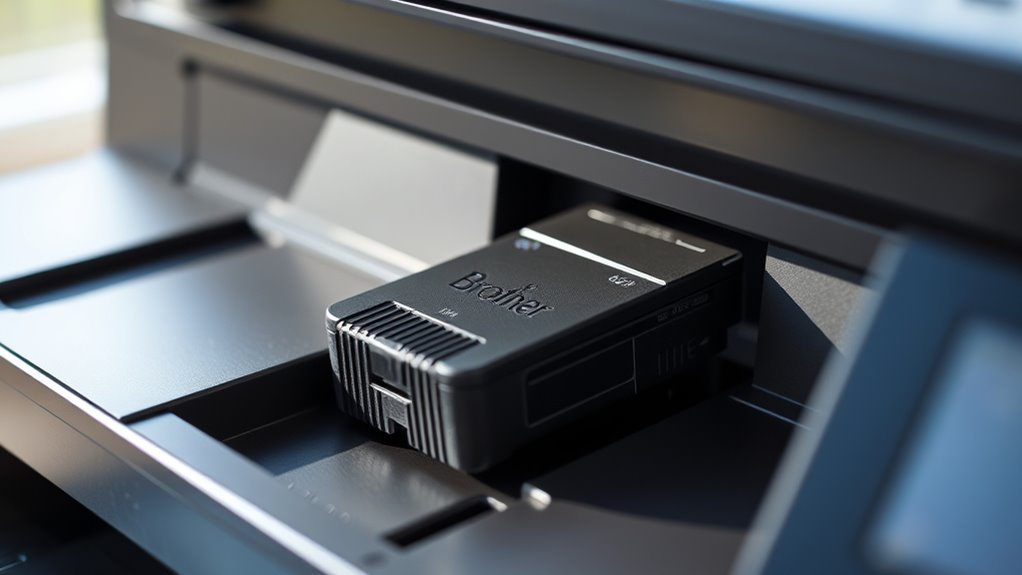
Wondering which ink cartridges work with your Brother J1410DW? You’ll want to use Brother’s genuine LC3033 series cartridges to ensure maximum performance. These come in black, cyan, magenta, and yellow, matching your printer’s four-color ink system perfectly.
Choosing these cartridges keeps your print quality sharp and colors vibrant. While third-party options exist, they often don’t deliver the same reliability or longevity. Sticking with original Brother cartridges also helps prevent clogs and damage to your printer’s printhead.
If you prefer high-yield options, look for the LC3033XL versions—they contain more ink, so you won’t need to replace them as often. Using compatible ink cartridges designed specifically for the Brother J1410DW guarantees consistent, professional results every time you print.
How to Identify the Correct Cartridge for Your Printer
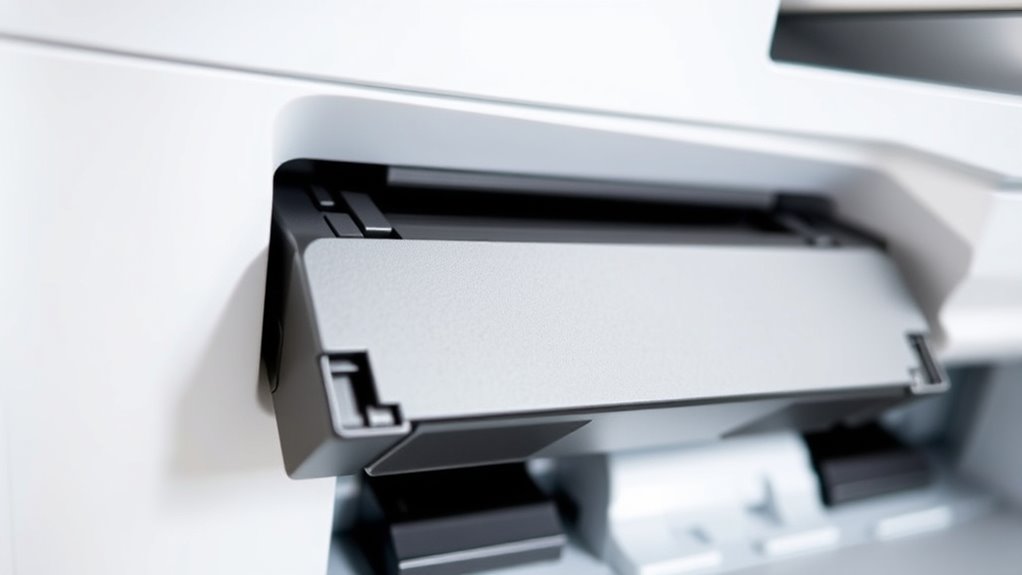
How can you be sure you’re picking the right ink cartridge for your Brother J1410DW? First, check your printer’s user manual or the label inside the cartridge compartment; it usually lists compatible cartridge models.
You can also look for the model number on the existing cartridge if you have one installed. Another reliable method is to visit Brother’s official website and enter your printer model to find recommended cartridges.
Avoid guessing or using cartridges from unrelated models, as this can cause printing errors or damage. Always confirm that the cartridge matches both the model number and color type required by your printer.
Where to Purchase Genuine Brother Ink Cartridges
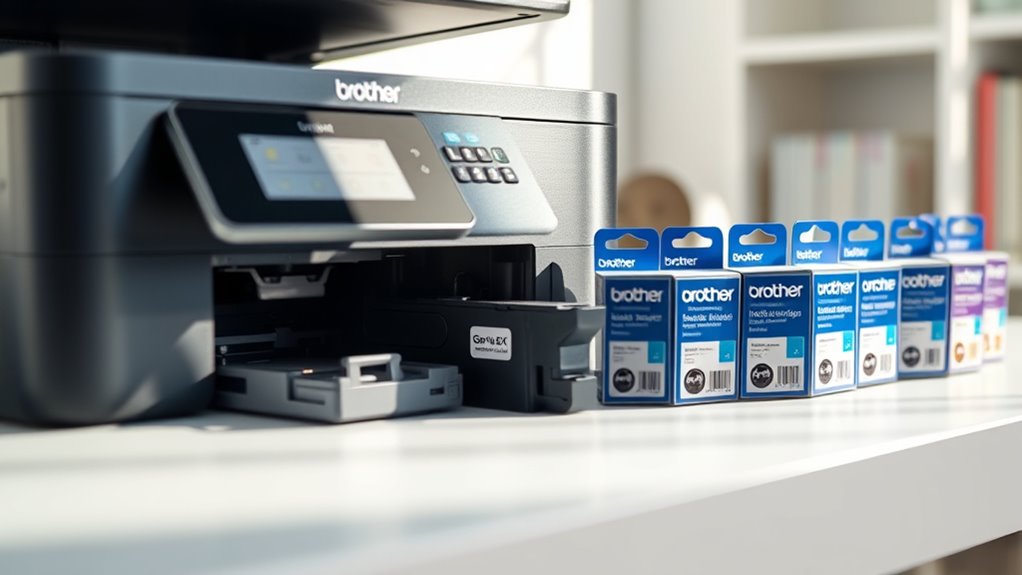
You can find genuine Brother ink cartridges at authorized retailers both in-store and online, ensuring quality and compatibility. When shopping online, check trusted websites and compare prices to get the best deal.
Staying informed helps you avoid counterfeit products and save money. It’s always worth taking a little extra time to make sure you’re getting the real deal.
Authorized Retailers Locations
Finding genuine Brother ink cartridges for your J1410DW is easier when you know where to look. You can head to authorized retailers like major office supply stores—Staples, Office Depot, and Best Buy often stock original Brother cartridges.
Many large electronics retailers also carry them, so check stores such as Walmart or Target if you prefer shopping in person. Brother’s own branded stores and service centers are reliable spots to get authentic ink.
When visiting these locations, you’re guaranteed genuine products that guarantee your printer’s peak performance. Remember to verify the store’s authorized status on Brother’s official website before purchasing to avoid counterfeit cartridges.
Sticking to authorized retailers helps you avoid compatibility issues and preserves your printer’s warranty. So, it’s worth taking a moment to double-check before you buy!
Online Shopping Options
Where can you conveniently buy genuine Brother ink cartridges for your J1410DW without leaving home? Online shopping offers an easy way to get authentic cartridges delivered straight to your door.
You can trust these platforms to provide original Brother products, ensuring your printer performs at its best.
Here are three reliable online options to consider:
- Brother’s Official Website: Purchase directly for guaranteed authenticity and access to the latest cartridge models.
- Amazon: Offers a wide selection, user reviews, and fast shipping options.
- Office supply retailers like Staples or Office Depot: Provide online ordering with the convenience of in-store pickup or home delivery.
Price Comparison Tips
Although genuine Brother ink cartridges for the J1410DW guarantee quality, their prices can vary considerably depending on where you buy them. To get the best deal, start by comparing prices on Brother’s official website and authorized retailers.
Don’t forget to check major online marketplaces like Amazon and Walmart. They often have discounts and bundle offers that can help you save money.
Local office supply stores sometimes run promotions, so keep an eye on their weekly ads. But be cautious of unusually low prices—they might indicate counterfeit products.
Also, if you print frequently, consider subscribing to ink delivery services. These often offer both savings and convenience.
Comparing Original vs. Third-Party Ink Cartridges
When you choose ink cartridges for your Brother J1410DW, you’ll notice a clear difference between original and third-party options. Original cartridges are made by Brother, ensuring compatibility and consistent print quality. Third-party cartridges often cost less but can vary in reliability.
Knowing these differences helps you decide which suits your needs best.
Understanding these differences ensures you pick the best cartridge for your printing needs.
Consider these points:
- Print Quality: Original cartridges deliver sharper text and vibrant colors. Third-party may sometimes produce faded or streaky prints.
- Reliability: Original ones rarely cause printer errors or leaks. Third-party cartridges can occasionally clog or trigger warning messages.
- Cost: Third-party options are cheaper upfront, but original cartridges might save money long-term by reducing maintenance issues.
Weighing these factors can guide you to the right choice for your printing demands.
Step-by-Step Guide to Replacing the Ink Cartridge
To replace the ink cartridge in your Brother J1410DW, start by locating the cartridge inside the printer. Next, carefully remove the old cartridge by pressing the release lever.
Now, take your new cartridge and install it by snapping it securely into place. That’s it—you’re all set!
Locating the Ink Cartridge
Before you replace the ink cartridge in your Brother J1410DW, you’ll need to open the printer’s front cover. This lets you access the cartridge compartment easily. Just lift the cover from the front until it stays open and reveals the inside.
The ink cartridge sits right in the center of the compartment. It’s held securely in a plastic holder.
Look for these visual cues:
- A black or color cartridge with Brother branding
- A locking mechanism that holds the cartridge firmly
- A small plastic tab or clip on one side for easy removal
Make sure the printer is powered on. That way, the cartridge holder moves to the replacement position automatically when you open the cover. This setup makes it easy to spot and reach the cartridge quickly without fumbling around inside the printer.
Removing the Old Cartridge
Although the cartridge holder is designed for easy access, you’ll want to press down gently on the plastic tab to release the old cartridge before pulling it straight out. Handle the cartridge carefully to avoid ink spills.
Make certain the printer is powered on to unlock the cartridge holder. After removal, place the old cartridge on a disposable surface.
Here’s a quick checklist to help you through the removal:
| Step | Action |
|---|---|
| 1 | Power on the printer |
| 2 | Open the cartridge cover |
| 3 | Press down the plastic tab |
| 4 | Pull the cartridge straight out |
Following these steps will guarantee you remove the old cartridge safely and prepare your printer for the new one. Easy, right? Just take it step by step!
Installing the New Cartridge
Once you’ve removed the old cartridge, you can install the new one by aligning it carefully with the holder and pushing it in until you hear a click. This guarantees the cartridge is securely in place and ready to function properly.
Before closing the printer, double-check that the cartridge is seated evenly and firmly.
To make sure the installation goes smoothly:
- Handle the cartridge by its sides to avoid touching the ink nozzles.
- Remove any protective tape or covers from the new cartridge.
- Avoid forcing the cartridge, as it should slide in easily once aligned.
After installing, close the printer cover and run a test print to confirm the cartridge works correctly.
Tips for Maximizing the Lifespan of Your Ink Cartridge
If you want to get the most out of your Brother J1410DW ink cartridge, adopting a few simple habits can make a big difference. Regular usage prevents ink from drying out, while storing cartridges properly keeps them fresh.
Also, printing in draft mode for less critical documents saves ink. Avoid touching the cartridge’s nozzles to prevent clogs and always update your printer’s firmware for peak performance.
| Tip | Benefit |
|---|---|
| Print Regularly | Prevents ink drying |
| Store Properly | Maintains ink quality |
| Use Draft Mode | Saves ink on non-essential prints |
| Avoid Touching Nozzles | Prevents clogs |
| Update Firmware | Ensures efficient printing |
Frequently Asked Questions
How Do I Reset the Ink Cartridge Counter on the Brother J1410DW?
You can’t manually reset the ink cartridge counter on the Brother J1410DW. Instead, just replace the cartridge when the printer prompts you to do so.
Once you pop in the new cartridge, the printer automatically recognizes it and resets the counter for you. This way, you can keep printing smoothly without any extra steps!
Can I Refill the Brother J1410DW Ink Cartridges at Home?
Yes, you can refill Brother J1410DW ink cartridges at home, but it’s tricky. You’ll need a refill kit and patience.
Be careful—improper refilling can cause leaks or damage your printer. So, take your time and follow the instructions closely.
What Should I Do if the Printer Doesn’T Recognize the New Cartridge?
If your printer doesn’t recognize the new cartridge, you should remove and reinstall it carefully. Make sure to clean the cartridge contacts too, as dirt can cause connection issues.
Next, restart the printer and double-check that the cartridge is compatible with your model. Sometimes, compatibility is the main culprit.
If it still fails to recognize the cartridge, try resetting the printer. And if nothing works, don’t hesitate to contact support for help. They can guide you through more advanced troubleshooting.
Are There Any Environmental Recycling Programs for Brother Cartridges?
Yes, Brother offers a recycling program for their cartridges. You can easily return used cartridges through their Brother Earth recycling program.
This helps you reduce waste and support environmental sustainability. Check their website for details and shipping options.
How Often Should I Clean the Printhead on the Brother J1410DW?
You should clean the printhead on your Brother J1410DW whenever print quality drops or you notice streaks.
Regular cleaning every few months helps maintain performance, but avoid over-cleaning to prevent wasting ink.
Keeping it balanced is key! Just clean it when you really need to, and your printer will thank you.
Conclusion
Now that you know the Brother J1410DW uses TN-243 and TN-247 ink cartridges, replacing them is a breeze. Don’t settle for anything less than genuine Brother cartridges—they’re worth their weight in gold for print quality and reliability.
Whether you choose original or third-party options, following the replacement steps will keep your printer running smoothly. With a little care, you’ll make those cartridges last longer than you ever imagined!
Using the right ink cartridges for the Brother J1410DW not only ensures crisp, clear prints but also helps maintain the printer’s performance over time. Stick with TN-243 and TN-247 cartridges for the best results, and you’ll enjoy hassle-free printing every time. Remember, proper cartridge selection and maintenance make all the difference in your printing experience!