
Do New Printers Come With Ink and How to Check Before Buying
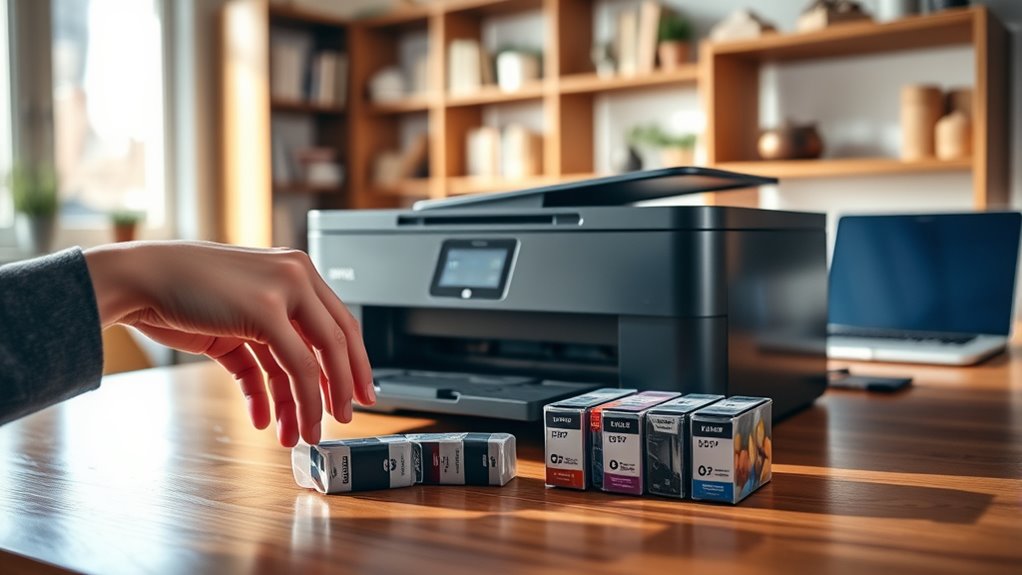
Most new printers come with starter ink or toner cartridges so you can start printing right away. However, these cartridges usually aren’t full sets, so you might run out sooner than expected.
Whether ink is included depends on the printer type. Inkjet printers typically come with starter ink, while laser printers usually include a starter toner cartridge.
Before buying, it’s a good idea to check the product details or packaging for mentions of “starter cartridges” or “included ink.” This way, you’ll know exactly what you’re getting and avoid any surprises.
Plus, knowing what’s inside the box helps you plan for future ink or toner costs.
In the next sections, you’ll find useful tips on managing your ink supply and keeping printing costs down.
Key Takeaways
- Most new inkjet printers come with starter ink cartridges or tanks. These help with the initial setup and testing of the printer.
- Keep in mind, starter ink is usually just a partial supply. So, don’t expect a full set or a lot of printing right away.
- Laser printers, on the other hand, typically include a starter toner cartridge instead of ink.
- Before you buy, check the product descriptions and packaging for phrases like “starter cartridges” or “included ink.”
- It’s also a good idea to verify the ink details on the manufacturer’s website or in the user manual. That way, you can be sure if ink or toner is included.
Understanding Printer Ink Packaging
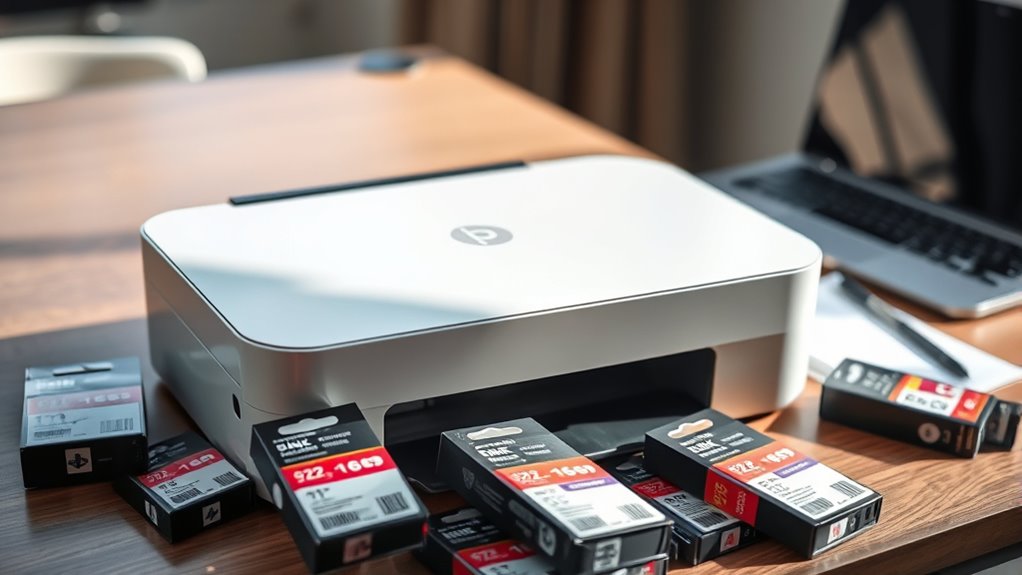
How do manufacturers package ink with new printers? They usually include starter ink cartridges or ink tanks with enough ink to set up and test the printer. You won’t get a full set of cartridges, but these starter inks are designed to help you print initial documents right away.
The ink is often sealed tightly to prevent drying out during shipping. When you unbox your printer, you’ll typically find the ink cartridges either pre-installed or packaged separately inside the box.
Some printers use individual cartridges for each color, while others come with combined cartridges. It’s important to check the packaging or product details before buying to understand exactly what ink is included, so you’re not caught off guard when you start printing.
Differences Between Inkjet and Laser Printers
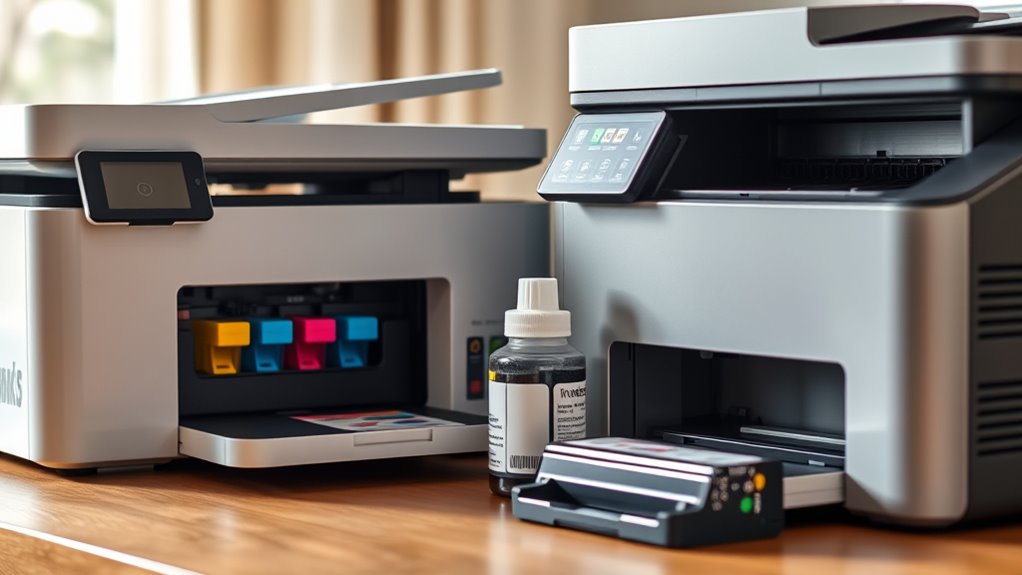
Although both inkjet and laser printers serve the same basic purpose of producing printed documents, they operate using very different technologies that affect their performance, costs, and ideal use cases.
You’ll find inkjets spray tiny droplets of ink, making them perfect for vibrant photos and color-heavy projects.
Laser printers use toner and a laser beam, offering faster printing and sharper text. They’re ideal for high-volume black-and-white documents.
| Feature | Inkjet Printer |
|---|---|
| Printing Technology | Ink droplets |
| Best For | Photos, color documents |
| Speed | Slower |
| Cost per Page | Higher |
| Feature | Laser Printer |
| Printing Technology | Toner & laser |
| Best For | Text-heavy, volume |
| Speed | Faster |
| Cost per Page | Lower |
How Ink Inclusion Varies by Brand and Model
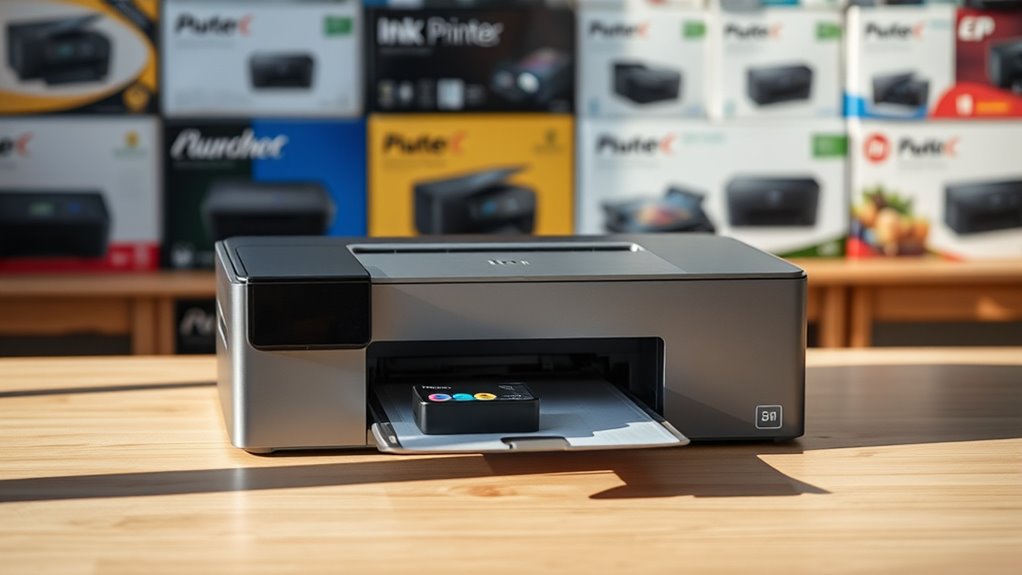
Since printer ink policies differ widely, you’ll want to check what each brand and model includes before purchasing. Some brands, like HP, often include starter cartridges with new inkjet printers, but these may contain less ink than standard cartridges.
Canon typically provides similar starter ink, while Epson sometimes bundles printers with cartridges that last longer. On the other hand, many laser printers come with a toner cartridge installed, but it might be a “starter” size, offering fewer pages.
Entry-level or budget models are less likely to include full ink sets, whereas higher-end or all-in-one printers often do. Knowing these variations can save you from unexpected costs.
Always keep in mind: what’s included varies not just by brand, but also by the specific printer model you choose. So, it’s a good idea to double-check before buying.
Checking the Printer Specifications Before Purchase
Before you buy a printer, you should carefully review its specifications to understand exactly what ink or toner comes included. Check the product description and packaging details to see if starter cartridges are part of the package.
Some models clearly state whether they include full, partial, or no ink at all. Don’t overlook the manufacturer’s website, where you can find detailed specs and sometimes user manuals that outline ink inclusion.
Look for terms like “starter cartridges,” “included ink,” or “sample toner.” Also, consider the cartridge yield mentioned—this tells you how many pages you can print before needing replacements.
What to Do If Your Printer Doesn’t Include Ink
Once you realize your new printer doesn’t include ink, you’ll need to act quickly to get it up and running. Start by identifying the exact ink cartridges compatible with your printer model. Avoid guessing, as using the wrong ink can damage your printer.
Next, decide whether to buy original manufacturer cartridges or reliable third-party options. You can purchase ink online or at local stores, but check prices and delivery times.
Finally, install the cartridges carefully following the printer’s manual. Make sure to handle everything gently to avoid any issues.
| Step | Action |
|---|---|
| 1. Identify Ink | Check printer model for cartridge type |
| 2. Choose Brand | Decide between OEM or third-party ink |
| 3. Purchase Ink | Buy from trusted retailers or websites |
| 4. Install Ink | Follow printer manual instructions |
| 5. Test Print | Print a test page to confirm functionality |
Tips for Buying Ink and Managing Printing Costs
Although ink cartridges can be costly, you can manage your printing expenses by making smart purchasing decisions and optimizing your printer’s usage.
First, consider buying ink in bulk or choosing high-yield cartridges to reduce cost per page.
Second, use compatible or remanufactured cartridges if your printer supports them—they’re often cheaper and eco-friendly.
Third, print only when necessary and use draft mode for less critical documents to save ink.
Fourth, regularly maintain your printer to avoid clogs and wasted ink.
By following these tips, you’ll keep your printing costs under control without sacrificing quality or convenience.
Frequently Asked Questions
Can I Use Third-Party Ink Cartridges With a New Printer?
Yes, you can use third-party ink cartridges with a new printer, but be aware they might void your warranty or cause print quality issues.
Always check your printer’s compatibility and reviews before buying them to avoid problems.
It’s a good idea to weigh the cost savings against potential risks. Sometimes, sticking to original cartridges means fewer headaches down the line.
How Long Does Unopened Printer Ink Last?
Like a telegram from the past, unopened printer ink usually lasts about two years if stored properly.
You’ll want to keep it cool and dry, so it doesn’t dry out or clog when you finally use it.
Storing it right makes all the difference, trust me. Just think of it as keeping a secret safe until you need it.
Are Refilled Ink Cartridges Safe for My Printer?
Yes, refilled ink cartridges can be safe if you buy from a reputable source. They might cause clogging or damage if they are poor quality.
It’s a good idea to check reviews and your printer’s warranty before using them. That way, you know what you’re getting into and can avoid surprises.
What Should I Do if the Printer Won’T Recognize New Ink?
If your printer won’t recognize new ink, you should remove and reinstall the cartridge. Give the contacts a good clean to make sure everything’s connecting properly.
Next, update your printer’s firmware. Sometimes, the software just needs to catch up with the new cartridge.
Also, double-check that the cartridge is compatible with your printer model. If you’re still having trouble, don’t hesitate to contact support. Or try another cartridge to see if that makes a difference.
Is It Better to Buy Ink Online or In-Store?
It’s better to buy ink online for convenience, variety, and often lower prices.
But if you need it immediately or want to avoid shipping issues, buying in-store works well. Just compare prices and check compatibility.
Conclusion
So, do new printers always come with ink? Not necessarily. Since ink inclusion varies by brand and model, it’s essential you check the specifications before buying to avoid surprises.
If your printer doesn’t include ink, don’t worry—you can easily purchase compatible cartridges. By staying informed and planning ahead, you’ll manage printing costs better and keep your printer running smoothly.
Remember, checking whether your printer comes with ink can save you time and money. Knowing what to expect helps you avoid last-minute trips to the store and ensures your new printer is ready to use right away. So, before you buy, make sure to confirm ink availability and explore cartridge options. That way, your next print job will be hassle-free and budget-friendly!