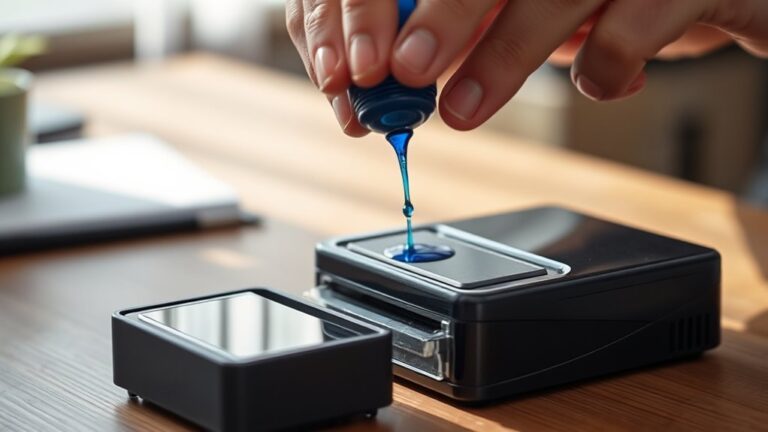


Do You Know If Your Ink Cartridge Is Empty?
You can tell your ink cartridge is empty when your prints start fading, streaking, or colors look washed out. These are clear signs that your printer is running low on ink and it’s time to check the cartridge.
Your printer might also display low ink alerts or warning lights signaling it’s time to replace the cartridge.
You can check ink levels through the printer’s control panel or software, making it easy to monitor from your computer.
Sometimes, giving the cartridge a little shake or looking for dryness can help you inspect it physically.
Understanding these signs and checks will help you keep your printer running smoothly and avoid any unexpected print issues.
Key Takeaways
- Faded, streaky prints or missing lines often indicate an empty or low ink cartridge.
- Printer alerts like “Low Ink” or blinking indicator lights signal cartridge depletion.
- Checking ink levels via the printer’s control panel or software shows cartridge status.
- Removing the cartridge to visually inspect ink or listen for liquid can confirm emptiness.
- Printer software and companion apps provide real-time ink level monitoring and notifications.
- So, keeping an eye on these signs helps you know when it’s time to replace your cartridge.
Signs That Indicate Low Ink Levels
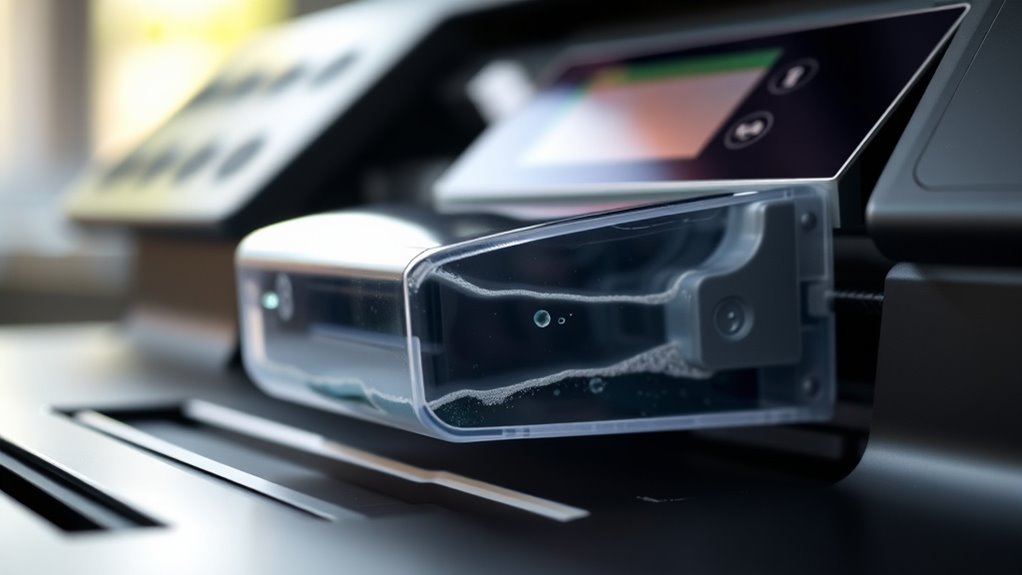
Although your printer might not always alert you immediately, there are clear signs that show your ink cartridge is running low. You’ll notice faded or streaky prints, where colors appear washed out or lines break unexpectedly.
Sometimes, your printer might start making unusual noises during printing, signaling it’s struggling to distribute ink properly. If you see missing sections or blank spots on your documents, it’s a strong indicator the cartridge is drying up.
Also, when your printer takes longer to print than usual, it might be compensating for low ink levels. Paying attention to these signs helps you replace the cartridge before your printer stops working altogether, ensuring your documents always come out crisp and clear.
How to Check Ink Levels on Your Printer

Noticing signs like faded prints or unusual noises is helpful, but you can get a more accurate idea of your ink levels by verifying them directly on your printer. Most modern printers have built-in displays or software that show ink status clearly.
Here’s how you can do it:
| Step | What to Do |
|---|---|
| 1. Turn on your printer | Ensure it’s connected and powered up. |
| 2. Access the printer menu | Use the control panel or touchscreen. |
| 3. Find the ink or status option | Navigate to ink levels or maintenance. |
| 4. View ink levels | Check the display or printer software. |
If your printer connects to a computer, you can also check ink levels through its companion app or printer settings on your device. It’s a handy way to keep an eye on ink without even getting up from your desk.
Understanding Printer Alerts and Messages
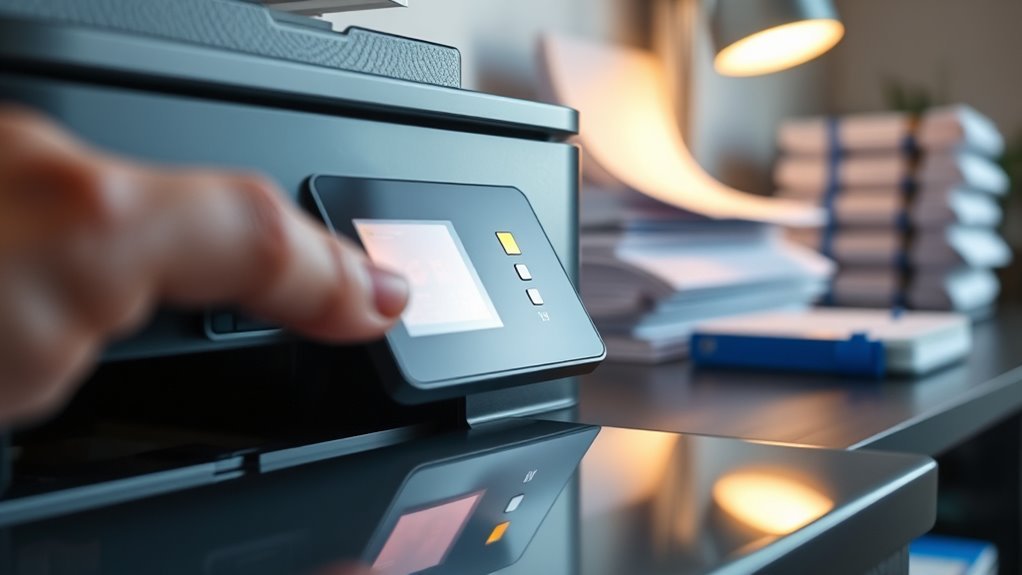
You’ll often see printer alerts that let you know when your ink cartridge is running low or empty. Understanding what these messages mean helps you avoid unexpected print stops.
Let’s look at some common alerts and how to interpret them. It’s easier than you might think!
Common Printer Alerts
How can you tell when your printer needs attention? Common printer alerts help by flashing messages or icons on your screen or printer display. For example, you might see “Low Ink” or “Ink Cartridge Empty” warnings.
Sometimes, the printer blinks a light or stops printing altogether. You could also get alerts about paper jams, connectivity issues, or outdated drivers.
These alerts are designed to prevent printing errors and guarantee quality. Pay close attention to any pop-ups or indicator lights—they guide you on what needs fixing.
Deciphering Ink Messages
Wondering what those blinking lights or pop-up messages really mean? Your printer uses these signals to communicate ink cartridge status clearly.
Learning to decipher them helps you avoid unexpected print failures.
Here’s a quick guide:
| Signal Type | Meaning | Action Needed |
|---|---|---|
| Blinking Orange | Low ink warning | Prepare to replace ink |
| Solid Red Light | Cartridge empty/error | Replace or reinstall |
| Pop-Up Message | Ink cartridge not detected | Check installation or replace |
When you see a blinking orange light, it’s time to get a new cartridge ready.
A solid red light means immediate replacement is necessary.
If a pop-up says the cartridge isn’t detected, try reseating it before buying new ink.
Understanding these messages keeps your printing smooth and hassle-free.
Physical Inspection of the Ink Cartridge
Although modern printers often provide digital alerts, performing a physical inspection of your ink cartridge can quickly reveal signs of emptiness. You don’t need special tools—just your eyes and hands.
A simple hands-on check can quickly tell if your ink cartridge is empty, no tools needed.
Here’s how to check:
- Remove the cartridge carefully and look for ink levels through any visible windows. If it looks unusually light or dry, it’s likely empty.
- Gently shake the cartridge; if you don’t hear any liquid sloshing inside, the ink may be depleted.
- Inspect the cartridge’s print head for dryness or clogged nozzles, which can indicate low or no ink.
Using Printer Software to Monitor Ink
You can easily check your ink levels using the printer’s software, which gives you real-time updates. The software often sends alerts or notifications when your ink is running low, so you won’t be caught off guard.
Make sure to enable these features to stay on top of your cartridge status. It’s super handy and helps you avoid those annoying last-minute runs to buy ink. Just keep an eye on those alerts, and you’ll be all set!
Checking Ink Levels
How can you easily keep track of your ink levels without guessing? Checking ink levels using your printer software is straightforward and reliable.
Instead of relying on print quality as a clue, you can view exact ink status anytime. Here’s how to do it:
- Open your printer’s software on your computer or mobile device.
- Navigate to the ink or maintenance section where ink levels are displayed graphically.
- Review the ink status bars or percentage indicators for each cartridge to see how much ink remains.
Software Alerts and Notifications
While keeping an eye on ink levels manually works, printer software can send you timely alerts and notifications to prevent unexpected cartridge emptiness. When you install your printer’s software, it often includes tools that monitor ink usage in real-time. These tools notify you when ink is running low, giving you enough time to buy replacements.
You can customize notifications to appear on your computer or mobile device, ensuring you never miss an alert. Some printers even suggest ordering cartridges directly through the software. By relying on these alerts, you avoid last-minute printing interruptions.
Make sure to keep your printer software updated to benefit from the latest features and accurate ink monitoring. This proactive approach helps you maintain smooth printing without surprises. It’s a smart way to keep your printing hassle-free!
Tips to Extend the Life of Your Ink Cartridge
Although ink cartridges may seem straightforward, taking a few simple steps can substantially extend their lifespan. You don’t have to replace your cartridge as often if you follow these tips:
- Print Regularly: Avoid letting ink dry out by printing a page weekly. This keeps the ink flowing and prevents clogs. It’s a quick habit that really pays off.
- Use Draft Mode: For everyday documents, switch to draft or economy mode to use less ink without sacrificing basic readability. It’s an easy way to save ink without much effort.
- Store Properly: Keep spare cartridges sealed and stored in a cool, dry place to maintain ink quality. This helps the ink stay fresh until you need it.
Frequently Asked Questions
Can Expired Ink Cartridges Harm My Printer?
Yes, expired ink cartridges can harm your printer. They might clog the printhead or cause poor print quality.
It’s a good idea to replace old cartridges promptly. This helps avoid damage and keeps your printer running smoothly.
Is It Safe to Refill Empty Ink Cartridges?
Yes, you can safely refill empty ink cartridges if you use quality ink and follow instructions carefully. Avoid low-quality refills to prevent clogs or damage.
Regular maintenance keeps your printer running smoothly after refills. It’s pretty simple once you get the hang of it! Just take your time and make sure everything is clean and properly handled.
How Long Do Ink Cartridges Typically Last Unopened?
You’ll find unopened ink cartridges usually last around 2 years if stored properly. Keep them sealed and away from heat or sunlight to maintain ink quality.
After that, the ink may start to dry out or degrade. So, it’s a good idea to use them within that timeframe to get the best results.
Do Third-Party Ink Cartridges Show Accurate Ink Levels?
Third-party ink cartridges often don’t show accurate ink levels because their sensors may not communicate properly with your printer.
You’ll likely need to monitor usage manually or replace cartridges when print quality drops.
It’s a bit of a hassle, but keeping an eye on your prints can help you avoid running out unexpectedly.
Can Low Ink Cause Printer Hardware Damage?
Low ink can sneakily harm your printer’s heart. When ink runs dry, the printhead may overheat or clog, causing damage.
Conclusion
Now that you know the signs of low ink and how to check your cartridge, you’ll never be caught off guard. Remember, “a stitch in time saves nine”—catching low ink early prevents printing headaches later.
Keep an eye on your printer alerts, inspect cartridges regularly, and use software tools to monitor ink levels. These simple habits make a big difference.
By staying proactive about your ink cartridge, you can extend its life and avoid unexpected print issues. Regularly checking ink levels ensures your prints stay sharp and vibrant every time. So, always keep an eye on your ink cartridge status and don’t wait until it’s completely empty to replace it. This way, your printer will run smoothly, and you’ll enjoy hassle-free printing whenever you need it.