


How to Check If an Ink Cartridge Is Empty Step by Step
To check if your ink cartridge is empty, start by opening your printer’s software to view ink levels or check the control panel for cartridge status. This quick step helps you get an idea of how much ink is left without hassle.
You can also print a test page to spot fading or missing colors. It’s a simple way to see if your prints are affected by low ink levels.
Next, physically inspect the cartridge by removing it and looking for ink through any transparent parts. If you notice streaks or dull colors on your prints, the cartridge likely needs replacing.
Keep going to discover more ways to handle ink issues efficiently and keep your printer running smoothly.
Key Takeaways
- Open the printer software on your computer and check the ink levels or cartridge status for visual ink indicators.
- Turn off the printer, remove the cartridge, and inspect it physically. Look for visible ink or any liquid movement inside the cartridge.
- Print a test page or a diagnostic report. If you see faded or missing colors, that usually means the ink is running low or the cartridge is empty.
- Use the printer’s control panel menu to find “Ink Levels” or “Cartridge Status.” This will show you the ink indicators right on the screen.
- Keep an eye on your print quality too. Faded colors, streaks, or uneven ink density are good clues that the cartridge might be empty.
Check Ink Levels Using Printer Software
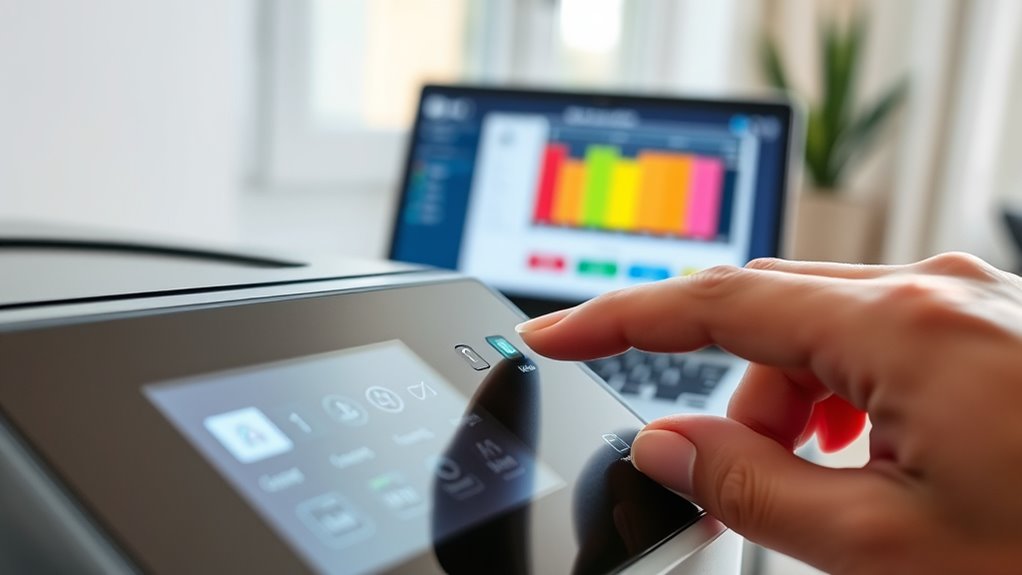
Although you can check ink levels directly on some printers, using the printer software on your computer is often the quickest way to see how much ink remains. Open the printer management program installed with your device drivers.
Look for options like “Ink Levels,” “Maintenance,” or “Printer Status.” These sections usually display a visual gauge or percentage indicating the remaining ink for each cartridge.
Check “Ink Levels,” “Maintenance,” or “Printer Status” for a visual gauge of your cartridge ink remaining.
If you don’t see this feature, check your printer manufacturer’s website for specific software or apps that provide ink monitoring. Keep in mind that the accuracy may vary slightly, but it’s a reliable first step to avoid unexpected print interruptions.
This method helps you plan replacements before the ink runs out completely.
Inspect the Ink Cartridge Physically

If the printer software doesn’t give you a clear answer, you can check the ink cartridge yourself. First, turn off the printer and unplug it. Open the printer cover to access the cartridges.
Carefully remove the cartridge you want to inspect. Hold it up to a light source and look for any visible ink inside the transparent window or plastic casing. If the cartridge is opaque, gently shake it.
If it feels very light or you hear no liquid moving inside, it might be empty. Also, check the cartridge’s nozzles for dried ink or clogs, which can affect printing quality even if ink remains.
After inspection, reinstall the cartridge securely and close the printer cover before turning the device back on. Easy, right? Just take your time, and you’ll know exactly what’s going on inside that cartridge.
Print a Test Page or Diagnostic Report
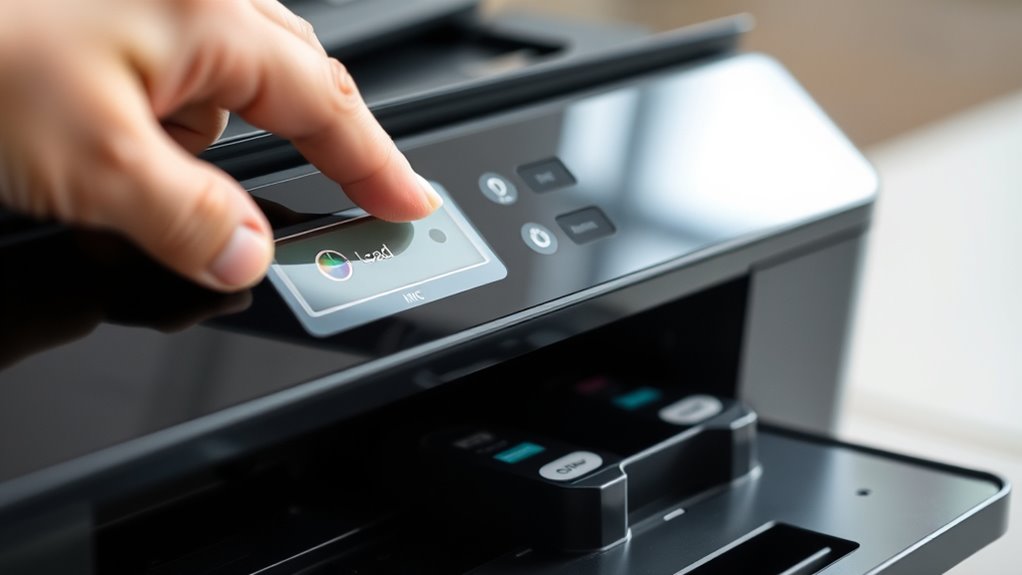
When you want a clear indication of your cartridge’s status, printing a test page or diagnostic report helps you quickly identify any ink issues.
Start by accessing your printer’s settings on your computer or through its software. Look for options labeled “Print Test Page” or “Print Diagnostic Report.” Once you select this, the printer will produce a page showcasing color blocks, lines, and patterns.
Begin in your printer’s settings, find “Print Test Page” or “Print Diagnostic Report” to check cartridge status visually.
Examine this printout carefully—faded colors or missing sections often signal low or empty ink cartridges. If the test page looks complete and vibrant, your ink levels are likely fine.
This method gives you a direct, visual way to assess cartridge health without guesswork, so you can decide if replacing the cartridge is necessary or if maintenance is needed.
Use the Printer Control Panel Display
You can check your ink levels directly on your printer’s control panel display by browsing through the menu options. Look for the ink or toner status indicator to see if any cartridges are running low or empty.
This quick step helps you avoid printing interruptions without needing a test page. It’s super handy and saves you time!
Navigate Printer Menu
How do you quickly find the ink status on your printer? Start by turning on your printer and locating the control panel display. Use the arrow keys or touchscreen to access the main menu.
Look for options labeled “Ink,” “Maintenance,” or “Tools.” Once you select the appropriate menu, browse to “Ink Levels” or “Cartridge Status.” If your printer has a touchscreen, simply tap through the menus to find this option.
For models with buttons, use the directional arrows and OK button to make selections. Follow on-screen prompts carefully to avoid accidentally changing settings.
Interpret Ink Level Indicators
Although printer displays vary, most use simple icons or bars to show ink levels, letting you quickly gauge cartridge status at a glance. When you access the ink level menu, look for color-coded bars or droplet icons representing each cartridge.
Full bars mean the cartridge is fine, while empty or near-empty bars indicate you’ll need a replacement soon. Some printers display percentages, giving you an exact idea of remaining ink.
If the icon blinks or changes color, it usually signals a critically low or empty cartridge. By interpreting these indicators correctly, you can avoid print quality issues and prevent running out of ink mid-task.
Monitor Print Quality for Signs of Low Ink
Keep an eye on your prints for fading colors or areas where text is missing. You’ll also want to check if the ink density varies noticeably across the page.
These signs usually indicate your cartridge is running low on ink. It’s a good idea to catch this early so you can replace the cartridge before print quality really drops.
Examine Print Color Fading
When your printed documents start showing faded colors or uneven tones, it often means the ink cartridge is running low. Pay close attention to colors like red, blue, and yellow as they tend to fade first.
This fading impacts the overall print quality and signals you should check your cartridge soon. Use the table below to compare common fading signs:
| Color | Normal Print | Faded Print |
|---|---|---|
| Red | Vibrant and solid | Pale or washed out |
| Blue | Deep and consistent | Light or patchy |
| Yellow | Bright and even | Dull or barely visible |
Identify Missing Text Areas
How can you tell if your ink cartridge is nearly empty just by looking at your prints? One clear sign is missing text areas on your documents. When ink runs low, certain letters or parts of words might appear faint or completely absent.
You might notice gaps within characters or lines that don’t print at all. This usually happens because the printer can’t distribute ink evenly across the page. Pay close attention to repeated missing spots, especially in black text or specific colors.
If you consistently see these blank patches in your prints, it’s a strong indicator your cartridge needs replacing or refilling. Catching these missing text areas early helps prevent wasted paper and ensures your prints stay professional and readable.
Check Ink Density Variation
Why does your print suddenly look dull or uneven? It’s often a clear sign your ink cartridge is running low. When ink levels drop, the printer can’t deliver consistent ink flow, causing variations in ink density on the paper.
To check this, print a test page or a color density chart. Examine the output closely—faded areas or streaks indicate insufficient ink. If you notice these variations, it’s time to replace or refill your cartridge.
Regularly monitoring print quality helps you catch low ink levels early, avoiding poor prints and potential damage to your printer. So, keep an eye on ink density to ensure sharp, vibrant prints every time.
Replace or Refill the Cartridge When Necessary
Since your print quality declines or the cartridge signals low ink, you’ll need to decide whether to replace or refill it. If you choose to replace, simply remove the old cartridge and insert a new, compatible one. Replacement guarantees consistent print quality and avoids potential damage from leaks.
Alternatively, refilling the cartridge can save money and reduce waste. You can refill it yourself using a kit or take it to a professional service. Just keep in mind that refilled cartridges might not last as long and could cause clogs.
Always weigh the cost, convenience, and quality before deciding. Whichever option you pick, make sure to handle cartridges carefully to avoid spills and maintain your printer’s performance.
Frequently Asked Questions
Can Ink Cartridges Expire if Unused for a Long Time?
Yes, ink cartridges can expire if unused for a long time. The ink may dry out or clog, which can reduce print quality.
It’s a good idea to check expiration dates on your cartridges. Also, storing them properly can help make sure they last longer.
How Do Third-Party Cartridges Affect Ink Level Detection?
Third-party cartridges can confuse your printer’s ink level detection since they may lack compatible chips or sensors. You might not get accurate readings, so it’s best to monitor ink manually to avoid unexpected print stops.
It’s a bit like flying blind—you won’t always know when you’re running low until it’s too late. Keeping an eye on print quality and having backup cartridges ready can save you from those annoying mid-print surprises.
Is It Safe to Mix Different Brands of Ink Cartridges?
Mixing different brands of ink cartridges isn’t like juggling quills in the Renaissance—it can be risky. You might face print quality issues or printer errors, so it’s best to stick with one brand for smooth, reliable printing.
It’s kind of like mixing different types of fuel in a car; it might run, but you probably won’t get the best performance. So, to keep things simple and hassle-free, using cartridges from the same brand is usually the way to go.
What Should I Do if My Printer Won’T Recognize a New Cartridge?
If your printer won’t recognize a new cartridge, you should remove and reinstall it. Give the contacts a gentle clean to make sure they’re making a good connection.
Next, try restarting the printer. Sometimes, a quick reboot can do the trick.
Also, check if your printer’s firmware is up to date. An outdated system might not recognize newer cartridges.
Finally, double-check that the cartridge is compatible with your printer model. Using the wrong cartridge can cause recognition issues.
Can Low Ink Levels Damage My Printer Hardware?
No, low ink levels won’t damage your printer hardware directly. But if you keep printing when it’s empty, you risk clogging printheads or overheating.
Conclusion
Now that you know how to check if your ink cartridge is empty, you can stay one step ahead of any printing hiccups. Whether you use software, physical inspection, or print tests, don’t let your printer run on fumes.
Catching low ink early means you won’t be left high and dry when you need to print the most. Keep your cartridges in check, and your printing will flow as smooth as silk every time.
By regularly checking your ink levels, you avoid the frustration of unexpected empty cartridges. Remember, a quick ink cartridge check can save you time and ensure your printer always performs at its best. So, keep an eye on your ink cartridge status and enjoy hassle-free printing every day!