

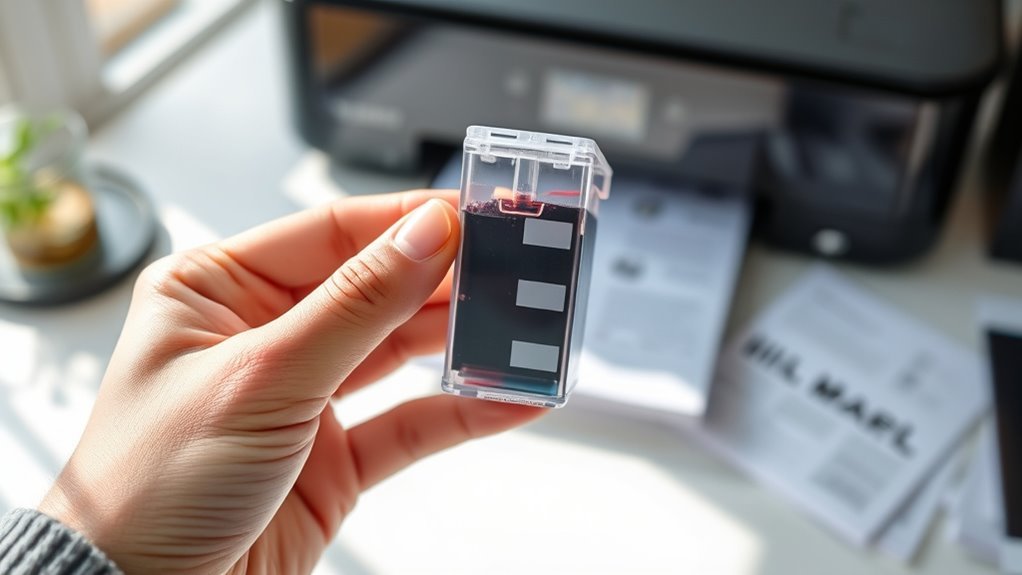
How to Tell if an Ink Cartridge Is Empty Step by Step
You can tell if your ink cartridge is empty by first checking your printer’s display panel for low ink alerts or warnings. This is usually the quickest way to know if you’re running out of ink.
Next, use the printer software on your computer to see detailed ink levels, which gives you a clearer picture of exactly how much ink remains.
Try printing a test page to spot missing colors or streaks. This helps confirm if the cartridge is empty or just clogged.
You can also carefully remove the cartridge to visually inspect the ink amount if you feel comfortable doing so.
Listen for any warning messages or blinking lights as these often indicate ink problems.
If you want to make certain of accuracy and avoid printing issues, there’s more to explore about printer behavior when ink runs low. Understanding these signs can save you time and help keep your prints looking great!
Key Takeaways
- Check the printer’s display panel for ink level indicators or low ink warnings specific to each cartridge color. It’s a quick way to see what’s going on without opening anything.
- Use the printer’s software on your computer to view detailed ink levels and receive low ink notifications. This gives you a more precise idea of how much ink you have left.
- Print a test page or nozzle check to identify missing colors, streaks, or faded prints indicating low or empty ink. If the print looks off, it’s probably time to replace the cartridge.
- Remove and visually inspect the cartridge for transparent reservoirs, dried ink, or leaks to assess ink availability. Sometimes, a closer look can tell you more than the indicators.
- Pay attention to printer alerts, warning sounds, or blinking lights signaling low or empty ink cartridges. These warnings are there to help you avoid running out of ink unexpectedly.
Check the Printer’s Display Panel
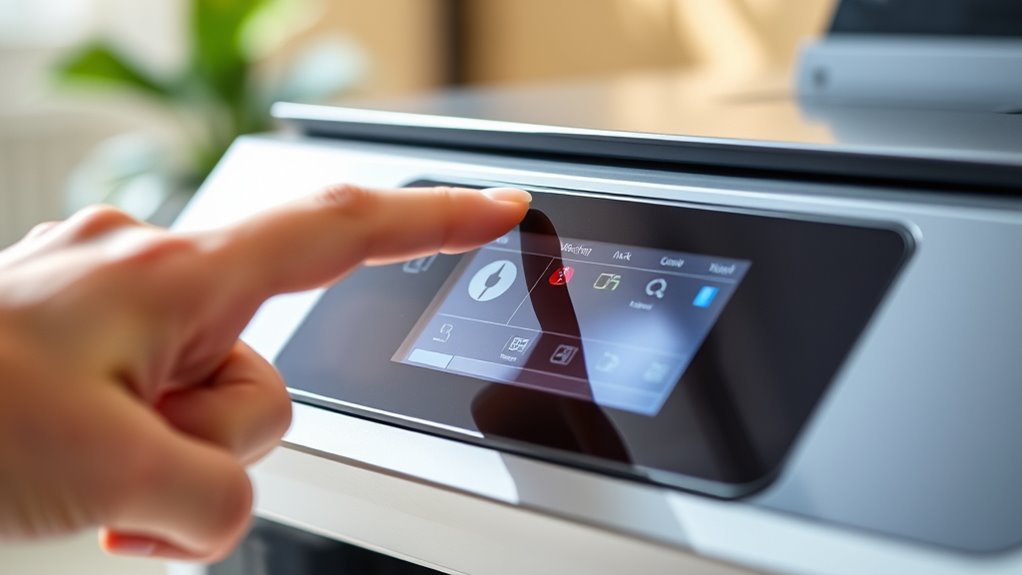
Before you check the ink cartridge physically, take a look at your printer’s display panel. Most modern printers show ink levels or alert you when a cartridge is running low or empty.
You’ll often see icons or messages indicating which color is depleted. If your printer has a touchscreen, navigate through the menu to find ink status or maintenance options.
This quick check saves you time and prevents unnecessary cartridge replacements. Sometimes, the display will also warn you if a cartridge isn’t installed properly or if it’s incompatible.
Use Printer Software to Monitor Ink Levels
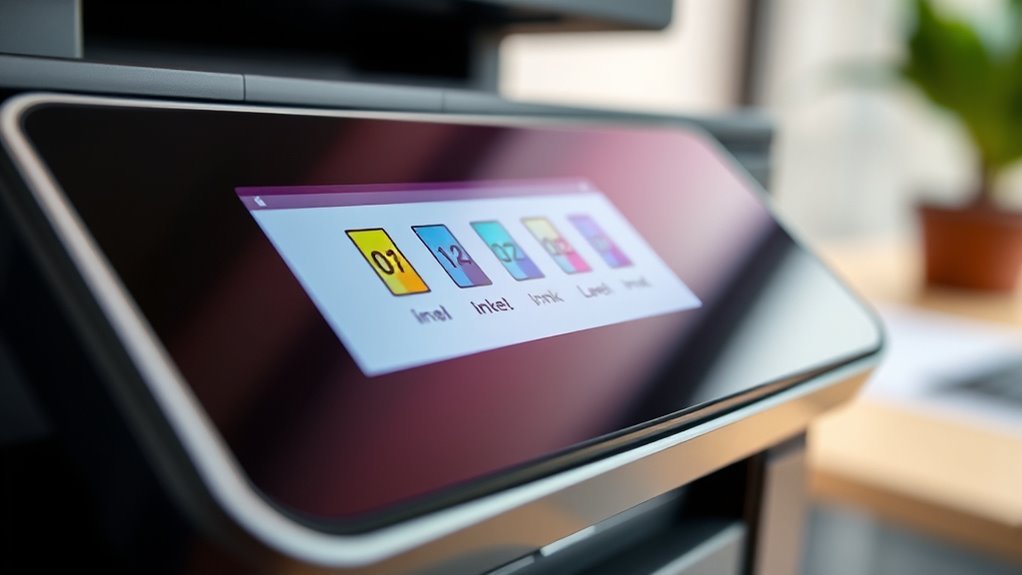
Although checking the printer’s display is helpful, you can get more detailed ink level information by using the printer software installed on your computer. Open the software that came with your printer—usually found in your computer’s programs list or system tray.
Once opened, navigate to the ink or maintenance section where you’ll see precise ink levels for each cartridge. This software often provides notifications before cartridges run out, helping you avoid unexpected interruptions.
If you don’t see the software, download the latest version from your printer manufacturer’s website. Using this tool regularly guarantees you stay informed about your ink supply and can plan replacements ahead of time, saving you from running out during important print jobs.
Print a Test Page or Nozzle Check

How can you quickly determine if your ink cartridge is empty or clogged? Printing a test page or nozzle check is a simple way to find out. This method helps you see if ink flows properly and if colors print correctly.
Printing a test page quickly reveals if your ink cartridge is empty or clogged by showing ink flow and color clarity.
Most printers have a built-in function for this, accessible through the printer’s control panel or software on your computer.
Here’s how to do it:
- Access your printer’s menu or software and select “Print Test Page” or “Nozzle Check.”
- Observe the printed page for missing lines, streaks, or faded colors.
If the print is incomplete or patchy, the cartridge might be empty or clogged. Try running the test again after cleaning the printhead to confirm the cartridge’s condition.
This step gives you a clear visual indicator of your ink cartridge status. It’s a quick and easy way to troubleshoot your printer problems.
Physically Inspect the Ink Cartridge
If you want to confirm whether your ink cartridge is empty, physically inspecting it can provide valuable clues. First, remove the cartridge carefully from your printer. Look for any visible signs like dried ink, leaks, or a very light or transparent ink reservoir.
Some cartridges have a small window or gauge to show ink levels. If you see the cartridge is nearly clear, it’s likely empty. Be gentle when handling it to avoid damage.
| Observation | Emotion Felt | Action to Take |
|---|---|---|
| Cartridge dry | Frustration | Replace immediately |
| Ink window clear | Disappointment | Prepare a new cartridge |
| Ink leaks | Concern | Clean and check printer |
Listen for Printer Warning Messages
After you’ve checked your ink cartridge visually, pay attention to your printer’s warning messages. These alerts can quickly tell you if your ink is running low or completely empty.
Your printer might display notifications on its screen or send pop-ups to your computer. Listening carefully to these messages helps you avoid unexpected print failures.
Here’s what to watch for:
- Low ink warnings prompting you to prepare a replacement cartridge
- Error messages indicating the cartridge is empty
- Alerts suggesting a cartridge needs to be replaced or reinstalled
- Notifications about print quality issues related to ink levels
Understand Printer Behavior When Ink Is Low or Empty
You’ll often see alerts or messages on your printer when ink runs low or is empty. Print quality might fade or show streaks as the cartridge nears its end.
Keep an eye on cartridge status indicators to know exactly when it’s time for a replacement. That way, you won’t be caught off guard by a blank page when you need to print something important.
Printer Alerts and Messages
While your printer might keep running for a short time when ink levels drop, it usually provides clear alerts or messages to warn you. These notifications help you avoid unexpected print failures by prompting timely cartridge replacements.
You’ll often see messages on the printer’s display panel or your computer screen. Common alerts include:
- Low ink warnings indicating you should prepare a replacement cartridge.
- “Ink cartridge empty” messages that stop printing until you replace the cartridge.
- Blinking lights or icons on the printer signaling ink issues.
- Pop-up notifications on your computer with guidance on next steps.
Pay close attention to these alerts—they’re designed to keep your printing smooth and prevent damage to your printer caused by running completely out of ink. It’s better to act early than to risk problems later!
Print Quality Changes
Printer alerts are helpful, but sometimes the first sign of a low or empty ink cartridge shows up in your printouts. You might notice faded colors, streaks, or missing sections on the page.
Text may appear lighter or blurry, and images can lose sharpness or detail. These print quality changes happen because the printer struggles to apply enough ink when cartridges run low.
If you see these issues, it’s a clear indication the cartridge needs replacing or refilling soon. Ignoring poor print quality can lead to frustrating results and potentially damage your printer’s printhead.
Cartridge Status Indicators
Although print quality changes offer visible clues, your device often provides more direct information about ink levels through cartridge status indicators. These indicators give you real-time updates, helping you avoid unexpected print interruptions.
You can usually find this information on your printer’s control panel or through its software interface. Paying attention to these signs guarantees you replace cartridges promptly.
Look for these common cartridge status indicators:
- Blinking or solid warning lights on the printer display
- On-screen ink level meters or percentage readouts
- Pop-up notifications on your computer or mobile device
- Error messages stating “Low Ink” or “Replace Cartridge”
Frequently Asked Questions
Can Expired Ink Cartridges Damage My Printer?
Yes, expired ink cartridges can damage your printer by clogging nozzles or causing poor print quality.
You should replace them promptly to avoid potential hardware issues and guarantee your printer works smoothly and efficiently.
How Should I Store Unused Ink Cartridges?
To store unused ink cartridges, keep them sealed in their original packaging, away from direct sunlight and extreme temperatures. Don’t toss them in the deep end; instead, place them in a cool, dry spot to maintain quality.
It’s pretty simple, really. Just think of it like keeping your food fresh—no heat, no moisture, and no crazy light. That way, your cartridges will stay in good shape until you need them.
Are Third-Party Cartridges Compatible With My Printer Model?
You can often use third-party cartridges with your printer, but compatibility varies by brand and model. Check your printer’s manual or manufacturer’s website to confirm.
Sometimes, third-party cartridges cause issues or void warranties. So, it’s a good idea to weigh the pros and cons before you decide.
What Is the Typical Lifespan of an Ink Cartridge?
You’ll usually get about 200 to 400 pages per ink cartridge, depending on your printer and usage.
Keep in mind, heavy photo printing drains ink faster, so your cartridge lifespan varies with what you print.
Can Refilled Cartridges Cause Printing Issues?
Yes, refilled cartridges can cause printing issues like streaks, smudges, or poor color quality. You might also face clogging or compatibility problems.
Conclusion
Checking cartridges carefully can save you stress and stop sudden stoppages. By blending basic button checks, software scans, and simple inspections, you’ll swiftly spot signs of sinking ink.
Listening for loud warnings and learning your printer’s peculiar patterns helps prevent printing problems. Staying savvy and spotting shortages sooner supports smooth, seamless printing.
So, take these steps seriously, stay sharp, and keep your cartridges full. Regularly checking if an ink cartridge is empty ensures flawless, frustration-free finishes every time. This way, you avoid unexpected interruptions and keep your printing running smoothly.