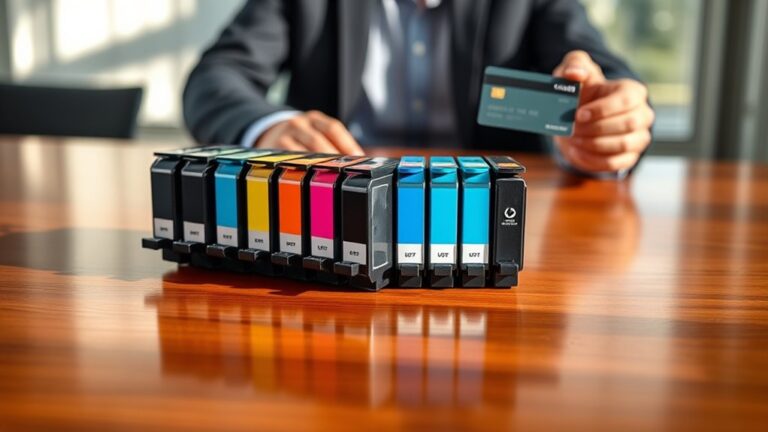

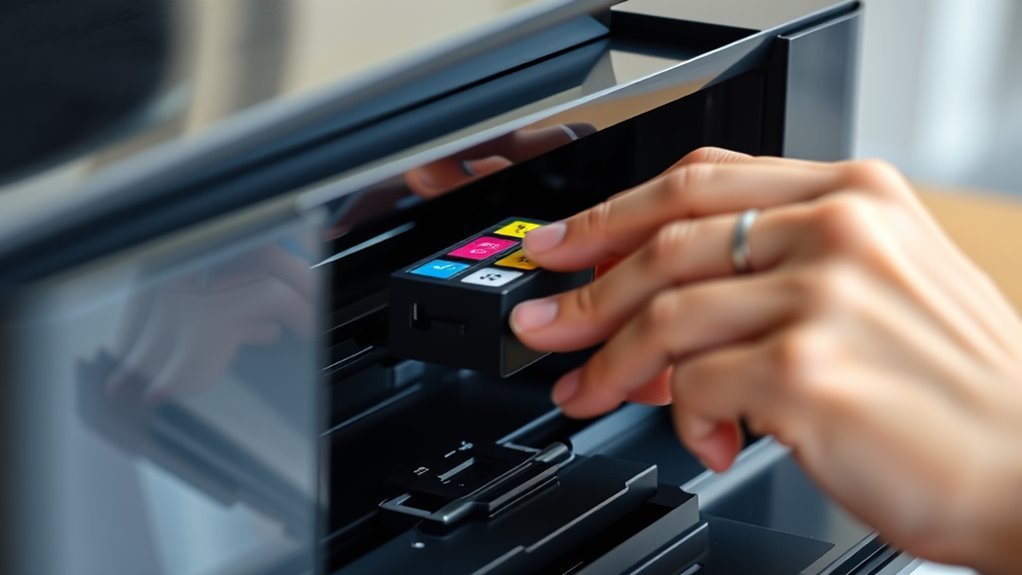
How Do You Reset an Ink Cartridge in 3 Easy Steps
To reset an ink cartridge in three easy steps, first identify your printer model and cartridge type. This is important to guarantee you use the right reset method. Knowing this upfront saves you time and hassle later on.
Next, turn on your printer and open the cartridge access door. Carefully remove the cartridge. If your cartridge has a reset button, press it or use a reset tool if needed before reinserting the cartridge firmly.
Finally, print a test page to confirm the cartridge has reset correctly. Make sure no error messages appear. Keep going, and you’ll discover detailed tips to ensure smooth printer performance every time.
Key Takeaways
- Turn on the printer and open the cartridge access door to remove the cartridge needing a reset.
- Press and hold the “Resume” or “Cancel” button for a few seconds to initiate the reset process.
- Use a cartridge reset tool or press the cartridge chip if your model requires it for the reset.
- Reinsert the cartridge until it clicks securely and then close the cartridge access door.
- Print a test page to confirm the printer recognizes the cartridge as full and reset successfully.
Identify Your Printer Model and Cartridge Type
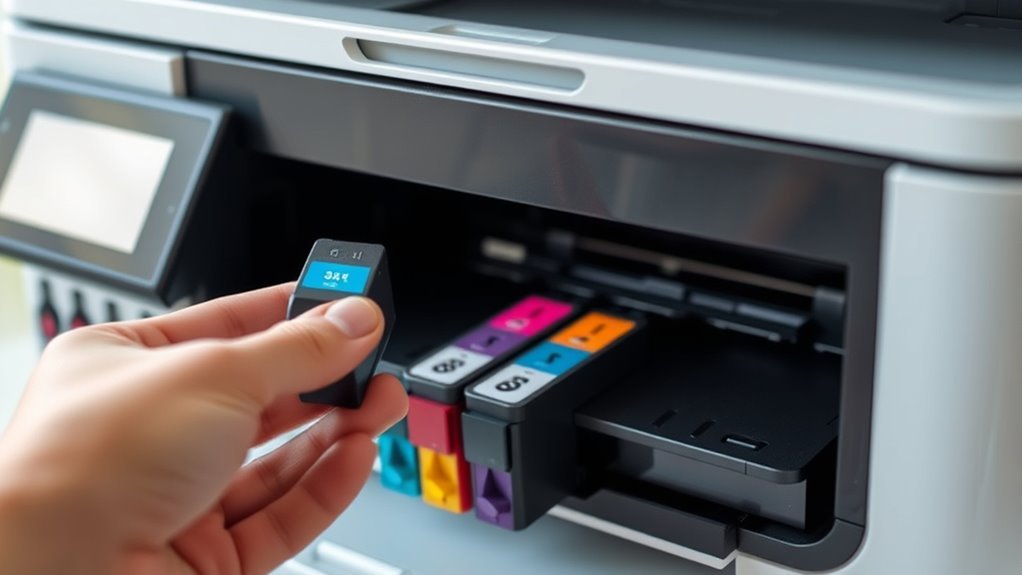
Before you reset your ink cartridge, you need to identify your printer model and cartridge type. Start by locating your printer’s model number, usually found on the front, top, or inside the printer door. This info is essential because reset methods differ between models.
Next, check the cartridge itself for a code or number printed on its label—this tells you the cartridge type. If you’re unsure, consult your printer’s manual or visit the manufacturer’s website for details. Knowing the exact model and cartridge guarantees you follow the correct reset procedure, preventing errors or damage.
Taking these steps upfront saves time and frustration later when you move on to resetting your ink cartridge effectively. It’s a simple step that makes the whole process smoother. So, don’t skip it!
Perform the Cartridge Reset Procedure
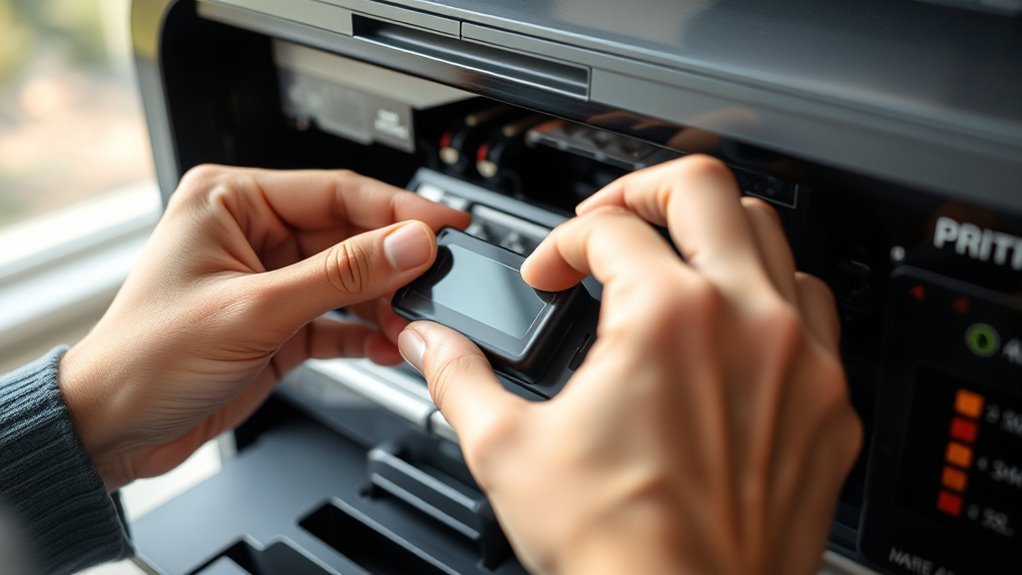
Once you know your printer model and cartridge type, you can start the reset process by turning on your printer and opening the cartridge access door. Carefully remove the ink cartridge that needs resetting.
Some printers require you to press a specific button, like the “Resume” or “Cancel” button, for a few seconds to begin the reset. Other models might need you to press and hold the cartridge’s chip or use a cartridge reset tool.
Resetting may involve holding the “Resume” or “Cancel” button, pressing the cartridge chip, or using a reset tool.
Follow your printer’s manual for exact steps, as procedures vary. After initiating the reset, reinsert the cartridge firmly into its slot until it clicks.
Close the cartridge access door gently. This process clears the cartridge’s error status and prepares it for fresh use, extending its life without immediate replacement.
Test Your Printer After Resetting
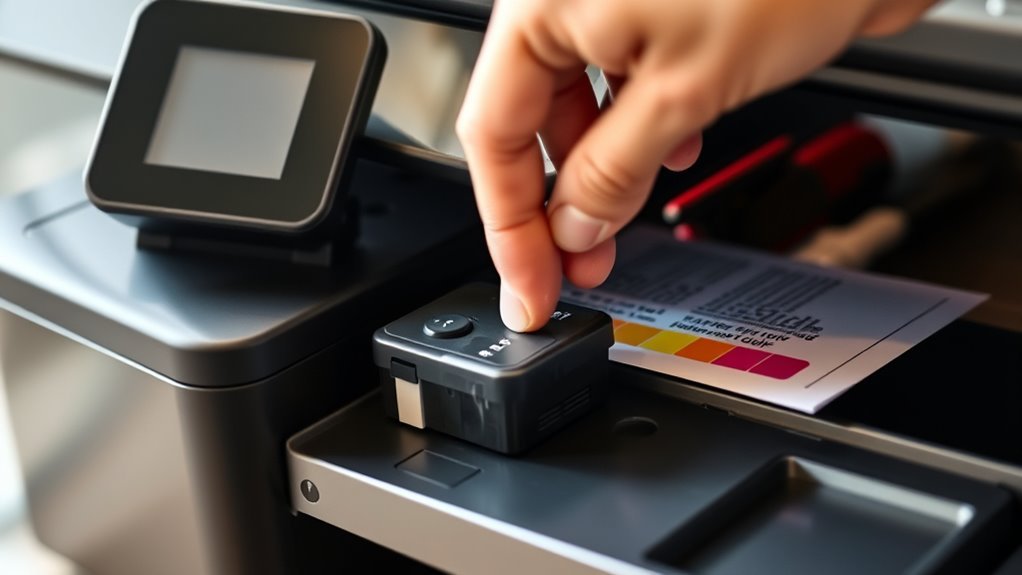
How do you know if the ink cartridge reset worked? The best way is to print a test page. Start by turning on your printer and accessing the control panel or printer software on your computer.
Select the option to print a test page or nozzle check pattern. If the cartridge reset was successful, your printer should recognize the cartridge as full or new.
The test print will display clear, consistent colors or black ink without error messages. If you still see low ink warnings or poor print quality, try repeating the reset process or clean the print heads.
Testing immediately after resetting helps guarantee your printer is ready for use and avoids interruptions in your printing tasks. It’s a quick step that saves you headaches later!
Frequently Asked Questions
Can Resetting an Ink Cartridge Extend Its Lifespan?
Yes, resetting an ink cartridge can extend its lifespan by allowing you to use remaining ink before the printer flags it as empty.
Just make sure you handle it carefully to avoid damaging the cartridge. It’s a handy trick if you want to get the most out of your ink!
Will Resetting Affect Print Quality or Colors?
You might see faded colors, blurry lines, or uneven prints after resetting. While it can temporarily fix issues, it often reduces print quality.
Are There Risks of Damaging the Printer by Resetting Cartridges?
You won’t usually damage your printer by resetting cartridges, but improper handling or using incompatible cartridges might cause issues.
Always follow manufacturer instructions carefully to avoid potential risks and maintain your printer’s performance.
It’s a good idea to be gentle and double-check that the cartridges you’re using are the right ones for your model. That way, you keep everything running smoothly without any surprises.
How Often Should You Reset an Ink Cartridge?
You should reset your ink cartridge like you’d recharge your phone—only when it’s low or error messages pop up.
Don’t overdo it; frequent resets can confuse your printer and reduce cartridge lifespan.
Can Third-Party Ink Cartridges Be Reset Like Original Ones?
Yes, you can reset third-party ink cartridges, but it depends on the brand and model. Some have built-in chips that allow resetting, while others might require manual methods or specific reset tools.
Conclusion
Now that you’ve reset your ink cartridge, it’s like giving your printer a fresh start—kind of like pressing the reset button on a game just as the ink runs low. You’ve identified your model, performed the reset, and tested it, all in a smooth flow.
Just as the colors realign on the page, your printer’s ready to bring your ideas to life again. See? A simple reset can make a world of difference.
Resetting an ink cartridge not only saves you money but also extends the life of your printer. It’s a quick and easy fix that keeps your printing smooth and hassle-free. So next time your ink runs low, remember these simple steps to reset your cartridge and get back to printing without delay.