
How to Tell If an Ink Cartridge Is Empty
You can tell if your ink cartridge is empty by checking ink levels through your printer’s software or display. These often show warnings or color-coded bars that indicate how much ink is left. It’s a quick and easy way to monitor your ink without opening up the printer.
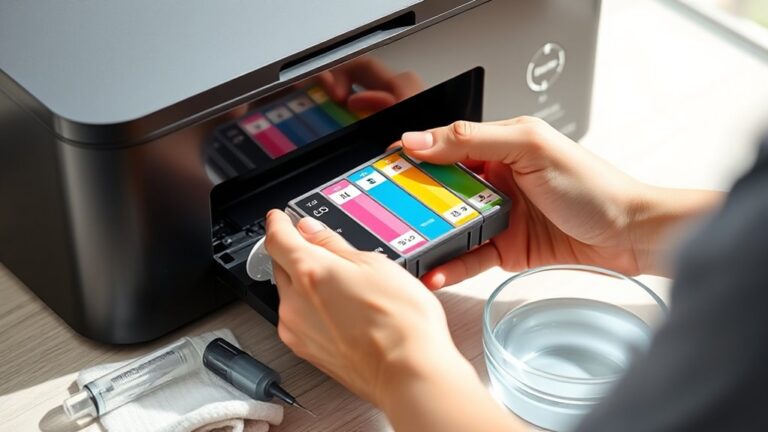
Also, take a moment to inspect the cartridge physically for any leaks or dried ink. Running a test page helps too—it can reveal fading or missing colors that suggest low ink levels.
Poor print quality, like streaks or dull colors, usually means it’s time to replace the cartridge.
Keep an eye on these signs, and you’ll be ready to handle cartridge issues before they stop your printing. This way, you avoid sudden interruptions and keep your documents looking sharp and vibrant!
Key Takeaways
- Check ink levels through printer software or control panel for real-time cartridge status before physical inspection. It’s a quick way to know where you stand without opening up your printer.
- Inspect the cartridge physically for leaks, dried ink, or empty ink windows after turning off the printer. This helps catch any obvious signs that the ink is running out or if there’s a mess to clean.
- Print a test or diagnostic page to identify missing colors, fading, or streaks indicating low or empty ink. It’s like a health check for your printer’s output.
- Monitor print quality for streaks, dull colors, or fading, which signal ink depletion or cartridge issues. If your prints look off, it’s probably time to check your cartridges.
- Observe printer display indicators or alerts signaling “Ink Low” or “Replace Cartridge” warnings to act promptly. These alerts are there to save you from running out mid-job.
Checking Ink Levels via Printer Software
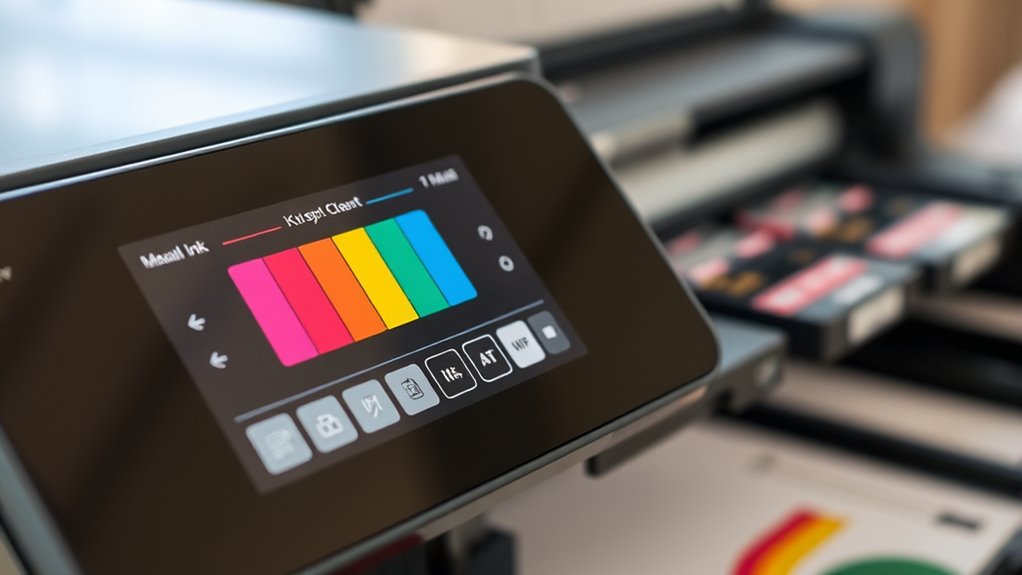
Before you assume your ink cartridge is empty, check your printer software to see the ink levels. Most printers come with a utility or control panel on your computer that displays this information clearly.
Open the printer’s properties or maintenance tab and look for an option labeled “Ink Levels” or “Estimated Ink.” This feature provides a real-time status of each cartridge, helping you avoid replacing cartridges prematurely.
Access the printer’s maintenance tab to view real-time ink levels and prevent unnecessary cartridge replacements.
If your software shows low ink, get ready to replace the cartridge soon. However, if the levels appear sufficient but printing quality drops, other issues might be at play.
Checking ink levels through software saves you time and money by confirming whether you really need new ink before physically inspecting or replacing cartridges.
Inspecting the Cartridge Physically
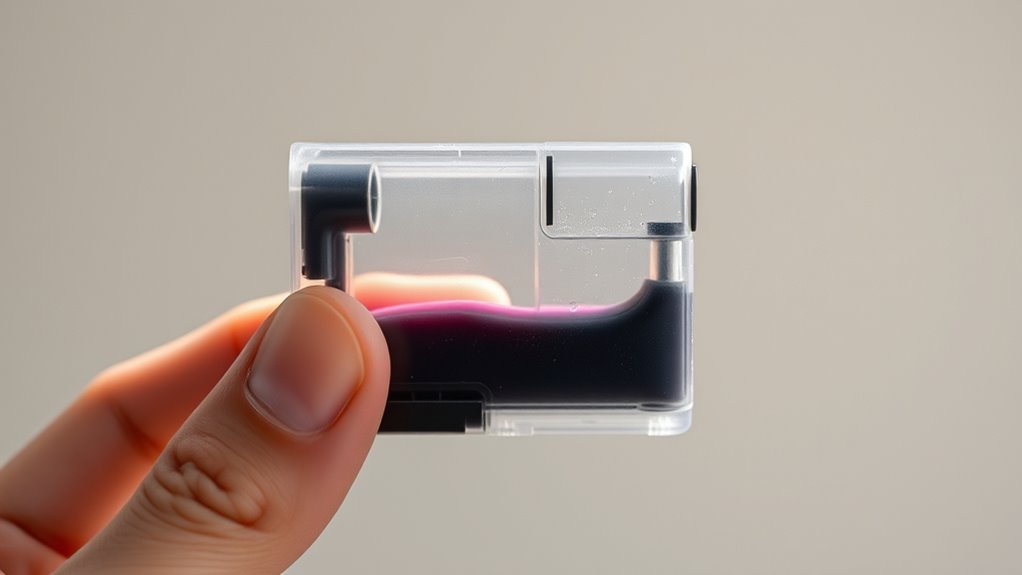
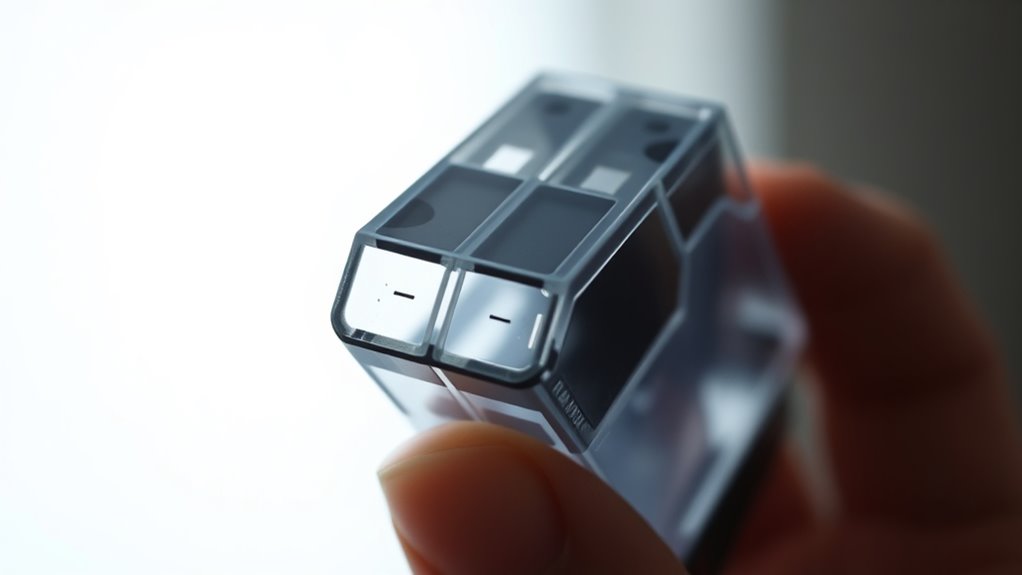
If your printer software shows adequate ink levels but your printouts still look faded or streaky, it’s time to inspect the cartridge physically. First, turn off your printer and carefully remove the cartridge.
Check the cartridge for any visible leaks, dried ink, or damage around the nozzle and contacts. Sometimes, ink can dry and clog the nozzle, causing poor print quality even if ink remains inside.
Gently clean the nozzles with a lint-free cloth slightly dampened with distilled water or isopropyl alcohol. Also, take a look at the cartridge’s ink window if it has one; if you see little or no ink inside, it might actually be empty despite what the software says.
After you’ve inspected and cleaned everything, go ahead and reinstall the cartridge securely. Then, test your prints again to see if the quality has improved.
Running a Printer Test Page
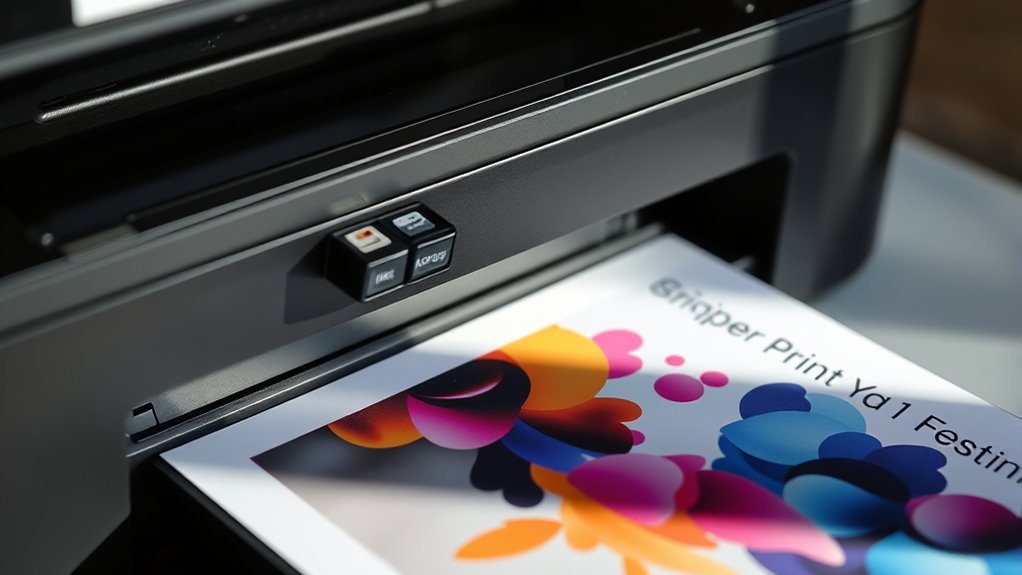
You can run a printer test page to check your ink levels more accurately. Simply follow your printer’s menu instructions to print the test page.
Then, look for any faded or missing colors to spot empty cartridges. It’s a quick way to see if you need to replace any ink.
Printing Test Page Steps
When you run a printer test page, you can quickly check whether your ink cartridge is empty or still has usable ink. Here’s how to do it step-by-step:
- Turn on your printer and make sure it’s connected to your computer or network.
- Access the printer settings on your device—this is usually found in the control panel or printer management software.
- Look for the option labeled “Print Test Page” or “Run Diagnostic Page” and select it.
- Wait as the printer prints the page, showing color blocks and text to help you spot any ink issues.
Following these steps helps you avoid guessing and saves time troubleshooting your printer. You’ll feel more confident knowing exactly what’s going on with your ink cartridges.
Interpreting Test Page Results
Although test pages vary by printer model, you’ll usually see color blocks and text patterns that reveal which ink cartridges are running low or empty.
When you examine the test page, look for missing colors or faded areas. These signs indicate that the corresponding cartridge needs replacement or refilling.
Use the following table to quickly interpret common results:
| Test Page Indicator | Meaning |
|---|---|
| Missing color block | Cartridge empty or clogged |
| Faded or streaky print | Cartridge running low |
| Clear and solid colors | Cartridge functioning well |
Identifying Print Quality Issues
Since print quality directly reflects your ink cartridge’s status, spotting issues like streaks, faded colors, or blotchy prints can help you figure out if the cartridge is running low or empty.
When your prints start looking off, don’t ignore these signs. Instead, check for:
- Uneven lines or missing sections that make your documents look unprofessional.
- Colors that appear dull or washed out, killing the vibrancy you want.
- Smudges or blotches that ruin photos and important images.
- Gradual fading over time that signals the ink is nearly gone.
Using Printer Display Indicators
Print quality issues often give you early clues about your ink levels, but your printer’s display indicators offer a more direct way to check. Many modern printers have built-in screens that show ink status clearly.
When you power on your printer, look for an ink icon or a status menu. This display often uses color-coded bars or percentages to let you know how much ink remains in each cartridge.
Some printers even alert you with specific messages like “Ink Low” or “Replace Cartridge.” If your printer connects to your computer or smartphone, you can usually access these indicators through the accompanying software or app.
Regularly checking these display indicators helps you avoid unexpected print jobs running out of ink. It’s a simple step to ensure smooth and uninterrupted printing.
Understanding Low Ink Warning Messages
You’ll often see low ink warning messages pop up on your screen or printer display. These alerts can vary, but they all signal that your cartridge is running low or empty.
Knowing how to interpret these messages helps you decide when it’s time to replace or refill your ink. It’s a handy heads-up so you’re not caught off guard.
Common Warning Message Types
How can you quickly recognize when your ink cartridge is running low? Printers send clear warning messages that help you avoid sudden printing stops. Paying attention to these alerts means you won’t be caught off guard.
Common warning message types include:
- Low Ink Warning: Signals that your cartridge is nearly empty but still usable.
- Replace Cartridge Prompt: Indicates you need to swap the cartridge soon to maintain print quality.
- Ink Cartridge Not Recognized: Alerts you when the cartridge isn’t properly installed or incompatible.
- Ink Cartridge Error: Warns of a malfunction or defect in the cartridge requiring immediate attention.
Recognizing these messages helps you act promptly, ensuring smooth, uninterrupted printing and saving you from frustration. It’s a small thing that makes a big difference!
Interpreting Printer Alerts
When exactly should you replace your ink cartridge after seeing a low ink warning? Printer alerts indicate that your ink supply is running low but don’t always mean it’s empty. You can usually keep printing for a short time after the warning, but print quality may decline.
Check your printer’s display or software for specific messages—some will tell you the estimated remaining ink percentage. If you notice streaks, faded colors, or blotches, it’s a clear sign to replace the cartridge.
Don’t ignore alerts, as running a cartridge completely dry can damage the printhead. To avoid interruptions, have a replacement cartridge ready once you see the low ink message and plan to swap it out soon after.
Frequently Asked Questions
Can Expired Ink Cartridges Still Print Properly?
Expired ink cartridges might still print, but you’ll likely see faded or streaky results. The ink can dry out or clog your printer, so it’s best to replace them.
That way, you keep your prints sharp and consistent. Trust me, it’s worth swapping them out rather than dealing with poor print quality!
How Long Does an Ink Cartridge Last Once Opened?
Once opened, your ink cartridge usually lasts about 6 to 12 months, depending on usage.
Curiously, 70% of cartridges dry out because they’re unused rather than fully emptied. So, regular printing helps keep ink flowing.
Are Third-Party Cartridges Reliable for Checking Ink Levels?
Third-party cartridges can be hit or miss with ink level accuracy. You’ll find some reliable ones, but many won’t communicate properly with your printer.
Can Temperature Affect Ink Cartridge Performance?
Yes, temperature can affect ink cartridge performance. If it’s too cold, the ink may thicken and clog nozzles.
Too hot, and the ink might dry out faster. Keep your printer in a stable environment. That way, your prints come out just right every time!
How to Recycle Empty Ink Cartridges Responsibly?
You can recycle empty ink cartridges responsibly by returning them to manufacturer programs, dropping them at local recycling centers, or using mail-in services.
Don’t toss them in the trash—you’ll help reduce waste and protect the environment!
Conclusion
Now that you know the signs of an empty ink cartridge, you might think it’s easy to spot—right? But what if your printer’s warnings aren’t showing up, and the print quality only subtly declines? Sometimes, the clues are hidden in plain sight, waiting for you to catch them.
Keep a close eye on your printer’s behavior. The moment you realize the ink’s run dry could be closer than you think. Fading colors, streaks, or unexpected blank spaces on your prints are subtle hints.
In conclusion, knowing how to tell if an ink cartridge is empty is essential for maintaining print quality. Don’t rely solely on printer alerts; instead, watch for changes in print output and performance. By staying attentive to these signs, you can avoid frustrating print failures and keep your printer running smoothly.