
How to Do and Clean Ink Cartridges in 7 Easy Steps
To clean your ink cartridges in 7 easy steps, start by gathering supplies like distilled water, lint-free cloths, and gloves. These items are essential for safely and effectively cleaning your cartridges without causing damage.
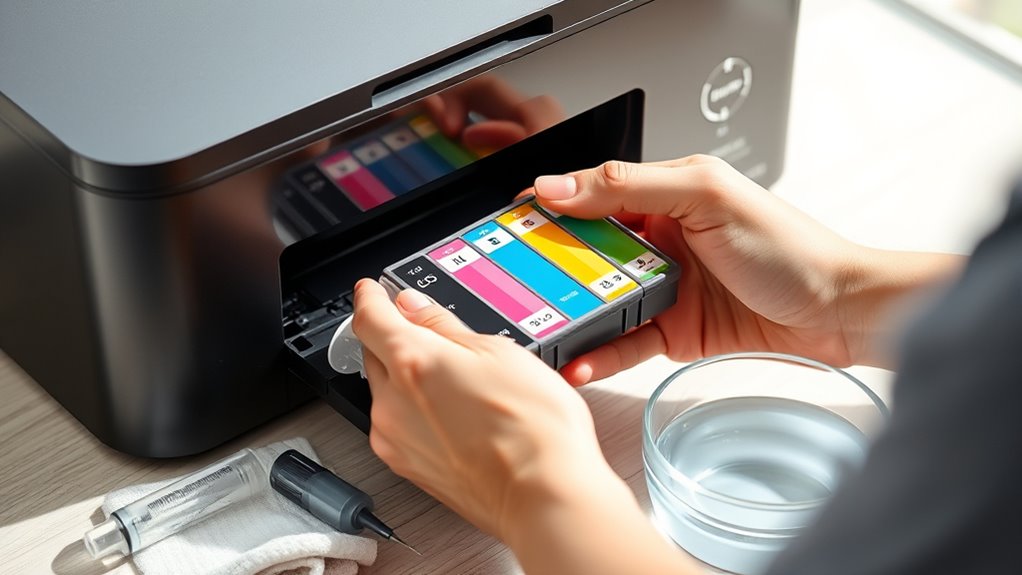
Removing the cartridges carefully from the printer is the next step, so you don’t accidentally break anything.
Once you have the cartridges out, inspect them for any damage or leaks. This helps you spot issues early before they affect print quality.
Gently wipe the nozzles with a soft cloth dampened with distilled water to remove any residue or dried ink. Be gentle here—no need to scrub hard.
After cleaning, let the cartridges dry completely before putting them back in.
Proper alignment when reinserting is key to avoiding printer errors.
Finally, run a test print to check the quality and make sure everything is working smoothly.
Follow these steps, and your printer will keep running well with sharp, clear prints every time.
Key Takeaways
– Gather distilled water, lint-free cloths, gloves, and the correct ink type before starting cartridge cleaning and refilling.
Make sure you have everything ready to avoid any interruptions.
– Remove cartridges carefully, and inspect them for damage, leaks, and dried ink buildup before cleaning.
It’s important to handle them gently to avoid causing any issues.
– Clean nozzles gently with a moistened lint-free cloth or a cotton swab.
Avoid using harsh chemicals or scrubbing too hard because that can damage the cartridge.
– Dry cartridges thoroughly using air drying or gentle air flow before reinstalling.
This helps prevent any damage that moisture might cause.
– Reinsert cartridges properly, close the access panel, and print a test page to ensure quality and function.
This final check makes sure everything is working as it should.
Gather the Necessary Supplies
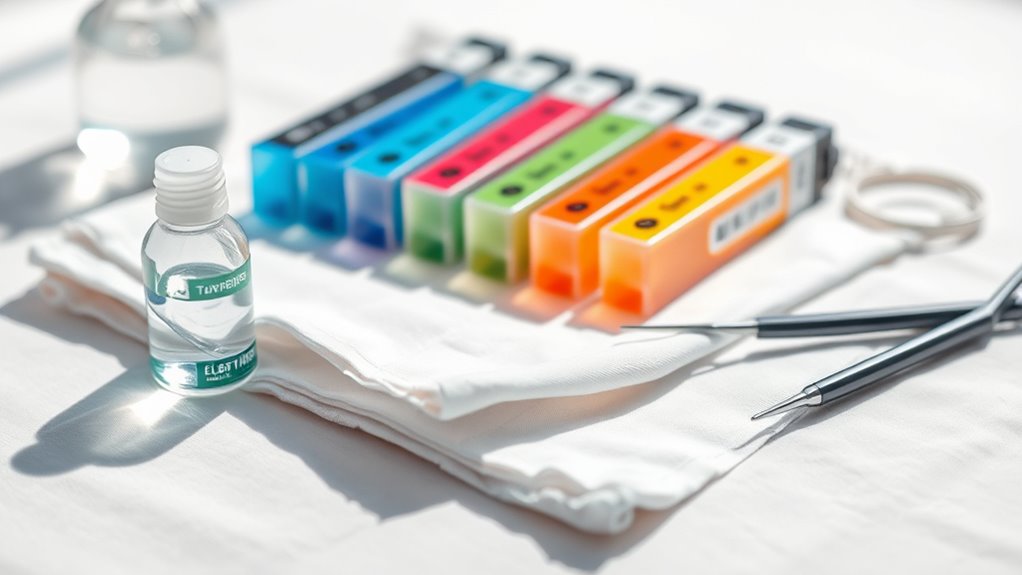
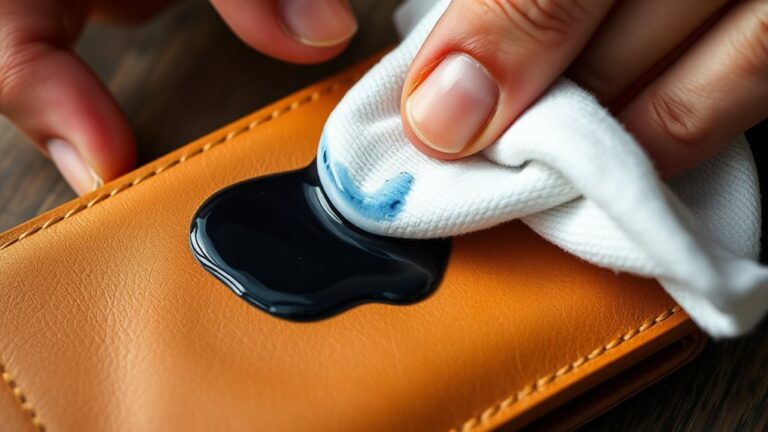
Before you begin cleaning or refilling your ink cartridges, you’ll need to gather a few essential supplies. Start with clean, lint-free cloths or paper towels to wipe away excess ink and dirt.
Have distilled water or a specialized cartridge cleaning solution on hand; avoid tap water, as it can damage the cartridge. If you plan to refill, get the right ink type for your cartridge to prevent clogging or poor print quality.
You’ll also want gloves to keep your hands clean and avoid contaminating the cartridge. A small syringe or dropper helps you apply cleaning fluid or ink precisely.
Finally, prepare a plastic tray or disposable surface to work on, minimizing mess. Having these supplies ready guarantees a smooth, efficient cleaning or refilling process.
Remove the Ink Cartridges From the Printer
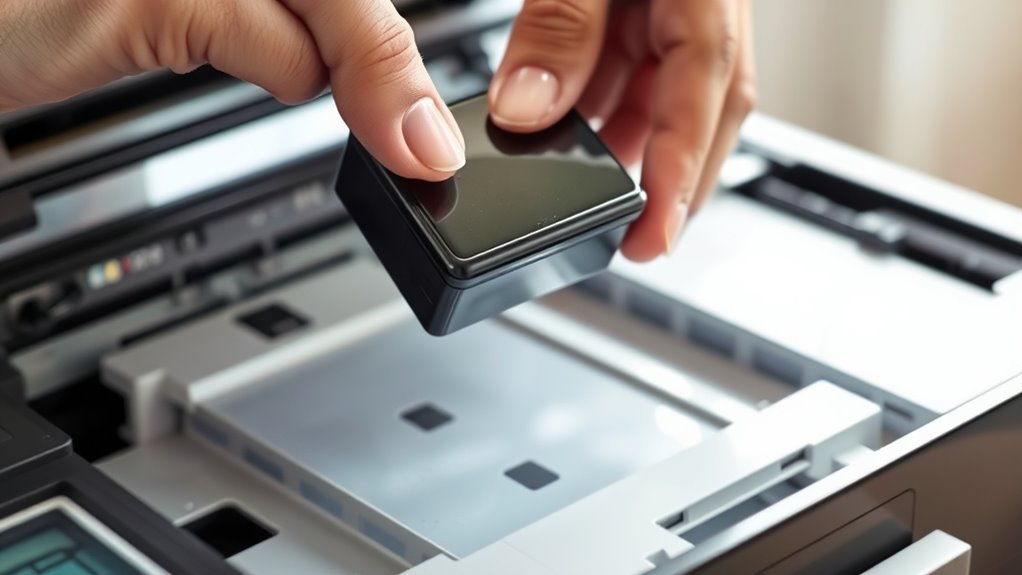
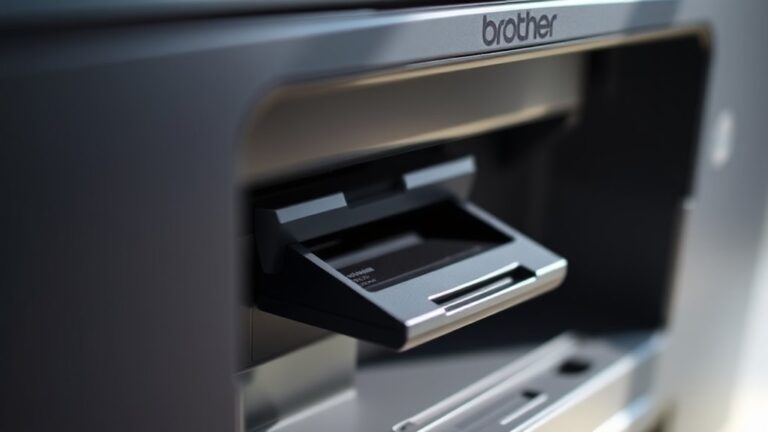
When you’re ready to remove the ink cartridges, make sure your printer is turned on so the cartridge holder can move into the accessible position. This step guarantees you can reach the cartridges safely without forcing anything.
Follow these simple steps:
Follow these simple steps to safely remove your printer cartridges without any hassle.
- Open the printer’s top cover or access panel carefully.
- Wait for the cartridge holder to stop moving and settle in the middle.
- Gently press down or lift the cartridge’s release tab, depending on your printer model.
- Pull the cartridge straight out, avoiding any twisting motions.
Handle the cartridges with care to avoid damaging the contacts. Once removed, place them on a clean, dry surface or prepare them for cleaning.
This process sets you up for a smooth cartridge cleaning or replacement. Easy, right?
Inspect the Cartridges for Damage or Leaks
How can you tell if your ink cartridges need attention? First, check for any visible cracks, dents, or leaks on the cartridge body. Leaking ink can damage your printer and cause poor print quality.
Also, look for dried ink buildup around the cartridge edges or the contacts. If you spot any damage or ink stains, replace the cartridge immediately. It’s better to be safe than sorry!
Here’s a quick guide to what to look for:
| Issue | What to Check | Action |
|---|---|---|
| Physical Damage | Cracks, dents, or broken parts | Replace cartridge |
| Ink Leaks | Wet spots or ink stains | Clean area, replace cartridge |
| Contact Condition | Dirty or corroded contacts | Clean contacts or replace |
Inspecting cartridges regularly keeps your printer running smoothly. Trust me, a little attention goes a long way!
Clean the Cartridge Nozzles With a Soft Cloth
You’ll want to pick a soft, lint-free cloth to clean the cartridge nozzles carefully. Use gentle wiping motions to avoid scratching or damaging the delicate parts.
Being cautious helps prevent any risks that could affect your printer’s performance. So, take your time and be gentle while cleaning.
Choose the Right Cloth
Selecting the right cloth is essential for effectively cleaning your ink cartridge nozzles without causing damage. Using a harsh or abrasive material can scratch or clog the nozzles, so you want something gentle yet absorbent.
Here’s what to look for when choosing your cleaning cloth:
- Microfiber cloth – Soft, lint-free, and excellent at picking up ink residue without scratching.
- Lint-free cotton – Avoid fuzzy towels; opt for tightly woven cotton fabric that won’t leave fibers behind.
- Avoid paper towels – They’re often rough and leave particles that clog nozzles.
- Pre-moistened wipes – Use only those labeled safe for electronics or printers to prevent damage.
Pick a cloth meeting these criteria to keep your cartridge nozzles clean and functioning well. It really makes a difference!
Gentle Wiping Techniques
Although cleaning ink cartridge nozzles requires care, using gentle wiping techniques guarantees you won’t damage the delicate components. Start by moistening a soft cloth with distilled water—avoid harsh chemicals that could harm the nozzles.
Lightly press the damp cloth against the cartridge’s nozzle area and gently wipe in one direction. Don’t scrub or apply excessive pressure; a gentle touch is key.
Use a fresh section of the cloth if the first becomes saturated with ink or debris. After wiping, let the cartridge air dry completely before reinstalling it to prevent short circuits.
This careful approach ensures you remove clogs or dried ink effectively without causing damage, extending your cartridge’s lifespan and maintaining print quality.
Avoiding Damage Risks
When cleaning cartridge nozzles, using a soft cloth helps prevent scratches and other damage that harsh materials might cause. You want to handle the nozzles gently to keep your ink cartridges working properly.
Here’s how to avoid damage risks:
- Always use a lint-free, soft cloth to wipe the nozzles.
- Avoid pressing too hard, as excess pressure can break delicate parts.
- Never use paper towels or abrasive sponges; they can scratch surfaces.
- Use distilled water or a specialized cleaning solution, not harsh chemicals.
Following these steps ensures you clean effectively without harming the cartridge. Taking care now saves you from costly replacements later.
Use Distilled Water to Remove Stubborn Ink Residue
You’ll find distilled water especially useful for loosening stubborn ink residue without damaging your cartridge.
Simply soak a cloth or cotton swab in the water and gently clean the affected areas.
To get the best results, make sure to avoid tap water, which can leave minerals behind and cause clogs.
Benefits of Distilled Water
Why choose distilled water for cleaning ink cartridges? It’s the best option to effectively remove stubborn ink residue without causing damage. Unlike tap water, distilled water is free from minerals and impurities that can clog or harm your cartridges.
Here’s why you should use it:
- Purity – No minerals or chemicals that can leave deposits.
- Gentle Cleaning – Safe for delicate cartridge components.
- Prevents Clogging – Avoids buildup that reduces print quality.
- Extends Cartridge Life – Keeps your cartridges functioning longer.
Using distilled water is just a smart move, really. It’s simple but makes a big difference in keeping your printer running smoothly!
Cleaning Process Overview
Although ink residue can be tough to remove, using distilled water simplifies the cleaning process and protects your cartridges.
Start by removing the cartridge carefully from your printer. Place it on a clean paper towel with the ink nozzle facing down.
Dampen a cotton swab or soft cloth with distilled water—never soak it—and gently wipe the nozzle area to loosen dried ink. Let the cartridge sit for a few minutes, allowing the distilled water to dissolve stubborn residue.
You can repeat this step if necessary, but avoid harsh scrubbing to prevent damage. Once clean, gently dry the cartridge with a lint-free cloth before reinstalling it.
This method ensures your ink cartridges stay functional and extend their lifespan without introducing impurities.
Tips for Effective Removal
When ink residue won’t budge, using distilled water effectively loosens and lifts the stubborn buildup without harming your cartridge. You’ll want to follow these steps for best results:
1. Dampen a lint-free cloth or cotton swab with distilled water.
2. Gently wipe the cartridge’s nozzles and contacts to dissolve dried ink.
If the residue is thick, let the cartridge sit for 10 minutes. This gives the water time to penetrate and soften the buildup.
3. Repeat the wiping process until the ink residue is gone. Then, make sure to dry the cartridge completely before reinstalling it.
Avoid using tap water since the minerals in it can clog your cartridge. Distilled water is the way to go because it cleans gently and keeps your cartridge working well.
This simple method helps keep your printer running smoothly and saves you from costly replacements. Easy, right?
Dry the Cartridges Thoroughly Before Reinstallation
Before you reinstall the ink cartridges, make sure to dry them completely to prevent any damage to your printer. Use a lint-free cloth or paper towel to gently pat the cartridges dry, especially around the nozzles and electrical contacts. Avoid rubbing, as this can cause scratches or dislodge ink.
Let the cartridges air dry for at least 10 to 15 minutes to ensure all moisture evaporates. If you’re in a hurry, use a gentle air blower or a can of compressed air to speed up drying. Just don’t use heat sources like hair dryers because excessive heat can warp or damage the cartridges.
Thorough drying prevents short circuits and clogs, helping your printer function smoothly after reinstallation. Taking this step seriously ensures longer cartridge life and better print quality. So, it’s definitely worth the extra time!
Reinsert the Cartridges and Perform a Test Print
Once the cartridges are completely dry, you can carefully reinsert them into your printer. Make sure to align them correctly to avoid any damage or printing errors.
Once dry, gently reinsert cartridges, ensuring proper alignment to prevent damage or printing issues.
After reinsertion, it’s essential to perform a test print to check if everything is working properly. Follow these steps:
- Power on your printer and open the cartridge access door.
- Insert each cartridge firmly until you hear a click.
- Close the access door and wait for the printer to recognize the cartridges.
- Use the printer’s menu or software to print a test page.
This test print will show if the ink flows smoothly and if any further cleaning or adjustments are needed. If the print looks good, you’re all set!
Frequently Asked Questions
Can I Use Tap Water Instead of Distilled Water for Cleaning?
You shouldn’t use tap water because it contains minerals that can clog your cartridge. Instead, use distilled water—it’s free of impurities and safer for cleaning ink cartridges.
This helps ensure better performance and longevity for your printer. So, sticking with distilled water is definitely the way to go!
How Often Should I Clean My Ink Cartridges?
You should clean your ink cartridges every few months or whenever you notice print quality dropping.
If you print rarely, clean them before each use to avoid clogs. Regular upkeep keeps your prints sharp and vibrant.
Will Cleaning Cartridges Improve Print Quality?
Yes, cleaning your cartridges can improve print quality by removing dried ink and clogs. You’ll notice sharper colors and clearer text, especially if your prints have been streaky or faded lately.
Regular cleaning helps! It keeps everything running smoothly and can save you from having to replace cartridges too often. Give it a try next time your prints look a little off.
Can Cleaning Damage My Printer Warranty?
About 45% of printer warranties don’t cover damage from improper cleaning. So, you shouldn’t clean cartridges yourself unless your manual says it’s safe—
otherwise, you might accidentally void your warranty and face costly repairs.
Is It Safe to Clean Cartridges With Alcohol?
You shouldn’t clean cartridges with alcohol because it can damage the ink nozzles and affect print quality. Instead, use distilled water or manufacturer-recommended solutions.
These options safely clean your cartridges without risking any damage to them or your printer’s functionality. It’s a simple way to keep everything working smoothly.
Conclusion
By following these seven simple steps, you can extend the life of your ink cartridges and avoid costly replacements.
For example, Sarah, a small business owner, saved hundreds by regularly cleaning her cartridges instead of buying new ones every month. With just a bit of care, you’ll keep your prints crisp and your printer running smoothly.
So, take the time to clean your cartridges—you’ll see the difference in both quality and savings. Regularly maintaining your ink cartridges not only ensures vibrant prints but also helps you get the most out of each cartridge. Cleaning ink cartridges is an easy habit that pays off by reducing waste and saving money. Give your printer the care it deserves, and enjoy hassle-free printing every time!