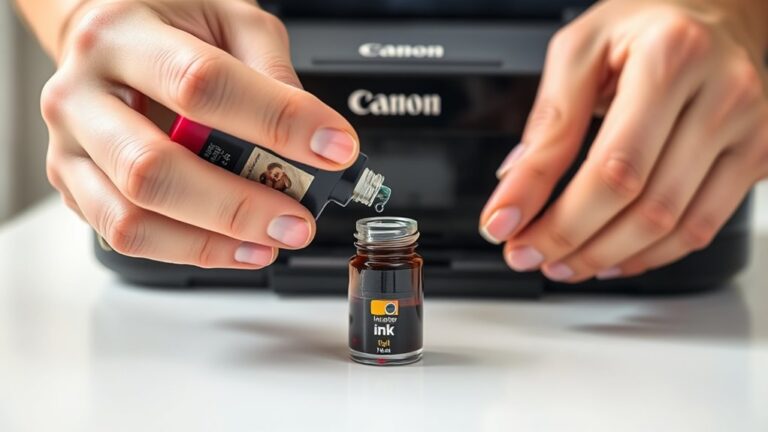


How Do You Know If Your Ink Cartridge Is Empty
You’ll know your ink cartridge is empty when your prints start fading, streaking, or missing sections. These signs are clear indicators that the ink is running low or completely gone.
Your printer might also flash error messages or pause mid-job, which can be frustrating.
You can check ink levels directly on your printer’s screen or use the printer software on your computer to monitor ink status. It’s a handy way to keep track without waiting for print quality to drop.
Taking the cartridge out to inspect it against the light can help too—it’s a quick visual check.
If you want to handle this smoothly and avoid print interruptions, there’s more helpful info ahead. Being proactive about ink levels keeps your printing hassle-free and saves time in the long run.
Key Takeaways
- Printed pages show streaks, faded colors, or missing sections indicating low or empty ink.
- Printer displays low ink warnings or status lights blink to signal cartridge needs replacement.
- Use the printer’s display panel or software to check real-time ink levels and alerts.
- Physically inspect cartridges by holding them to light for visible ink or signs of dried ink.
- Sudden print quality drop or printer pausing mid-job often means the ink cartridge is empty.
Common Signs of an Empty Ink Cartridge
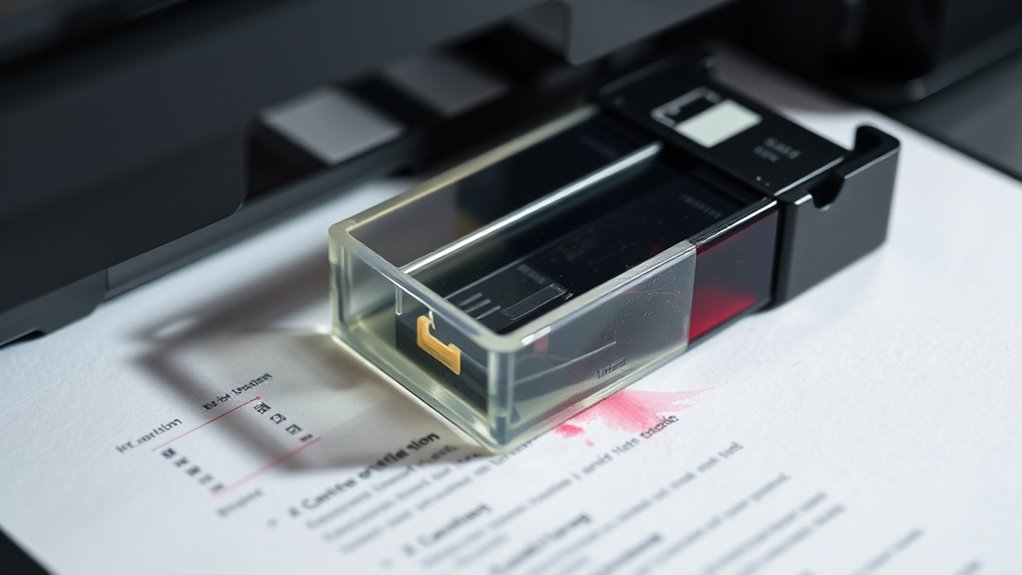
Although your printer may keep running, you’ll notice several clear signs when your ink cartridge is empty. First, your printed pages might show streaks, faded colors, or missing sections. If black text looks light or blurry, that’s a strong indicator.
You might also find that your printer pauses mid-job or produces error messages about low ink. Sometimes, the print quality suddenly drops without warning, signaling the cartridge’s ink is nearly gone.
Additionally, your printer’s status light could blink or stay on, alerting you to ink issues. Don’t ignore these signs; continuing to print with an empty cartridge can damage the printhead or lead to poor-quality prints.
Being attentive helps you avoid frustration and maintain smooth printing. So, keep an eye out and replace your ink cartridge as soon as you notice these signs.
How to Check Ink Levels on Your Printer
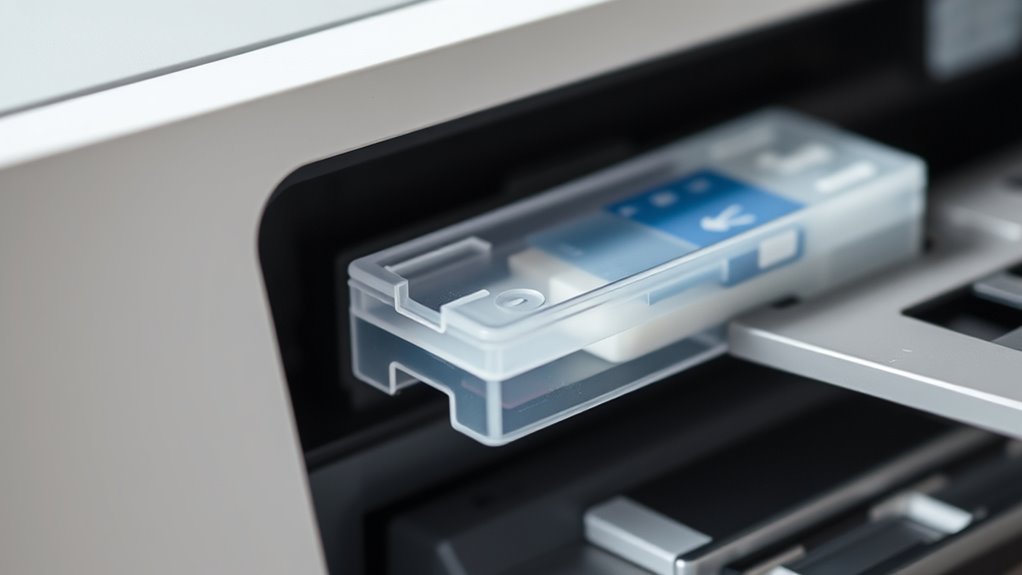
Noticing signs like faded prints or error messages is a good start, but you can get more precise information by checking your printer’s ink levels directly. Many printers have a built-in display panel where you can navigate to the ink or maintenance menu to view current ink status.
If your printer doesn’t have a screen, you can often check ink levels by pressing a combination of buttons as outlined in the user manual. Additionally, some printers use indicator lights that blink or change color when ink is low or empty.
Keep in mind that these hardware checks give you a quick glance at ink status without needing to use a computer or software. This way, you can decide when it’s time to replace cartridges before print quality drops.
Using Printer Software to Monitor Ink Status
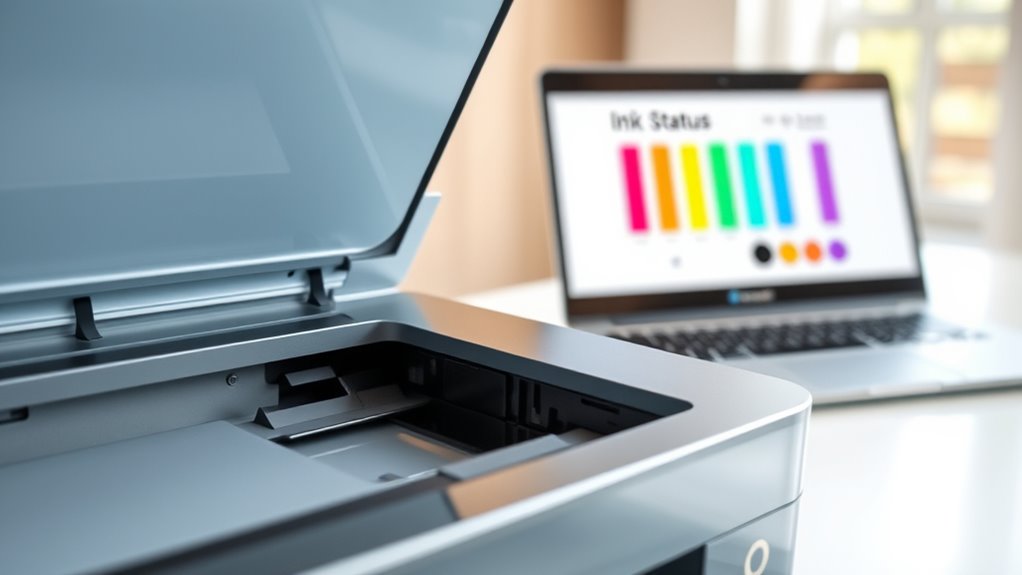
You can easily check your ink levels using the printer’s software, which often provides real-time updates. The software sends notifications when ink is running low, so you won’t be caught off guard.
Just keep an eye on the cartridge status indicators within the program. That way, you’ll know exactly when it’s time to replace a cartridge.
Checking Ink Levels
When you want to keep track of your ink levels without guessing, using your printer’s software is the easiest way to monitor ink status. Most printers come with built-in utilities that display ink levels on your computer screen.
To check, open the printer software from your device’s control panel or system tray. Look for options labeled “Ink Levels,” “Maintenance,” or “Printer Status.” The software will typically show a graphical representation of each cartridge’s ink amount.
This way, you can see which cartridges are low or empty before print quality drops. Regularly checking ink levels helps you avoid unexpected interruptions and plan cartridge replacements ahead of time.
Just remember, the accuracy of these readings can vary slightly depending on the printer model. So, it’s a good idea to keep an eye on it but don’t rely on it completely.
Software Notifications
Although printer software often displays ink levels visually, it also sends timely notifications to alert you when ink runs low or is about to run out. These alerts usually pop up on your computer screen as soon as the software detects that your cartridge is nearing depletion.
You’ll get clear messages prompting you to prepare for a replacement, so you won’t be caught off guard mid-print. Some software even estimates how many pages you have left before the cartridge empties, helping you plan ahead.
Make sure your printer’s software is installed and updated to receive these notifications reliably. By paying attention to these alerts, you can avoid sudden printing interruptions and keep your workflow smooth without guessing if your ink is truly empty.
Cartridge Status Indicators
How can you quickly check your ink levels without interrupting your work? Most printers come with software that displays cartridge status indicators right on your computer screen. These indicators show real-time ink levels, so you know exactly when it’s time to replace a cartridge.
You can usually find this feature in the printer’s control panel or settings menu. Some software even provides color-coded bars or percentage estimates, making it easy to spot low ink.
Physical Inspection of Ink Cartridges
Since you can’t always rely on your printer’s software to accurately report ink levels, inspecting the cartridges physically offers a quick way to gauge whether they’re empty. Start by removing the cartridge carefully and holding it up to a light source. You might see the ink level through the semi-transparent plastic.
Also, check for dried ink or clogs around the nozzle, which can indicate ink issues. Here’s a quick guide:
| Observation | What It Means |
|---|---|
| Clear ink visible | Cartridge likely has ink |
| No ink visible | Cartridge might be empty |
| Dried ink on nozzle | Ink flow may be blocked |
| Cartridge leaking | Replace immediately |
This physical check helps you avoid surprises during printing. It’s a simple step that can save you some headaches down the line.
What to Do When Ink Runs Out Mid-Print
If your ink runs out mid-print, don’t panic—you can usually resume your work with a few quick steps. First, pause the print job from your printer’s control panel or computer.
Next, replace the empty cartridge with a new one, making sure it’s compatible and properly installed. After installing, run a printer alignment or cleaning cycle if prompted; this ensures ideal print quality.
Finally, resume the print job from where it stopped—most printers will continue without losing progress. If your printer doesn’t support resuming, you might need to restart the print, but replacing the cartridge promptly prevents wasted paper and ink.
Staying calm and methodical helps you fix the issue quickly and get back to printing without hassle. It’s really not as stressful as it seems once you know the steps!
Tips for Extending the Life of Your Ink Cartridges
Replacing ink cartridges mid-print can be a hassle, so taking steps to make your cartridges last longer saves you time and money. First, print in draft mode when high quality isn’t necessary, as it uses less ink.
Making ink cartridges last longer saves time and money—try printing in draft mode when quality isn’t critical.
Avoid frequent cleaning cycles since they consume ink unnecessarily. Store cartridges properly when not in use to prevent drying out—keep them sealed in airtight bags.
Use your printer regularly; long periods of inactivity can clog nozzles, wasting ink during cleaning. Also, print in black and white when color isn’t needed, and avoid printing large images or photos unless essential.
Ultimately, keep your printer’s firmware up to date to ensure efficient ink use. Following these tips helps you get the most out of each cartridge.
Frequently Asked Questions
Can Expired Ink Cartridges Damage My Printer?
Yes, expired ink cartridges can damage your printer by clogging nozzles or causing ink flow issues. You should replace them promptly to avoid print quality problems and potential long-term harm to your printer’s components.
It’s a good idea to keep an eye on your cartridges and swap them out when they’re past their prime. That way, you keep your printer running smoothly and avoid any unexpected headaches down the line.
How Do Refillable Ink Cartridges Work?
Refillable ink cartridges let you add ink repeatedly, saving money and reducing waste. You simply open the cartridge, pour in compatible ink, seal it, then reinstall.
They work just like regular cartridges, but you refill them yourself. It’s pretty straightforward and helps you avoid buying new cartridges all the time.
Are Third-Party Ink Cartridges Reliable?
Third-party ink cartridges can be reliable, but quality varies widely. You should check reviews and verify compatibility with your printer.
Sometimes, they save money but might cause print issues or void warranties, so weigh pros and cons carefully.
It’s a bit of a gamble, but with the right research, you might find a good deal that works just fine for you.
What Is the Difference Between Dye-Based and Pigment-Based Ink?
Dye-based ink soaks into paper, giving you vibrant colors but less water resistance.
Pigment-based ink sits on top, offering sharper prints and better durability.
You’ll choose based on your need for brightness or longevity.
How Should I Store Unused Ink Cartridges?
You should store unused ink cartridges in a cool, dry place, away from direct sunlight. Keep them sealed in their original packaging to prevent drying out.
Also, try to avoid extreme temperatures because that can mess with the ink’s quality and longevity. It’s pretty simple but really helps keep your cartridges ready to go when you need them!
Conclusion
You might think running out of ink means you’re stuck waiting for a replacement, but knowing the signs and checking your printer’s software can help you avoid surprises. By keeping an eye on ink levels and inspecting cartridges regularly, you’ll catch low ink early and keep your printing smooth.
Plus, using our tips to extend cartridge life means fewer interruptions and more reliable prints every time. Stay prepared and print confidently! Keeping track of ink cartridge levels not only saves you time but also ensures your documents always look sharp and professional. So, don’t wait until your cartridge is completely empty—act at the first sign of low ink to maintain consistent print quality and avoid frustrating delays.