
How Do You Know If an Ink Cartridge Is Empty Step by Step
You’ll first want to check your printer’s display or software notifications for low ink alerts. These alerts are usually the easiest way to know if an ink cartridge is empty or running low.
Next, print a test page to spot any faded colors, streaks, or missing areas. This helps you see if the ink flow is uneven or if the cartridge might be empty.
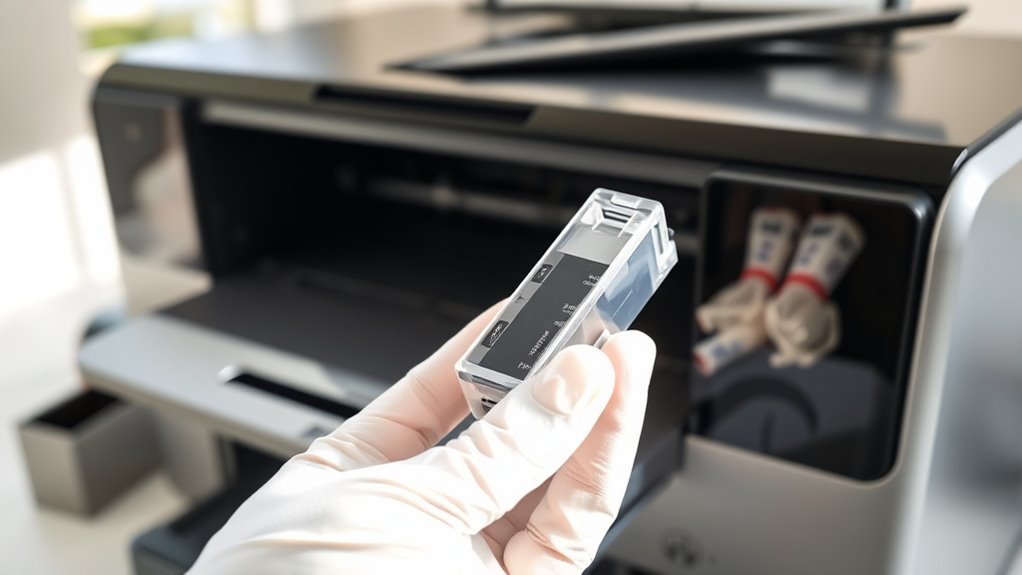
Then, open your printer carefully and remove the cartridge to inspect it for leaks or low ink levels. Sometimes a close look can tell you more than just the software alerts.
You can also use your printer’s maintenance tools to check the ink status and run nozzle tests.
Following these steps helps confirm if your cartridge is empty, and a closer look reveals even more ways to manage ink levels effectively.
Key Takeaways
- Check the printer display or software for low ink alerts or blinking cartridge icons indicating empty ink levels.
- Perform a test print or nozzle check to identify faded, streaky, or missing sections on the printout.
- Inspect the cartridge physically for ink stains, leaks, or low visible ink levels through transparent parts.
- Use printer software or control panel utilities to view ink percentages or bars showing remaining ink.
- Replace the cartridge following manufacturer instructions once print quality declines or ink warnings appear.
Check Printer Display and Warning Messages

Although different printer models vary, you can usually check the printer display for alerts about low or empty ink cartridges. When your ink runs low, most printers show a clear warning message or icon on the screen.
You might see phrases like “Low Ink,” “Replace Cartridge,” or a blinking ink droplet symbol. Some printers even specify which cartridge needs attention, so you don’t have to guess.
If your printer is connected to a computer, software notifications often pop up, providing the same warnings. Don’t ignore these messages—they’re designed to prevent poor print quality and damage to your printer.
Examine Print Quality and Test Pages
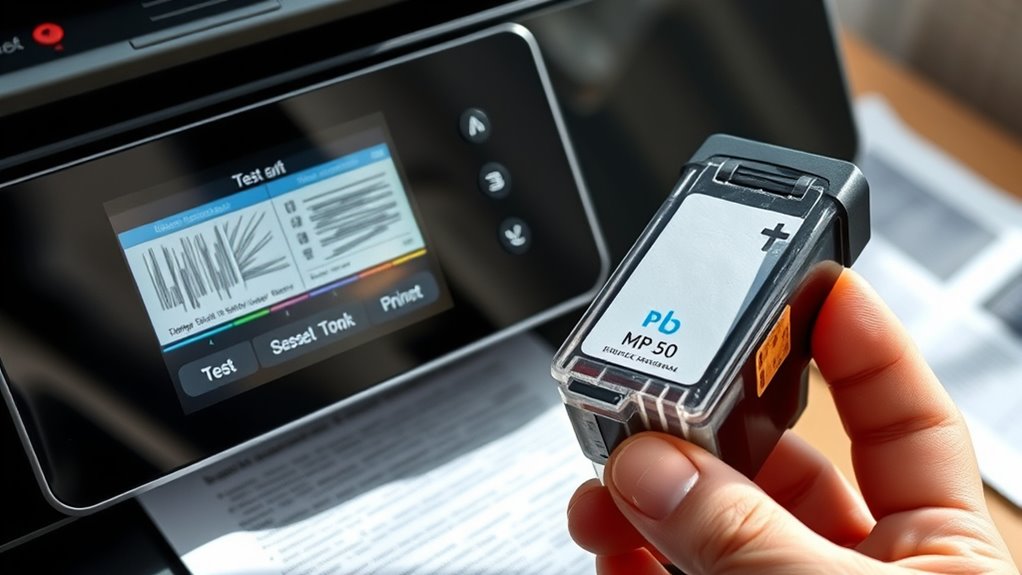
You can tell if your ink cartridge is empty by checking the quality of your prints—faded or streaky pages are a clear sign.
Try printing a test or diagnostic page to get a detailed look at your ink levels. This quick step helps you confirm if a cartridge needs replacing.
Check for Faded Prints
How can you tell if your ink cartridge is running low without opening your printer? One clear sign is faded prints. When you print documents or photos, watch for colors that look washed out or text that appears lighter than usual.
Faded prints happen because the ink is running thin, causing uneven or incomplete coverage on the paper. To check, print a simple page with solid colors or black text and examine it closely. If you notice streaks, missing sections, or dull colors, your cartridge likely needs replacing.
This quick visual test helps you avoid wasting paper and ensures your prints stay sharp. Regularly checking print quality keeps your printer working smoothly and prevents surprises during important print jobs.
Print Diagnostic Pages
When your prints start showing signs of fading or streaking, running a diagnostic page can pinpoint which cartridge needs attention. Diagnostic pages test your printer’s ink output and help you visually identify problems.
Here’s how to use them effectively: Access your printer’s control panel or software on your computer. Then, select the option for “Print Test Page” or “Print Diagnostic Page.”
Next, observe the color blocks and patterns on the page. Look for missing colors, streaks, or faded sections.
Finally, compare the results to your printer’s manual for specific cartridge issues. It’s a simple step that can save you a lot of guesswork!
Inspect Ink Levels Using Printer Software

You can quickly check your ink levels by accessing your printer’s software on your computer. Look for the ink status or supply section to see detailed information about each cartridge.
It’s pretty straightforward. Just keep an eye out for any alerts or warnings the software provides. That way, you’ll know exactly when it’s time to replace the ink.
Access Printer Software
Wondering if your printer’s ink is running low? Accessing your printer software is a simple way to check ink levels without guessing. Here’s how you can do it:
- Open the control panel or system preferences on your computer.
- Find the “Devices and Printers” or “Printers & Scanners” section.
- Select your printer from the list.
- Click on “Printer Properties” or “Maintenance” tab.
- Look for an “Ink Levels” or “Status” option to view current ink status.
Following these steps lets you quickly monitor your ink supply directly through your printer’s software. This way, you avoid those annoying surprises with print quality.
It’s super convenient and gives you an accurate look at your cartridges before they run dry. So, no more guessing games!
Check Ink Status
Although accessing your printer software is straightforward, checking the ink status there gives you a clear, real-time picture of your cartridge levels. Once you open the software, navigate to the ink or maintenance section where you’ll find detailed information on each cartridge’s ink level.
This visual indicator often appears as a bar or percentage, helping you see exactly how much ink remains. By regularly monitoring these levels, you can avoid unexpected empty cartridges during important print jobs.
Keep in mind that some printers update these readings automatically, while others require you to refresh manually. Using this software feature is the simplest way to track your ink supply without guessing, ensuring your printer runs smoothly and efficiently.
Interpret Software Alerts
When your printer software sends alerts about ink levels, it’s essential to interpret them correctly to prevent printing interruptions. These alerts give you a heads-up on cartridge status, helping you decide when to replace or refill ink.
To understand them effectively, consider the following:
- Check alert types: Some indicate low ink, others signal empty cartridges.
- Review color codes: Alerts often use colors to specify which cartridge needs attention.
- Look for error messages: These might suggest cartridge issues beyond just low ink.
- Note timing: Frequent alerts may mean inaccurate ink level readings.
- Consult the software manual: It explains specific alert meanings for your printer model.
Physically Remove and Inspect the Cartridge
Before you can determine whether an ink cartridge is empty, you’ll need to carefully remove it from your printer. First, turn off the printer and open the cartridge access door. Wait for the cartridge carriage to stop moving.
Next, gently press down or release the cartridge latch, depending on your printer model, and then pull the cartridge out. Once removed, take a close look at the cartridge.
Look for any visible ink stains or leaks around the nozzle and contacts. Also, check the cartridge’s weight; an empty one often feels lighter. If your cartridge has a transparent section, peek inside to see the ink level.
Just a quick tip—try not to touch the copper contacts or ink nozzles to avoid any damage. After you’ve inspected everything, you can decide whether the cartridge needs to be replaced or just cleaned.
Use Printer Maintenance Tools and Utilities
After physically checking your ink cartridge, you can also rely on your printer’s built-in maintenance tools and software utilities to assess ink levels. These tools provide precise readings and help maintain print quality.
Utilize your printer’s built-in tools to accurately check ink levels and ensure optimal print quality.
Here’s how you can use them effectively: Access the printer’s control panel or software on your computer. Then, navigate to the “Maintenance” or “Ink Levels” section.
Run the ink level check to see detailed cartridge status. You can also use cleaning utilities to clear clogged nozzles, which sometimes mimic empty cartridges.
Finally, perform test prints to confirm actual ink usage and cartridge condition. This way, you get a clear picture of your printer’s health and avoid any surprises during printing.
Consider Cartridge Expiry and Storage Conditions
Because ink cartridges have a limited shelf life, you should always check their expiry dates and storage conditions to guarantee peak performance. Expired cartridges may dry out or clog, causing poor print quality or even damage to your printer.
Store cartridges in a cool, dry place away from direct sunlight and extreme temperatures to maintain the ink’s integrity. Avoid opening the packaging until you’re ready to install the cartridge, as exposure to air can cause the ink to dry prematurely.
If you notice faded prints or inconsistent colors, even if the cartridge isn’t empty, consider its age and storage history. Taking these precautions helps you avoid printing issues and ensures your cartridges last as long as possible before needing replacement.
Frequently Asked Questions
Can Expired Cartridges Damage My Printer?
Yes, expired cartridges can damage your printer by clogging nozzles or leaking ink.
You should replace them promptly to avoid print quality issues and potential hardware damage caused by dried or degraded ink.
It’s a good idea to keep an eye on your cartridge’s expiration dates. That way, you won’t run into problems when you print.
How Do I Recycle Empty Ink Cartridges?
Just like a Victorian might cherish a handwritten letter, you should cherish the planet—drop your empty ink cartridges at local recycling centers or mail them back using manufacturer programs.
Don’t throw them in regular trash! It’s better for the environment and helps reduce waste.
Many stores and companies offer easy ways to recycle, so keeping your cartridges out of landfills is simple and rewarding.
Are Third-Party Ink Cartridges Reliable?
Third-party ink cartridges can be reliable, but quality varies. You’ll want to check reviews and buy from trusted brands to avoid clogs or poor print quality.
Sometimes, they save money without sacrificing performance. It’s all about finding the right one that works well with your printer.
What Should I Do if My Printer Won’T Recognize a New Cartridge?
Don’t panic if your printer won’t recognize a new cartridge. First, turn it off, remove and reinsert the cartridge carefully.
If that fails, clean the contacts gently, update drivers, or try restarting the printer. Sometimes, a little troubleshooting is all it takes to fix the issue.
How Often Should I Replace Ink Cartridges if I Print Rarely?
You should replace ink cartridges every 6-12 months if you print rarely, as ink can dry out or clog. Always check print quality and cartridge status, and run cleaning cycles to keep ink flowing smoothly.
It might seem like a hassle, but staying on top of this helps avoid those frustrating printing issues. Plus, a little maintenance goes a long way in keeping your printer happy.
Conclusion
Now that you know how to spot an empty ink cartridge, don’t let your printer run dry like a desert in summer. By checking your printer’s display, print quality, and software, you’ll catch low ink before it sneaks up on you.
Physically inspecting the cartridge and using maintenance tools keeps your prints sharp and vibrant. Keep an eye on expiry and storage, and your printer will thank you with every page you print!
Regularly monitoring ink levels not only prevents unexpected interruptions but also ensures consistent print quality. Remember, knowing how to tell if an ink cartridge is empty helps you stay prepared and avoid wasted time and materials.
So, keep these simple tips in mind, and your printer will keep delivering crisp, clear documents whenever you need them!