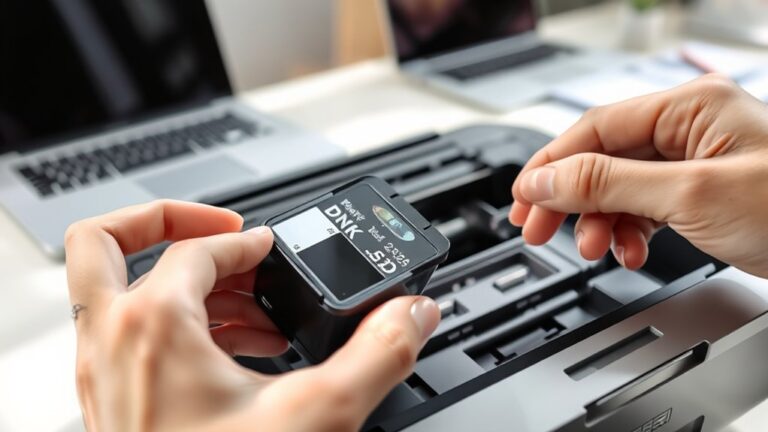


How to Know If an Ink Cartridge Is Empty
You’ll know your ink cartridge is empty if your prints come out faded, streaky, or with missing colors. Your printer might also alert you with low or empty ink warnings, which is a clear sign.
Checking the ink levels through your printer’s software or control panel can give you more detailed information about the cartridge status.
Sometimes, a quick visual inspection can help too. If the cartridge looks dry or low on ink, it might be time to replace it.
If you want to get a better handle on identifying and handling empty cartridges, there are a few useful methods to explore. These tips can save you time and ensure your prints come out looking great every time.
Key Takeaways
- Check your printer software or control panel for any ink level indicators or low ink warnings.
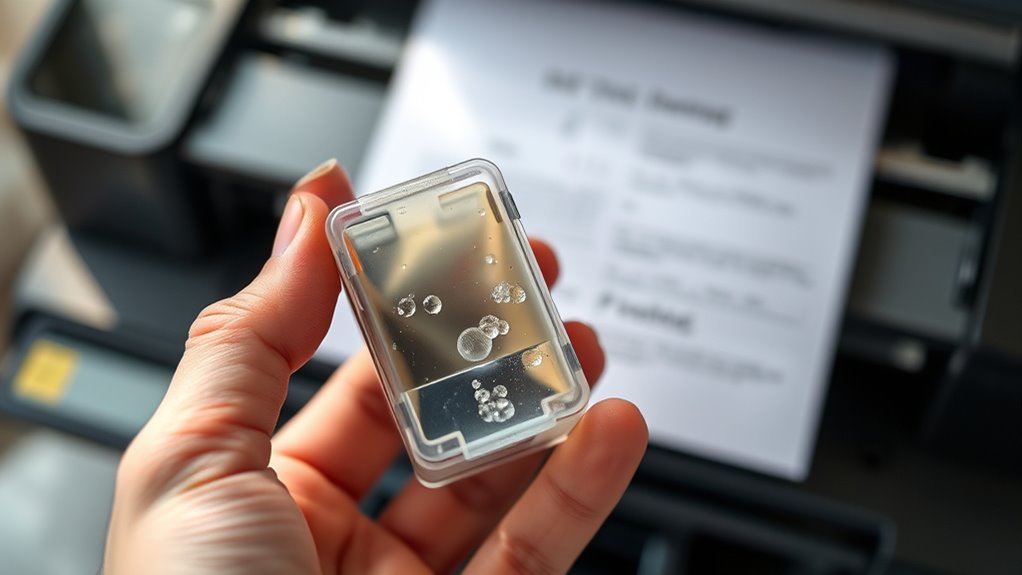
- You can also take a look at the cartridge itself. Sometimes, you might see ink through transparent windows, or notice if the nozzle looks dry.
- Try printing a test page. If the colors look faded, or you see streaks, missing lines, or blank spots, that’s a good sign the ink might be running low.
- Keep an eye out for printer alerts too, like messages saying “Low Ink” or “Ink Cartridge Empty.”
- Lastly, if your print quality starts to decline, prints come out inconsistent, or the printer just refuses to print, it’s probably time to replace the cartridge.
Common Signs of an Empty Ink Cartridge
Although printers often alert you when ink runs low, you can spot common signs of an empty ink cartridge yourself. First, if your printouts start showing faded colors or streaks, that’s a clear indicator the ink is nearly gone.
You might notice missing lines or patches where the ink didn’t transfer to the paper at all. Another sign is when your printer refuses to print altogether, sometimes flashing error lights or displaying a warning on the control panel.
If you hear unusual noises during printing, it could be struggling due to low ink. Paying attention to these visual and operational cues helps you act quickly, avoiding poor-quality prints and preventing damage to your printer.
Checking Ink Levels via Printer Software
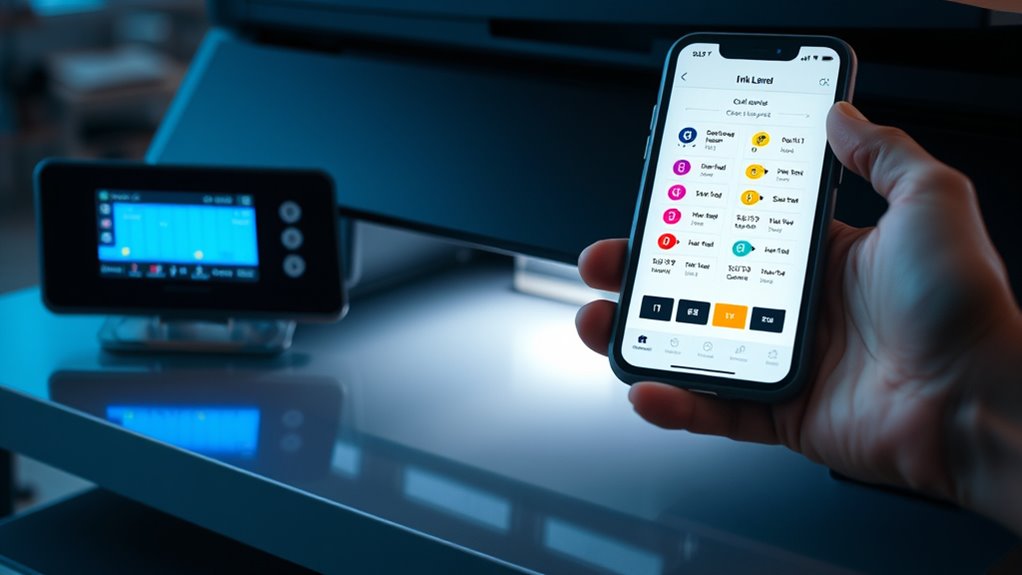
You can easily check your ink levels by opening the printer software on your computer. Once there, look for the ink level indicators that show how much ink remains in each cartridge.
This helps you know exactly when it’s time to replace or refill your ink. It’s a simple way to avoid running out unexpectedly!
Accessing Printer Software
Wondering how to quickly check your ink levels without opening the printer? Accessing your printer software is the easiest way to do this. Here’s how you can get started:
Open the Control Panel or System Preferences on your computer. Then, locate and open your printer’s software or utility program.
Look for an option labeled “Ink Levels,” “Maintenance,” or “Printer Status.” Click on this option to view your current ink cartridge levels.
Most printer software will display a clear graphic or percentage showing how much ink remains. Some also send alerts when ink is low.
Understanding Ink Level Indicators
When you open your printer software to check ink levels, you’ll notice various indicators designed to help you understand how much ink remains. Most printers display a graphical bar or percentage next to each cartridge, showing its current status.
Some models use color-coded icons—green for sufficient ink, yellow for low, and red for empty or near empty. You might also see warnings or alerts prompting you to replace cartridges soon.
Keep in mind that these indicators estimate ink levels based on usage patterns, so they might not be perfectly accurate. If you notice a cartridge marked empty but your prints still look fine, give it a test print before replacing.
Understanding these signals helps you avoid unexpected print interruptions and ensures you replace cartridges at the right time. So, it’s a good idea to pay attention but also trust your own judgment when it comes to ink levels.
Performing a Print Quality Test
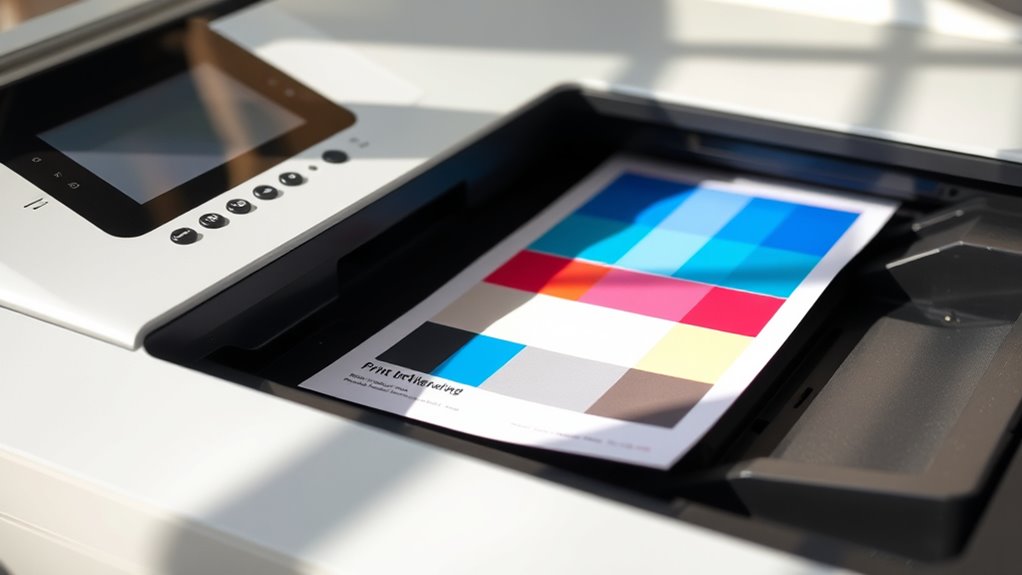
You can start a print quality test by accessing your printer’s settings menu and selecting the test page option. Once printed, examine the test page carefully to spot any faded or missing areas that indicate low ink levels.
These results will help you identify which cartridge might be empty or needs replacing. It’s a simple way to keep your prints looking sharp and avoid wasting paper on poor-quality prints.
Accessing Printer Settings
Although ink levels can sometimes be estimated visually, performing a print quality test through your printer settings gives you a clear indication of whether a cartridge is empty or needs replacement.
To access these settings, start by turning on your printer and connecting it to your computer. Then, follow these steps:
- Open the Control Panel or System Preferences on your device.
- Navigate to “Devices and Printers” or “Printers & Scanners.”
- Select your printer and click on “Manage” or “Options & Supplies.”
- Look for a “Print Quality Test” or “Printer Maintenance” option to run the test page.
This process helps you check ink levels without guesswork, ensuring your printer operates smoothly. Give it a try whenever you’re unsure about your ink status!
Interpreting Test Page Results
Since the print quality test produces a sample page, you can easily identify empty or low ink cartridges by examining the printed patterns and colors. Look for missing colors, streaks, or faded areas in the test patterns.
If any color blocks or lines are incomplete or absent, that cartridge is likely empty or clogged. Solid colors should be vibrant without gaps, and text should appear sharp.
If you notice inconsistent shading or blank spots where ink should be, it’s a clear sign you need to replace or clean the cartridge. By carefully reviewing these details on the test page, you’ll quickly pinpoint which cartridge isn’t delivering ink properly.
That way, you can avoid wasted prints and make sure your documents look their best.
Identifying Ink Level Indicators
When you perform a print quality test, your printer often provides ink level indicators that help you determine how much ink remains in each cartridge. These indicators can show up in various ways, making it easier for you to spot low or empty cartridges quickly.
Look for a visual bar or graph displaying ink levels on your printer’s screen or computer. You might also see color-coded alerts that highlight which cartridge is running low.
Sometimes, blinking lights or icons on the printer control panel signal ink issues. Plus, printed test pages with faded or missing colors can indicate low ink. Keep an eye out for these signs to avoid surprises!
Visual Inspection of the Ink Cartridge
Before assuming your ink cartridge is empty, you should perform a visual inspection to check for obvious signs of ink depletion. Remove the cartridge carefully from your printer and look for a transparent or semi-transparent window on the cartridge body.
If you see this, check the ink level inside. If the ink appears low or the cartridge looks dry, it’s likely time for a replacement. Also, inspect for any leaks or dried ink around the nozzle area that might affect print quality.
Understanding Printer Alerts and Messages
Although it’s easy to rely on visual checks, your printer often provides alerts and messages that give precise information about ink levels. Paying attention to these notifications helps you avoid sudden printing interruptions.
Here’s what to watch for:
- Low Ink Warning: Indicates that an ink cartridge is running low and you should prepare a replacement.
- Ink Cartridge Empty Alert: Signals that the cartridge is completely out of ink and needs immediate replacement.
- Cartridge Error Message: May mean the cartridge isn’t installed correctly or isn’t compatible.
- Maintenance Notifications: Sometimes your printer will prompt cleaning cycles related to ink usage.
Keeping an eye on these messages can save you a lot of trouble later. So, don’t just glance over them—take a moment to understand what your printer is telling you.
When to Replace vs. Refill Your Ink Cartridge
Deciding whether to replace or refill your ink cartridge depends on several factors, including print quality, cost, and cartridge condition.
If your prints start showing streaks or faded colors, refilling might be a quick fix. However, if the cartridge is damaged or refills cause frequent clogs, replacement is better.
Cost-wise, refills save money but might reduce print quality over time. So, it really comes down to what’s most important for your needs.
| Factor | Replace Cartridge | Refill Cartridge |
|---|---|---|
| Print Quality | Consistently high | May degrade over time |
| Cost | Higher upfront | Lower upfront |
| Cartridge Status | Damaged or expired | Good condition |
| Convenience | Easier, less hassle | Requires careful handling |
| Environmental | More waste generated | Eco-friendlier |
Frequently Asked Questions
Can Ink Cartridges Expire if Unused for a Long Time?
Yes, ink cartridges can expire if unused for a long time. The ink may dry out or clog, causing poor print quality.
Are Third-Party Ink Cartridges Reliable for My Printer?
About 30% of users report issues with third-party cartridges, so while they’re cheaper, you might face quality or compatibility problems.
You should weigh cost savings against possible print quality and warranty risks before deciding.
It’s really about what matters more to you—saving money upfront or having peace of mind with your printer’s performance.
Think about how often you print and whether a hiccup with the cartridge would be a big hassle.
How Do I Properly Store Spare Ink Cartridges?
Keep your spare ink cartridges sealed in their original packaging. Store them in a cool, dry place away from direct sunlight to keep them in good shape.
Also, avoid exposing them to extreme temperatures. This helps preserve the ink quality and prevents clogs when you use the cartridges later on.
Can Extreme Temperatures Affect Ink Cartridge Performance?
Yes, extreme temperatures can damage your ink cartridge. Heat may cause ink to dry out, while cold can thicken it, leading to clogs or poor print quality.
Is It Safe to Shake Ink Cartridges Before Use?
Isn’t it tempting to shake ink cartridges before use? You shouldn’t shake them vigorously, but gentle shaking can help mix ink.
Just be careful to avoid leaks or damage, and follow your printer’s specific guidelines. It’s always best to check what your printer manual recommends before you do anything.
Conclusion
Now that you know the signs of an empty ink cartridge, you won’t be caught off guard with blank pages flooding your printer like a desert without rain. Checking ink levels and running print tests can help you catch issues early.
Also, paying attention to printer alerts saves you time and frustration. Remember, whether you decide to replace or refill your ink cartridge, staying on top of its status keeps your printing smooth and hassle-free.
Don’t let an empty ink cartridge stop your creativity in its tracks! Regularly monitoring your printer’s ink levels ensures you’re always ready to print important documents or photos without interruption. Keeping your ink cartridge in check means fewer surprises and more productive printing sessions. So, keep an eye on those ink levels, and your printer will thank you!