
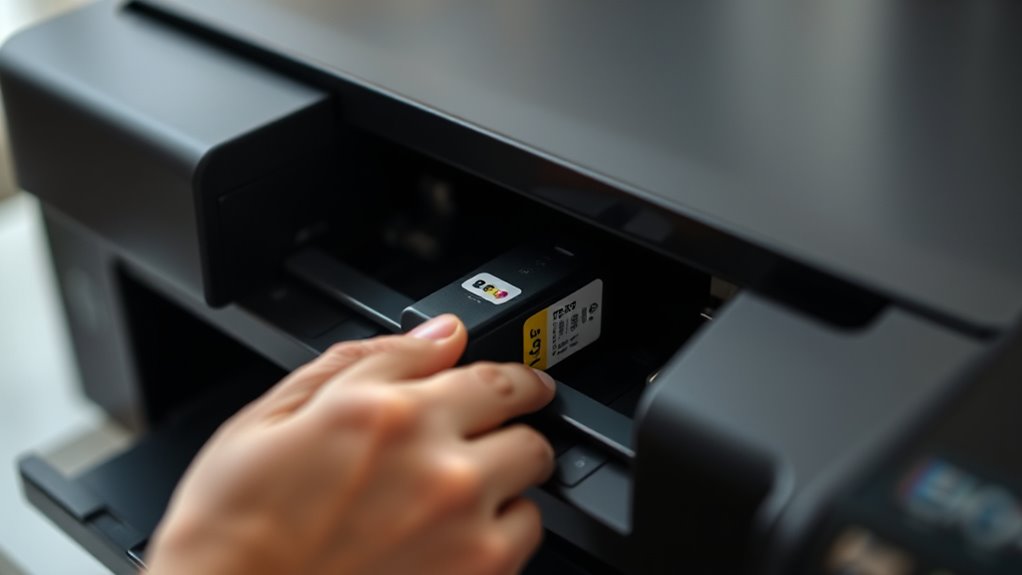
How to Put Ink Cartridge in 5 Easy Steps
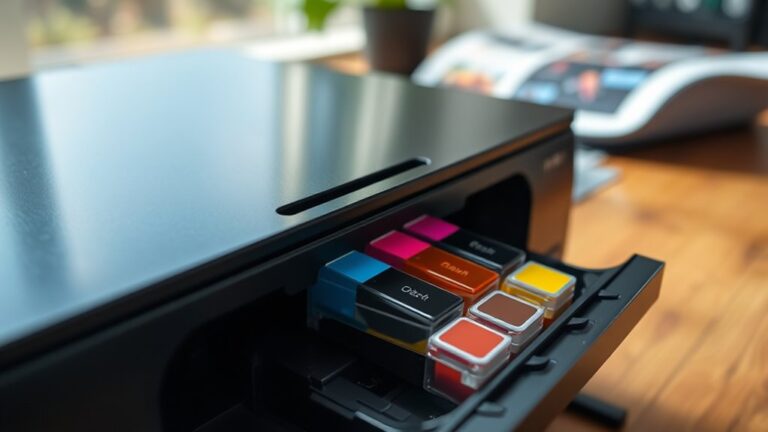
To put an ink cartridge in five easy steps, first check your printer’s compatibility and prepare a clean workspace. It’s important to start with a tidy area to avoid any mishaps. Also, make sure you have the right cartridge for your specific printer model.
Next, open the printer carefully. Remove the old cartridge gently and set it aside. This step is crucial because handling the cartridge with care prevents damage to the printer.
Now, unpack your new cartridge, but be sure not to touch the contacts or nozzles. These parts are sensitive and can affect print quality if damaged.
Insert the cartridge firmly until you hear a click, which means it’s properly seated.
Finally, close the printer cover. Use your printer’s settings to align the cartridge and run a test print to check everything is working perfectly.
Keep reading for helpful tips on maintaining your printer’s performance and ensuring long-lasting print quality!
Key Takeaways
- Confirm the cartridge model matches your printer. Also, get a clean, flat workspace ready with some paper towels handy for any ink spills.
- Next, open the printer’s cartridge access door. Carefully take out the old cartridge, but be sure not to touch the contacts.
- Now, unpack the new cartridge. Try to avoid touching the nozzles or contacts, and don’t forget to remove any protective tape or covers.
- Insert the new cartridge into the right slot. Make sure it’s aligned properly and push it in until you hear it click. Then, close the printer cover.
- Finally, use the printer’s maintenance menu to align the cartridge. Print a test page to check everything’s working and the print quality looks good.
Check Printer Compatibility and Prepare Your Workspace
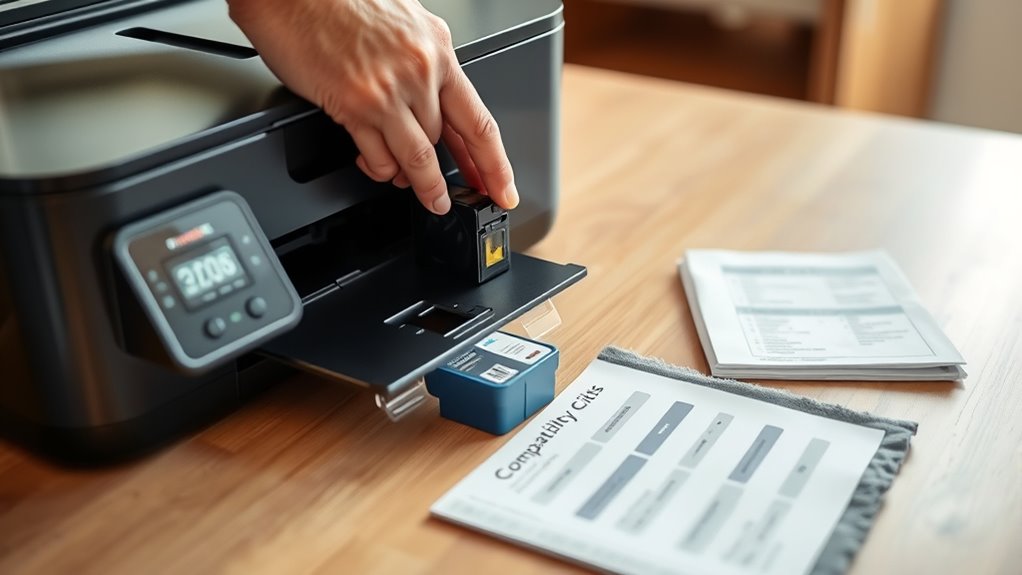
Before you install the ink cartridge, make sure your printer is compatible with the cartridge model you have. Check the printer’s manual or manufacturer’s website to confirm the exact cartridge type required. Using the wrong cartridge can damage your printer or cause poor print quality.
Next, prepare your workspace by clearing a clean, flat surface near your printer. Lay down some paper towels to catch any ink spills. Make sure your hands are clean and dry to avoid smudging or contaminating the cartridge.
Have a trash bin nearby for old cartridges and packaging materials. Finally, ensure your printer is turned on and ready for the installation process. Taking these steps will help you install the cartridge smoothly and avoid potential problems.
Remove the Old Ink Cartridge
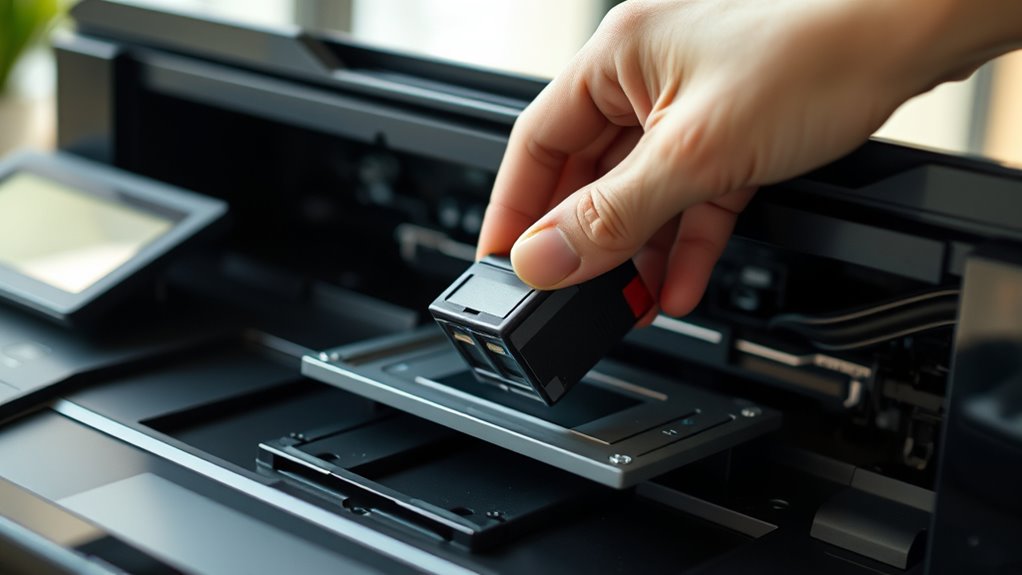
Once your printer is ready, open the cartridge access door to locate the old ink cartridge. Gently press down or lift the cartridge tab, depending on your printer model, to release it.
Carefully pull the cartridge straight out to avoid damaging the contacts or the print head. If your printer has multiple cartridges, note their positions to install the new ones correctly.
Handle the cartridge by its sides to prevent ink stains on your fingers. Place the old cartridge on a paper towel or a disposable surface to catch any residual ink.
If your printer prompts you to confirm cartridge removal, just follow the on-screen instructions. Finally, close the cartridge access door until it clicks into place, getting your printer ready for the next step.
Unpack and Inspect the New Ink Cartridge
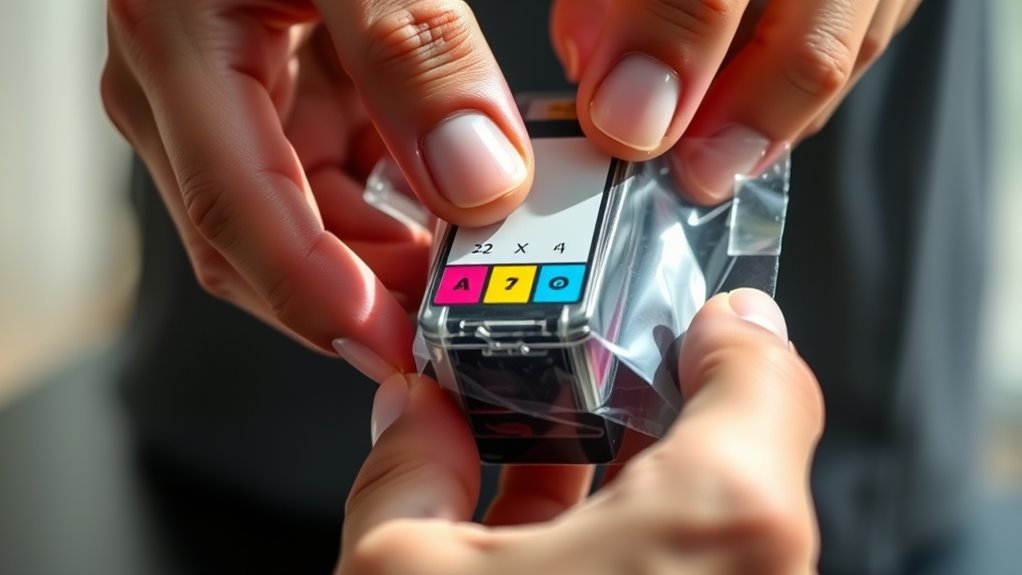
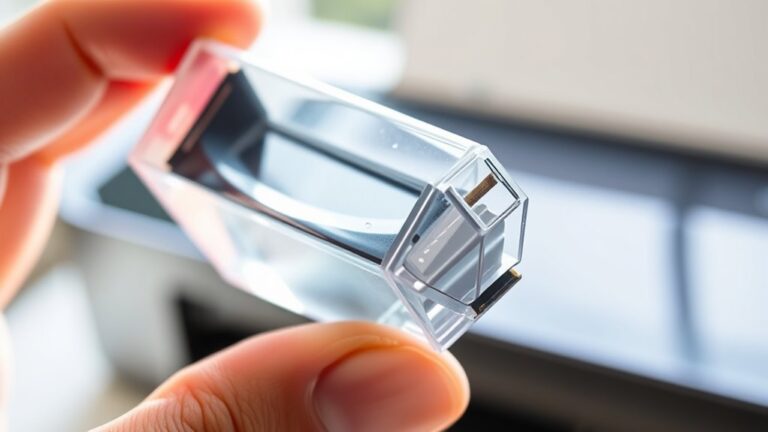
Start by carefully unpacking the new ink cartridge from its packaging. Make sure not to touch the copper contacts or nozzles. These parts are delicate and essential for proper ink flow and communication with your printer.
Once unpacked, inspect the cartridge for any visible damage or leaks. Check the label to confirm it’s the correct cartridge model for your printer.
Remove any protective tape or plastic covers from the cartridge. These prevent ink from spilling during shipping but must be taken off before installation.
Handle the cartridge gently to avoid any spills or damage. Taking these simple steps guarantees your cartridge is ready for a smooth installation and ideal printing performance.
Insert the New Ink Cartridge Into the Printer
Although it may seem straightforward, inserting the new ink cartridge correctly is essential for your printer to function properly. First, gently hold the cartridge by its sides to avoid touching the copper contacts or ink nozzles, which can cause damage.
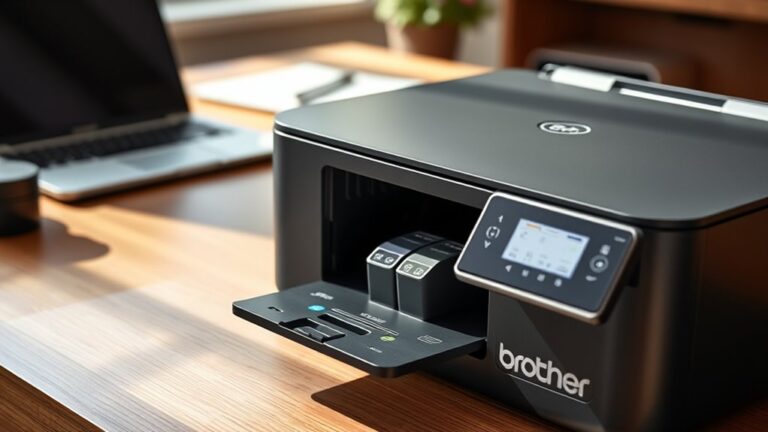
Next, locate the cartridge slot inside the printer and line up the cartridge with the guides. Slide the cartridge in firmly but gently until you hear a click, indicating it’s securely in place. Don’t force it, though—that can damage the cartridge or printer.
Once inserted, close the printer cover carefully. Your printer will now recognize the new cartridge, ready for use.
Taking these steps ensures reliable printing and prevents alignment issues later on. Easy, right?
Align and Test the New Ink Cartridge
Before you begin printing, you’ll want to align and test the new ink cartridge to guarantee peak performance and print quality. Most printers offer an alignment option in the settings or maintenance menu.
Select it to ensure the ink heads line up correctly. After alignment, print a test page to check color accuracy and clarity. If the print looks off, repeat the alignment or clean the cartridge heads.
| Step | Action |
|---|---|
| 1. Access Printer | Open printer settings or menu |
| 2. Select Align | Choose “Align Ink Cartridge” |
| 3. Print Test Page | Confirm colors and sharpness |
| 4. Repeat if Needed | Realign or clean cartridge heads |
Frequently Asked Questions
How Often Should I Replace My Ink Cartridge?
You should replace your ink cartridge when print quality drops or the printer warns low ink.
Typically, this happens after several hundred pages, but it varies based on usage, printing frequency, and cartridge type.
Can I Use Third-Party Ink Cartridges Safely?
Yes, you can use third-party ink cartridges safely, but be cautious. They might save you money, which is great.
However, some may cause print quality issues or even damage your printer. So, it’s important to be careful about which ones you choose.
Always buy from reputable brands to minimize risks. That way, you get the savings without the headaches.
What Should I Do if the Cartridge Leaks?
If the cartridge leaks, you should turn off your printer first. Then, carefully remove the cartridge and clean the area with a damp cloth.
Try not to touch the ink directly—it can be messy and stain your hands. After cleaning, replace the cartridge with a new one to avoid any further damage.
How to Store Unused Ink Cartridges Properly?
You should store unused ink cartridges in a cool, dry place. Keep them sealed in their original packaging or an airtight container.
Avoid direct sunlight and extreme temperatures. This helps prevent the cartridges from drying out or leaking. It’s pretty simple, but it makes a big difference!
Why Is My New Cartridge Not Recognized by the Printer?
Did you know 30% of printer issues come from cartridge errors? Your new cartridge might not be recognized because it’s improperly seated, incompatible, or the chip’s dirty.
Try reseating it or cleaning the contacts to fix this. Sometimes, a little adjustment goes a long way!
Conclusion
Now that you’ve navigated these neat and necessary steps, your printer’s performance will be perfectly primed. By carefully checking compatibility, confidently changing cartridges, and correctly calibrating your equipment, you create a seamless printing experience.
Remember, routine replacement and responsible handling keep your prints pristine and prevent pesky problems. So, stay sharp, stay steady, and savor the satisfaction of smooth, successful printing every single time!
Putting an ink cartridge in your printer doesn’t have to be tricky. Follow these easy steps, and you’ll ensure your printer runs smoothly with vibrant, clear prints. Regularly replacing your ink cartridge not only maintains print quality but also extends your printer’s life.
So, take these tips to heart, and enjoy hassle-free printing whenever you need it!