

How to Remove Windows Ink Step by Step
You can remove Windows Ink by first right-clicking your taskbar, selecting Taskbar settings, and turning off the Windows Ink Workspace icon under system icons. This simple step helps clear up your taskbar from clutter if you don’t use Windows Ink features often.
Then, open the Group Policy Editor (gpedit.msc), navigate to Windows Ink Workspace settings, and disable it. This disables the workspace functionality at a system level, giving you more control over Windows Ink.
For deeper control, edit the registry to set AllowWindowsInkWorkspace to 0. Just be careful while editing the registry, as incorrect changes can affect your system.
Don’t forget to disable related startup programs via Task Manager to stop any Windows Ink services from running in the background.
If you want to make certain Windows Ink is fully disabled or troubleshoot issues, there’s more you can explore. These steps cover the basics but diving deeper can help if problems persist or for complete removal.
Key Takeaways
– Right-click the taskbar, go to Taskbar settings, then disable Windows Ink Workspace under system icons.
This will hide the icon and stop you from accessing it easily.
– Open Local Group Policy Editor (gpedit.msc), and disable “Allow Windows Ink Workspace” under Windows Components settings.
This step ensures the workspace is turned off at a deeper system level.
– Use Registry Editor (regedit) to set DWORD AllowWindowsInkWorkspace to 0 in the WindowsPenWorkspace key to disable Ink.
Be careful with this one, as editing the registry can affect your system if done incorrectly.
– Disable Windows Ink Workspace or Pen Input Service from Task Manager’s Startup tab to prevent automatic launch.
This stops the service from running when your computer boots up.
– Access Settings > Devices > Pen & Windows Ink to customize or turn off handwriting and pen input features.
Here, you can tweak or completely turn off pen-related inputs based on your preference.
Understanding Windows Ink and Its Features
Although Windows Ink is designed to enhance your digital writing experience, you might want to disable it if you don’t use a stylus or find its features distracting. Windows Ink provides tools like a digital notepad, sketchpad, and screen sketch, which let you write, draw, or annotate directly on your device’s screen.
It integrates with apps such as Microsoft Edge and OneNote, allowing seamless note-taking and creative expression. If you primarily use a keyboard and mouse, or don’t rely on handwriting input, Windows Ink’s pop-ups and workspace might interrupt your workflow.
Understanding these features helps you decide if Windows Ink adds value or just gets in your way. Knowing what it does sets the stage for removing it effectively when it’s not needed.
Disabling Windows Ink Workspace via Settings

If you find the Windows Ink Workspace distracting, you can easily disable it through your device’s settings. Start by right-clicking the taskbar and selecting “Taskbar settings.”
Scroll down to the “Notification area” section and click on “Turn system icons on or off.” Locate “Windows Ink Workspace” in the list and toggle it off. This will remove the Workspace icon from your taskbar, preventing accidental access.
If you want to go further, open the Settings app, go to “Devices,” then “Pen & Windows Ink.” Here, you can customize pen-related features or disable specific options tied to Windows Ink.
These simple steps help you control and minimize Windows Ink Workspace’s presence without diving into complex configurations or policies. It’s pretty straightforward!
Turning Off Windows Ink Services Using Group Policy
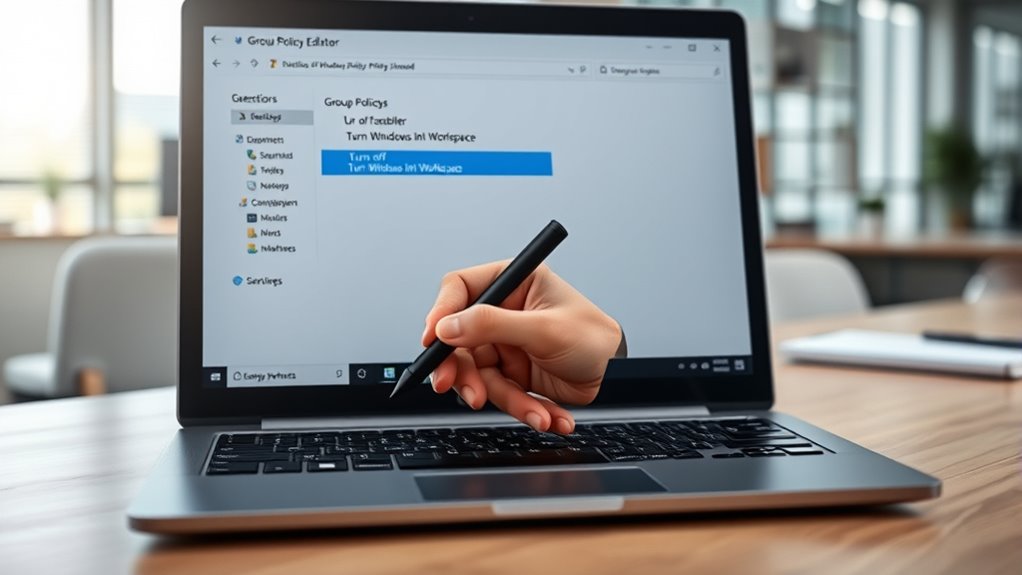
When you need more control over Windows Ink, turning off its services via Group Policy offers a powerful solution. First, open the Local Group Policy Editor by typing “gpedit.msc” in the Run dialog (Win + R).
Navigate to Computer Configuration > Administrative Templates > Windows Components > Windows Ink Workspace. Look for the policy named “Allow Windows Ink Workspace” and double-click it.
Set it to “Disabled” and click Apply, then OK. This action disables Windows Ink services system-wide, preventing users from accessing the workspace features.
After applying the changes, restart your computer to ensure the policy takes effect. Using Group Policy is especially helpful in managed environments where centralized control is needed.
Disabling Windows Ink Through the Registry Editor
Besides using Group Policy, you can disable Windows Ink by editing the Registry Editor directly. First, press Win + R, type “regedit,” and hit Enter to open the Registry Editor.
Navigate to HKEY_LOCAL_MACHINESOFTWAREPoliciesMicrosoftWindowsPenWorkspace. If the PenWorkspace key doesn’t exist, just right-click on Windows, select New > Key, and name it PenWorkspace.
Then, right-click in the right pane, choose New > DWORD (32-bit) Value, and name it AllowWindowsInkWorkspace. Double-click this new value and set its data to 0 to disable Windows Ink.
Finally, close the Registry Editor and restart your PC to apply changes. Editing the registry is powerful but risky; so, back up your registry beforehand to avoid potential issues.
This method effectively turns off Windows Ink without using Group Policy.
Removing Windows Ink From Startup Programs
You can stop Windows Ink from running at startup by opening Task Manager. Once there, find the Windows Ink entry under the Startup tab.
Simply disable it to prevent it from launching automatically. It’s an easy fix that helps speed up your boot time a bit. Give it a try!
Access Task Manager
Although Windows Ink is designed to enhance your stylus experience, it can sometimes slow down startup times or interfere with other applications.
To manage this, you’ll want to access the Task Manager, where you can view and control startup programs.
Here’s how to quickly open Task Manager:
- Press Ctrl + Shift + Esc simultaneously
- Right-click the taskbar and select “Task Manager”
- Use Ctrl + Alt + Delete and choose “Task Manager”
- Search “Task Manager” in the Start menu and open it
- Press Windows key + X and select “Task Manager”
Once you open it, you’ll see tabs like Processes, Performance, and Startup. You’ll focus on the Startup tab to manage Windows Ink’s startup impact effectively.
It’s pretty straightforward once you get there!
Locate Windows Ink Entry
Before disabling Windows Ink from startup, you’ll need to locate its entry within the Task Manager’s Startup tab. Open Task Manager by pressing Ctrl + Shift + Esc, then click on the Startup tab.
Here, you’ll see a list of programs scheduled to run at startup. Take a moment to scan through the list carefully to find any entries related to Windows Ink or pen input services.
To help you identify the correct entry, focus on the “Name,” “Publisher,” and “Status” columns:
| Name | Publisher | Status |
|---|---|---|
| Windows Ink Workspace | Microsoft Corporation | Enabled |
| Pen Input Service | Microsoft Corporation | Enabled |
| Touch Keyboard | Microsoft Corporation | Disabled |
Once you spot the Windows Ink entry, you’re ready for the next step. Easy, right?
Disable Startup Program
Disabling Windows Ink from startup programs is pretty straightforward and only takes a few clicks in the Task Manager. First, open Task Manager by pressing Ctrl + Shift + Esc, or you can right-click the taskbar and select Task Manager from the menu.
Next, switch to the Startup tab. Here, you’ll see a list of all programs that launch when your PC starts up. Just look for any Windows Ink-related entries, like Windows Ink Workspace or Pen Workspace.
Once you find the entry, select it, and then click the Disable button in the bottom-right corner. This will stop Windows Ink from running automatically when your computer boots up.
Here’s a quick checklist to disable Windows Ink startup programs:
- Open Task Manager (Ctrl + Shift + Esc)
- Navigate to the Startup tab
- Find Windows Ink related apps
- Select the app you want to disable
- Click Disable to stop it from launching at startup
Troubleshooting Common Issues After Disabling Windows Ink
When you turn off Windows Ink, you might notice some features or apps no longer work as expected. For example, pen input may stop responding in apps like Sticky Notes or Sketchpad. To fix this, first check if the apps offer alternative input methods or settings.
You can also try restarting your device to refresh system processes. Sometimes, a simple reboot is all it takes to get things running smoothly again.
If problems persist, consider temporarily re-enabling Windows Ink to identify which features require it. This way, you can pinpoint exactly what depends on Windows Ink.
Additionally, update your device drivers, especially for your touchscreen or pen hardware. Outdated drivers can cause conflicts when Windows Ink is disabled, so keeping them current is important.
Finally, review your system’s Group Policy or Registry settings to ensure no conflicting configurations remain. Taking these troubleshooting steps should help you regain smooth functionality after disabling Windows Ink.
Frequently Asked Questions
Can Windows Ink Be Used With Non-Touchscreen Devices?
No, you can’t use Windows Ink effectively on non-touchscreen devices since it relies on pen input.
Without a touchscreen or stylus support, you won’t get the full functionality Windows Ink offers. So, it’s kind of limited if your device doesn’t have those features.
Does Removing Windows Ink Affect Touchscreen Functionality?
Think of Windows Ink as the paintbrush for your touchscreen canvas; removing it won’t erase touch functionality.
But, you’ll lose specialized pen features and gestures that really enhance your drawing and note-taking experience on your device.
Are There Any Third-Party Apps Similar to Windows Ink?
Yes, you can try third-party apps like OneNote, Bamboo Paper, or Nebo. They offer similar note-taking and drawing features.
You’ll find they often provide more customization than Windows Ink. Give them a shot!
Can I Reinstall Windows Ink if Needed Later?
If you ever miss Windows Ink like a desert craves rain, you can easily reinstall it through the Microsoft Store or Windows Features.
Just a few clicks, and it’s back, ready to inspire your creativity!
Is Windows Ink Compatible With All Windows Versions?
Windows Ink isn’t compatible with all Windows versions; it mainly works on Windows 10 and later.
If you’re using older versions like Windows 7 or 8, you won’t have access to Windows Ink features by default. So, if you want to use Windows Ink, upgrading your OS is the way to go!
Conclusion
Now that you know how to remove Windows Ink step by step, you’re ready to take control and streamline your system just the way you like it. Don’t let unnecessary features slow you down—sometimes, you’ve got to cut through the red tape to get things running smoothly.
Follow these methods carefully, and if any issues pop up, you’ll be equipped to handle them like a pro. Removing Windows Ink can really help improve your device’s performance and reduce distractions.
By taking these simple steps to disable or uninstall Windows Ink, you’re making your Windows experience cleaner and more efficient. Your device will thank you for it!