
How to Tell If Your Ink Cartridge Is Empty Simply
You can simply tell if your ink cartridge is empty by checking your printer’s software or control panel for low ink warnings. Most printers will alert you when ink levels are getting low, so keep an eye out for those notifications.
Try printing a test page—if you notice faded colors or missing lines, it’s a good sign your ink is running low. This quick test is an easy way to avoid surprises when you need to print something important.
You can also remove the cartridge and look closely for ink levels or dryness. Sometimes, just a visual check can give you a clue about whether it’s time to replace the cartridge.
These simple steps help you steer clear of unexpected printing issues and keep your printer running smoothly.
Keep exploring to discover more easy and effective ways to monitor your printer’s ink status!
Key Takeaways
– Use your printer’s software or control panel to check ink levels or status messages indicating low or empty cartridges.
It’s usually pretty straightforward and gives you a quick update on what’s going on inside your printer.
– Print a test page and look for faded, streaky, or missing colors as signs of an empty ink cartridge.
If the print looks off, that’s a clear hint something’s running low.
– Observe the printer’s control panel for blinking lights or icons signaling low or empty ink cartridges.
These little signals are there to catch your attention without you needing to dig around.
– Perform a nozzle check via printer settings to identify missing lines or blank spots indicating depleted ink.
It’s a handy way to pinpoint exactly where the ink might be running out.
– Remove the cartridge and visually inspect it against light for remaining ink or dryness to assess ink levels simply.
Sometimes, just a quick look can tell you if it’s time for a replacement.
Check Printer Ink Level Using Printer Software
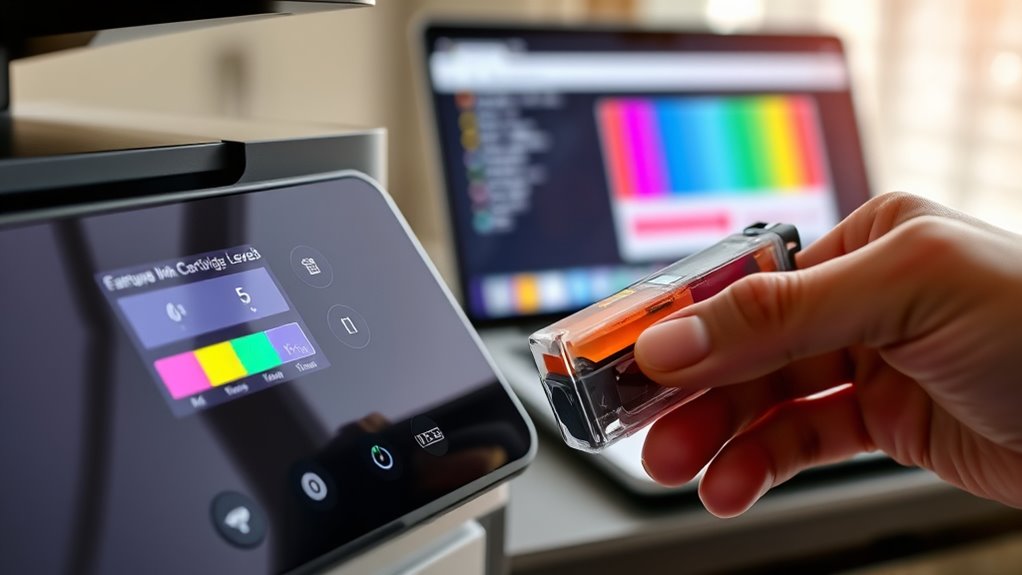
Before you open your printer, you can quickly check your ink levels using the printer software on your computer. Simply open the control panel or the dedicated printer app installed on your system.
Look for an option labeled “Ink Levels,” “Printer Status,” or “Maintenance.” Once you find it, the software will display the current ink levels for each cartridge, often as a percentage or graphic bar.
This method saves you the hassle of removing cartridges unnecessarily and helps you decide if you need to replace or refill ink soon. Keep in mind that some older or basic printers may not support this feature, but most modern models do.
Checking ink this way guarantees you’re always prepared before starting a print job. It’s a quick and easy step that can save you time and frustration later on.
Inspect the Print Quality and Color Output
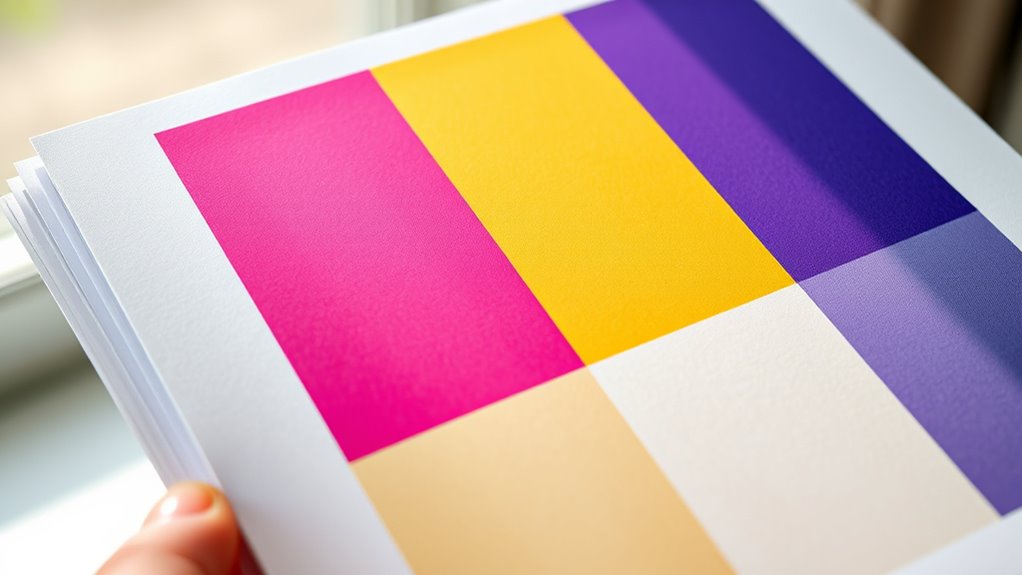
How can you tell if your ink cartridge is running low without checking the software? Simply print a test page or any document with color. Look closely at the print quality.
If you notice faded text, streaks, or missing colors, it’s a clear sign your cartridge may be empty or near empty. Colors might appear duller than usual, or you could see uneven patches where ink didn’t deposit properly.
Black ink might look lighter, and color prints may lack vibrancy. Regularly inspecting your printouts helps you catch low ink levels early, preventing poor-quality prints.
This quick visual check is an effective way to gauge ink status without relying on digital tools, ensuring your printer keeps producing sharp, vibrant results.
Monitor the Printer’s Control Panel Indicators
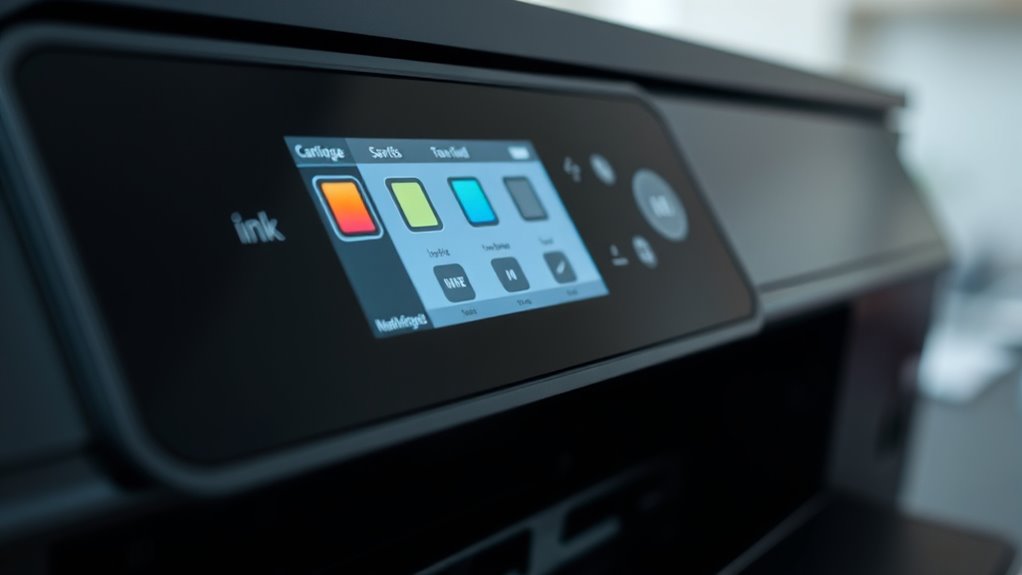
While inspecting print quality gives you clues, monitoring your printer’s control panel indicators offers a direct way to check ink levels. Most modern printers have a display or light system that alerts you when ink is running low or empty.
Pay close attention to icons, messages, or blinking lights showing on the panel. Some printers display exact percentages, while others use color-coded warnings or symbols. If you see a low ink indicator, it’s time to prepare for replacement.
Ignoring these alerts can lead to poor print quality or printer errors. Regularly checking the control panel saves time and frustration by letting you know the cartridge status without guesswork. Stay proactive to keep your printer running smoothly.
Perform a Test Print or Nozzle Check
Wondering if your ink cartridge is empty? Performing a test print or nozzle check is a quick way to find out. This method helps you see if the ink flows properly or if there are gaps in the print, indicating low or empty cartridges.
Most printers have a built-in option for this in their settings menu. Here’s how you can perform a nozzle check:
- Access your printer’s control panel or software on your computer.
- Locate the option labeled “Test Print,” “Print Quality Report,” or “Nozzle Check.”
- Run the test print and carefully examine the output.
- Look for missing lines, faded colors, or blank spots that suggest ink depletion.
This simple step saves time and confirms if a cartridge replacement is necessary. It’s an easy way to avoid printing problems before they get worse!
Remove and Visually Examine the Cartridge
Before replacing your ink cartridge, you should remove it from the printer and inspect it closely. Power off your printer and open the cartridge access door carefully.
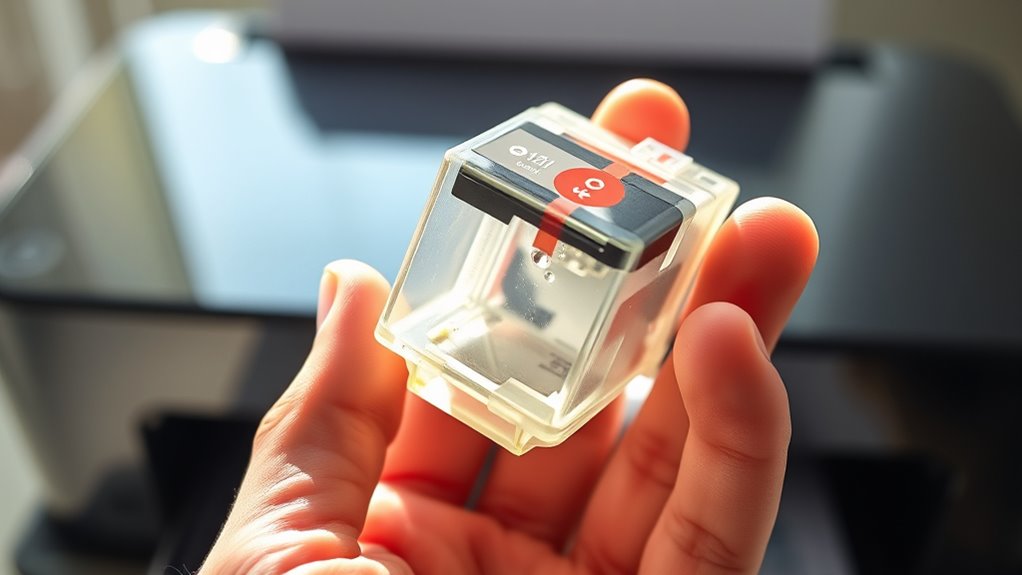
Gently press the cartridge release latch and lift the cartridge out. Hold it up to a light source and look through the transparent plastic window if available. You might see the remaining ink level or notice if the cartridge looks dry or empty.
Also, check for any dried ink buildup or damage on the cartridge contacts and nozzles. Avoid touching the copper contacts to prevent damage.
If the cartridge appears almost empty or shows clogged nozzles, it’s a strong sign you need a replacement. Visual examination gives a quick, straightforward way to assess if your cartridge is truly out of ink.
Use Third-Party Ink Level Monitoring Tools
You can use third-party ink level monitoring tools to get more accurate readings than your printer might offer. These apps often provide real-time updates and alerts when your cartridge is running low.
It’s pretty handy because you won’t be caught off guard without ink. Popular options like Inkjet Insight and Printer Pro can help you avoid unexpected ink shortages. Give them a try!
Benefits of Third-Party Tools
Although your printer provides basic ink level alerts, third-party ink level monitoring tools offer more accurate and detailed insights. They help you avoid unexpected cartridge failures by giving you a clearer picture of your ink usage.
These tools warn you well before the cartridge runs dry. By using them, you can plan replacements more efficiently and reduce printing interruptions.
Here are some benefits you’ll get from third-party tools:
- Real-time ink level tracking with precise measurements
- Notifications customized to your printing habits
- Compatibility with multiple printer brands and models
- Historical usage data to predict future ink needs
Using these tools ensures you stay ahead of ink shortages. That way, you save time and frustration during important print jobs.
Popular Ink Monitoring Apps
Several popular ink monitoring apps can help you keep tabs on your cartridge levels with ease and accuracy. Apps like Printer Pro, InkXpert, and EcoTank Manager provide real-time updates, alerting you before your ink runs out.
You simply install the app on your computer or smartphone, connect it to your printer, and let it do the work. These apps often support multiple printer brands, so you’re not limited to a single model.
They also track ink usage trends, helping you optimize your printing habits. By using these tools, you can avoid unexpected ink shortages and save money by replacing cartridges only when necessary.
Give one a try, and you’ll find managing ink levels becomes much less stressful. It’s a simple way to stay in control and keep your printing running smoothly.
Frequently Asked Questions
Can an Empty Cartridge Damage My Printer?
Yes, running your printer with an empty cartridge can damage it by causing air to enter the printhead. This can lead to clogs or even overheating.
How Often Should I Replace Ink Cartridges?
You should replace ink cartridges when print quality drops or your printer warns you.
Frequency depends on usage—heavy users might change monthly, while occasional users might replace every few months or when colors fade noticeably.
Basically, keep an eye on how your prints look, and swap out the cartridges as soon as you notice any fading or streaking. That way, your documents always come out looking sharp!
Are Refilled Cartridges Reliable?
Refilled cartridges can be reliable if you choose a reputable supplier and handle them carefully. However, they may clog or produce lower-quality prints compared to new ones.
You’ll want to weigh cost savings against potential issues. It’s a bit of a trade-off, really. Just make sure you’re comfortable with the risks before you decide.
What Causes Cartridges to Dry Out Quickly?
Cartridges dry out quickly because you don’t use your printer often, leaving ink exposed to air. Also, storing cartridges improperly or extreme temperatures speed up drying.
Keep them sealed and print regularly to avoid this. It really helps keep the ink fresh and ready to go.
Can Ink Cartridges Expire Over Time?
Ink cartridges do expire, like flowers wilting over time. You’ll notice colors fading or ink drying up if you wait too long.
Conclusion
Knowing when your ink cartridge is empty is like reading the final pages of a book—you don’t want to be caught off guard. By checking printer software, inspecting print quality, and monitoring control panel indicators, you can stay ahead of the game.
You can also perform test prints, visually examine cartridges, or use third-party tools to keep track of your ink levels. Taking these simple steps guarantees your printing runs smoothly.
Keeping an eye on your ink cartridge status helps avoid unexpected stops and ensures your projects keep flowing without interruption. Trust these easy methods to keep your ink life in check and maintain consistent print quality every time you print. Staying proactive with ink cartridge checks means less hassle and more reliable printing overall.