

10 Simple Steps to Check Ink Level on a Canon Printer
To check ink levels on your Canon printer, start by locating and accessing the control panel or touchscreen. Press the Home or Menu button, then navigate to “Setup” or “Maintenance.”
Next, select “Ink Levels” or “Ink Status” to view your current ink levels on the display. It’s a quick way to make sure you’re not running low before starting a big print job.
You can also check ink levels through Canon’s printer software on your computer. Alternatively, use the Canon PRINT app on your mobile device for real-time updates wherever you are.
Keep an eye on these levels to prevent running out mid-print. There’s more useful info ahead to help you manage ink efficiently and keep your printer running smoothly.
Key Takeaways
- Locate the printer’s control panel. It could be a touchscreen or button-based, usually found above the paper output tray.
- Press the Home or Menu button. Then navigate to “Setup” or “Settings” using arrow keys or touchscreen.
- Select “Ink Level” or “Ink Status” from the menu. This will show the current ink levels right on the printer display.
- Alternatively, you can open the Canon Printer Utility or IJ Printer Assistant Tool on your computer. These tools provide detailed ink level information.
- Another easy way is to use the Canon PRINT mobile app. Connect it to your printer and monitor ink levels in real-time via your smartphone.
Locate the Canon Printer Control Panel

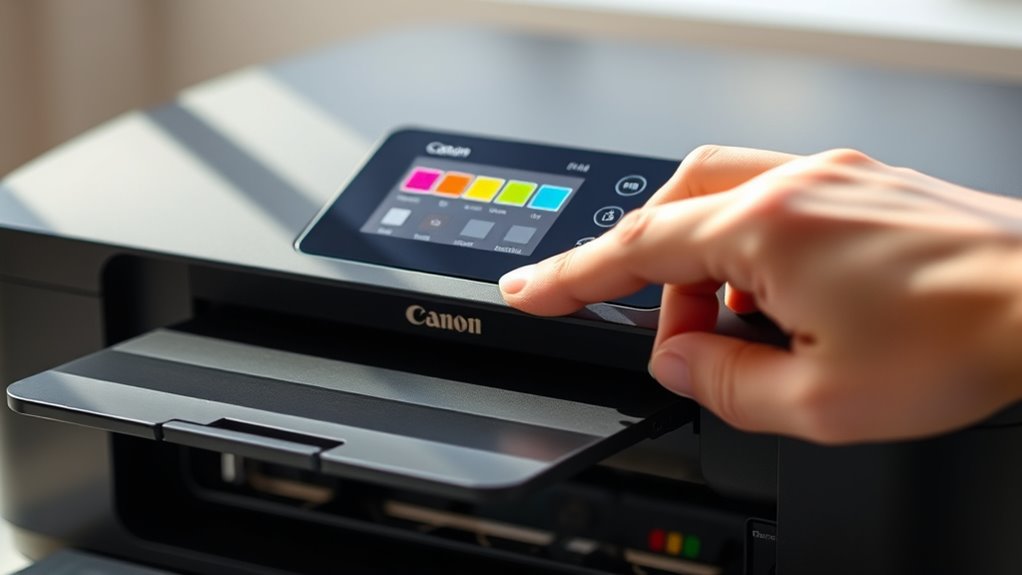
Before you can check the ink level on your Canon printer, you need to locate the control panel. Typically, this panel is on the front or top of the printer. It usually features a small display screen and several buttons or a touchscreen interface.
If your model has a touchscreen, it’s often right above the paper output tray. For printers with physical buttons, look for a button labeled “Menu” or “Setup.” The control panel allows you to navigate printer settings easily.
Not sure where it is? No worries! Consult your printer’s manual or look for the Canon logo, then scan nearby areas for the panel. Once you find it, you’ll be ready to proceed with checking your ink levels.
Access the Printer Menu
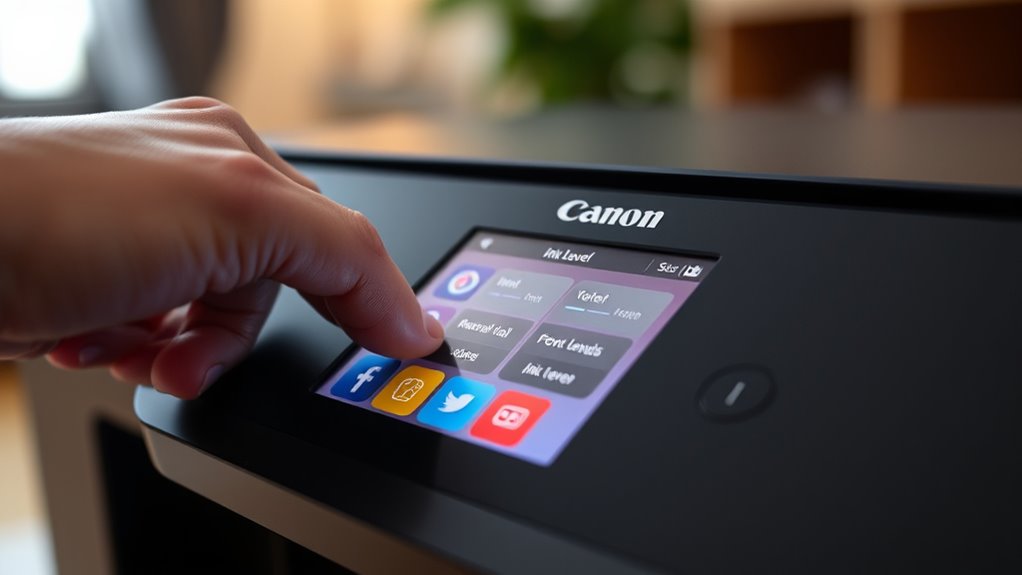
To check your ink levels, start by accessing the printer menu using the buttons or touchscreen on your Canon printer. You’ll want to navigate through the options until you find the ink status or ink level menu.
This lets you quickly see how much ink you have left. Pretty handy, right? Just a few taps and you’re all set!
Navigating Printer Buttons
When you want to check your Canon printer’s ink levels, you’ll need to navigate its buttons to access the menu. Start by pressing the Home or Menu button on your printer’s control panel.
Use the arrow buttons—usually arranged as up, down, left, and right—to scroll through the menu options. Look for a section labeled “Ink Levels,” “Maintenance,” or “Settings.” Once you highlight the correct option, press the OK or Select button to enter.
If you need to go back at any point, press the Back or Cancel button. Familiarize yourself with these buttons because most Canon printers rely on this navigation system to access ink information.
This method works well if your printer doesn’t have a touchscreen interface. So, getting comfortable with these controls will definitely make checking your ink levels easier.
Using Touchscreen Interface
If your Canon printer features a touchscreen, checking ink levels becomes even more straightforward. First, wake up the printer by tapping the screen if it’s in sleep mode. Then, look for the Home or Menu icon on the display and tap it to access the main menu.
From here, you’ll navigate through options using simple taps and swipes. Avoid pressing physical buttons to keep the process quick and intuitive. The touchscreen lets you easily scroll through settings, so you can find what you need without hassle.
While you won’t find the ink status immediately here, accessing the printer menu via touchscreen sets you up perfectly for the next step—locating the ink status menu quickly and effortlessly.
Finding Ink Status Menu
Although accessing the printer menu may seem tricky at first, you can quickly find the ink status option by following a few simple steps on your Canon printer’s touchscreen. Start by tapping the Home button to access the main menu.
Then, look for the “Setup” or “Settings” icon and tap it. Within the settings menu, you’ll find the “Ink Level” or “Ink Status” option. Select this to view your current ink levels.
| Step | Action |
|---|---|
| 1 | Tap the Home button |
| 2 | Select “Setup” or “Settings” |
| 3 | Choose “Ink Level” or “Status” |
Following these steps helps you easily monitor ink levels and avoid unexpected printing interruptions. It’s pretty straightforward once you get the hang of it!
Navigate to the Ink Levels or Maintenance Section
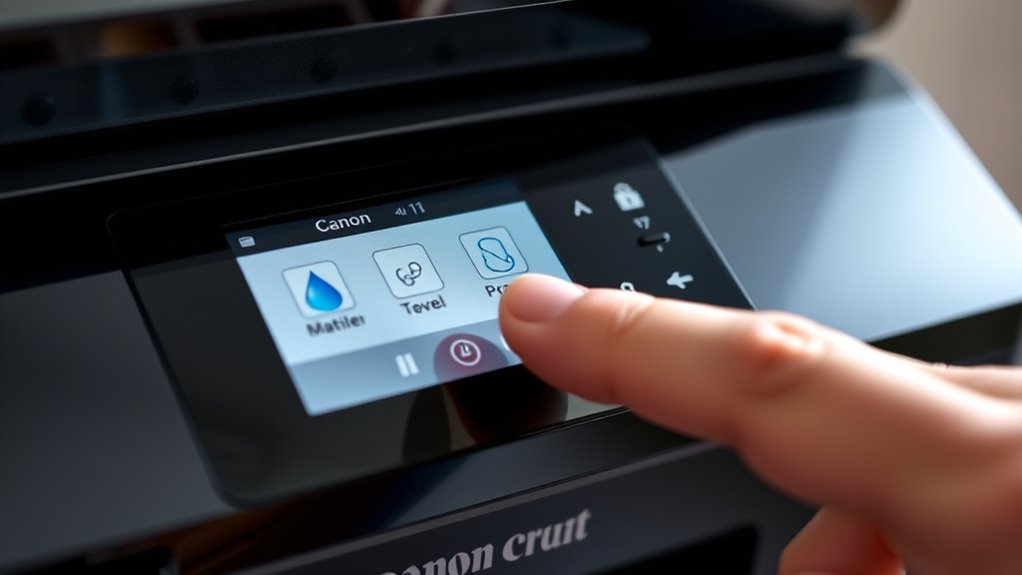
To find your Canon printer’s ink levels, start by accessing the printer’s control panel or the accompanying software on your computer. Once there, look for the menu labeled “Setup,” “Settings,” or “Maintenance.”
This section typically houses options related to printer upkeep, including ink status. Use the arrow keys or mouse to navigate through the menu until you find “Ink Levels,” “Ink Status,” or “Printer Maintenance.” Selecting this will direct you to the area where the printer monitors ink cartridges.
If you’re using the Canon software on your PC, open the Canon Printer Utility or IJ Printer Assistant Tool and select the maintenance tab. This straightforward navigation guarantees you reach the right section quickly to check your ink levels.
View Ink Level Indicators on the Display Screen
Once you access the ink levels section, you’ll see visual indicators on your Canon printer’s display screen showing the remaining ink for each cartridge. These indicators usually appear as colored bars or icons that correspond to each ink tank, giving you a quick snapshot of how much ink is left.
If a bar is low or flashing, it means the cartridge needs replacing soon. Some models also display percentage values, offering more precise information.
Keep an eye on these indicators regularly to avoid running out of ink unexpectedly. If you notice any cartridge showing critically low levels, prepare a replacement to maintain print quality and avoid interruptions.
This easy on-screen view helps you manage ink efficiently without needing extra tools. It’s a simple way to stay on top of your printer’s ink status.
Use Canon Printer Software on Your Computer
You can easily check your ink levels by accessing the Canon Printer Utility on your computer. This software gives you a clear view of your current ink status and alerts you when levels are low.
Just open the utility to stay updated without needing to check the printer physically. It’s super convenient and saves you time. Plus, you won’t have to worry about running out of ink unexpectedly!
Accessing Printer Utility
Although it might seem straightforward, accessing the printer utility through Canon’s software on your computer lets you quickly check ink levels and manage other printer settings.
To start, verify your Canon printer is connected and powered on. Then, open the Canon software installed on your PC or Mac — usually labeled as “Canon IJ Printer Utility” or similar.
You can find it by searching your computer or through the printer’s folder in your applications. Once open, the utility displays various options, including maintenance tasks and ink status tools.
Exploring this interface is simple; just select the ink management or status section to prepare for viewing ink levels. Using this utility streamlines checking ink and keeping your printer in top shape.
Viewing Ink Status
Wondering how to quickly check your Canon printer’s ink levels? You can easily do this using the Canon printer software installed on your computer.
Open the software and navigate to the “Maintenance” or “Ink Levels” section. Here, you’ll find a detailed view of your ink cartridges’ status, showing which colors are running low and need replacement.
Below is a quick guide to what the ink status indicators mean:
| Ink Level Status | Meaning |
|---|---|
| Full | Cartridge is fully charged |
| Medium | Cartridge ink is about half |
| Low | Cartridge ink is running low |
| Replace Soon | Cartridge needs replacement soon |
| Empty | Cartridge is empty |
Checking frequently helps avoid print interruptions. It’s a simple step that can save you a lot of hassle!
Open the Printer Utility or Canon IJ Printer Assistant Tool
Before checking your ink levels, open the Printer Utility or Canon IJ Printer Assistant Tool on your computer.
On Windows, click the Start menu, type “Canon” or your printer model, then select the appropriate utility from the list. On a Mac, go to System Preferences, then Printers & Scanners, choose your Canon printer, and click “Options & Supplies” followed by the “Utility” tab.
Launching this tool lets you access detailed printer information, including ink status. If you can’t find the utility, make sure you’ve installed the full driver package from Canon’s official website.
Opening this software is essential because it provides a straightforward way to monitor ink levels and manage your printer’s settings efficiently. This helps you avoid unexpected ink shortages.
Check Ink Levels via Printer Properties on Windows
If you’re using a Windows PC, you can quickly check your Canon printer’s ink levels through the Printer Properties menu. First, open the Control Panel and select “Devices and Printers.”
Locate your Canon printer, right-click it, and choose “Printer Properties.” In the properties window, find the “Maintenance” tab or section, where you’ll see an option like “View Printer Status” or “Ink Levels.” Click on it, and a window will display the current ink levels for each cartridge.
Right-click your Canon printer, select Printer Properties, then under Maintenance, click to view current ink levels.
This method provides a quick overview without opening additional software. If you don’t see ink levels here, make sure your printer driver is up to date. Or, you can try the Canon IJ Printer Assistant Tool for more detailed information.
This keeps you informed and prevents unexpected ink shortages. Easy, right?
Monitor Ink Status on Macos System Preferences
On a Mac, checking your Canon printer’s ink levels is just as straightforward as on Windows, but you’ll use the System Preferences instead. First, click the Apple menu and select “System Preferences.”
From there, open “Printers & Scanners.” Choose your Canon printer from the list on the left. Next, click the “Options & Supplies” button.
In the window that appears, look for the “Supply Levels” tab or section. Here, you’ll see the current ink levels for each cartridge in your printer.
If you don’t see this option, your printer model might not support ink level monitoring directly through macOS System Preferences. In that case, you’ll need to use Canon’s software or another method to check ink status.
Use the Canon PRINT Inkjet/SELPHY Mobile App
You can easily check your Canon printer’s ink levels using the Canon PRINT Inkjet/SELPHY mobile app. First, install the app and connect your printer to it by following the simple setup steps.
Once connected, you’ll be able to view your ink status right from your smartphone. It’s super convenient and saves you a trip to the printer itself!
App Installation Guide
Since monitoring your Canon printer’s ink levels is easier with a mobile app, you’ll want to install the Canon PRINT Inkjet/SELPHY app on your smartphone.
Start by opening your device’s app store—Google Play for Android or the App Store for iOS. Search for “Canon PRINT Inkjet/SELPHY” and select the official app from Canon Inc.
Then, tap “Install” or “Get” to download and install the app swiftly. Once installed, you’ll be ready to use the app’s features to check ink levels and manage your printer efficiently.
Remember these tips when installing the app:
- Ensure your device has enough storage space.
- Connect to a stable Wi-Fi network for faster download.
- Keep your smartphone’s operating system updated for compatibility.
Connecting Printer to App
Although installing the Canon PRINT Inkjet/SELPHY app is essential, connecting your printer to the app is what lets you monitor ink levels and manage printing tasks directly from your smartphone.
To connect, first verify your printer and phone are on the same Wi-Fi network. Then, open the app and tap “Add Printer.” The app will search for available printers—select your Canon model from the list.
If your printer isn’t detected, try restarting both devices or checking your Wi-Fi connection. Once connected, the app will sync with your printer automatically.
This connection enables real-time communication, letting you easily check ink status and perform other functions without needing a computer. Just keep your Wi-Fi connection stable to ensure smooth operation and accurate ink monitoring via the app.
Viewing Ink Levels
Once your Canon printer is connected to the Canon PRINT Inkjet/SELPHY app, checking ink levels becomes quick and straightforward. Open the app on your mobile device, and your printer should appear on the home screen.
Tap on your printer’s icon to access its status. You’ll see the ink levels displayed clearly, showing how much ink remains in each cartridge.
Here’s what you should keep in mind when viewing ink levels:
- Ink level indicators update in real-time, giving accurate status.
- You can preview individual cartridge levels, not just overall ink.
- The app alerts you when any cartridge is running low or needs replacement.
Using the app saves time and helps you avoid unexpected ink shortages during printing. It’s super handy and makes managing your printer way easier!
Set up Ink Level Notifications and Alerts
How can you stay informed about your Canon printer’s ink levels without constantly checking manually? Setting up ink level notifications and alerts is the answer.
Start by opening the Canon printer software on your computer. Navigate to the “Maintenance” or “Ink Management” section, depending on your model. Look for an option like “Ink Level Notification” or “Low Ink Warning” and enable it.
Open Canon printer software, go to Maintenance or Ink Management, and enable Ink Level Notification or Low Ink Warning.
This feature will automatically notify you when ink runs low, so you won’t be caught off guard. You can also customize alert settings, such as how early you want the warning to appear.
Additionally, some Canon printers offer mobile app notifications—download the Canon PRINT Inkjet/SELPHY app to get real-time updates on your smartphone. This way, you’ll always know when it’s time to replace cartridges.
Frequently Asked Questions
How Often Should I Replace Canon Printer Ink Cartridges?
You should replace your Canon ink cartridges when print quality fades or the printer alerts you.
Typically, this happens after printing a few hundred pages, but it varies based on usage and the type of documents you print.
Can I Use Third-Party Ink Cartridges With My Canon Printer?
Yes, you can use third-party ink cartridges with your Canon printer. But keep in mind, they might impact print quality or even void your warranty.
It’s a good idea to choose reputable brands. That way, you can minimize risks and get better compatibility.
What Should I Do if the Ink Level Indicator Is Inaccurate?
If your ink indicator’s off, don’t panic—like a faulty gas gauge, it can mislead you.
Try resetting the printer first. Sometimes that’s all it takes to fix the issue.
Next, clean the ink cartridge contacts gently. Dirty contacts can cause inaccurate readings.
Also, check the ink levels physically if you can. This helps you avoid surprises and keeps your printing smooth.
How Do I Properly Store Unused Ink Cartridges?
You should store unused ink cartridges in a cool, dry place, away from direct sunlight. Keep them sealed in their original packaging to prevent drying out.
Also, try to avoid extreme temperatures. This helps maintain the ink’s quality and longevity.
Are There Any Risks in Printing With Low Ink Levels?
You might think printing with low ink saves time, but it risks streaky, faded prints and potential damage to your printer’s printhead.
Conclusion
Now that you know these 10 simple steps, checking your Canon printer’s ink levels will be as easy as breathing. You won’t have to worry about sudden ink runs during important prints ever again.
Whether you use the control panel, your computer, or the mobile app, staying on top of ink status is a breeze. With these tips, managing your printer feels like having a personal assistant who never misses a beat!
Keeping an eye on ink levels is crucial for smooth printing. By regularly checking your Canon printer ink levels, you can avoid unexpected interruptions and ensure your documents come out perfectly every time.
So, next time you’re about to print, just follow these simple steps to check ink levels quickly and easily. It’s all about making your printing experience hassle-free and efficient!