

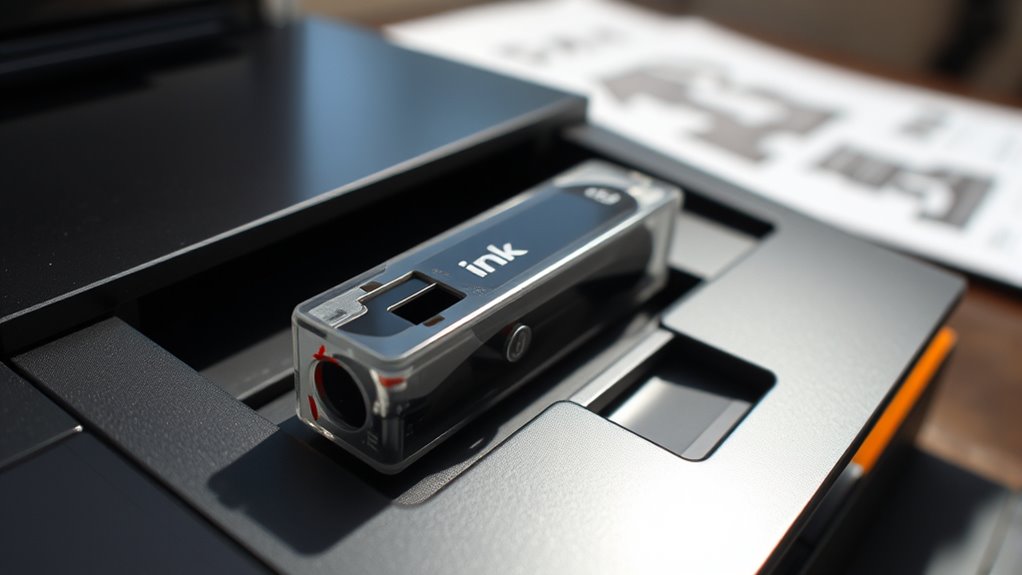
How to Know If Your Ink Cartridge Is Empty
You’ll know your ink cartridge is empty when your printer shows low ink levels or flashes warning messages like “Replace Cartridge.”
If your prints look faded, streaky, or colors are missing, that’s another sign. These issues usually mean you’re out of ink and need a replacement.
You can also print a nozzle check pattern to spot any problems with ink flow.
Another way is to take out the cartridge and visually check the ink levels yourself.
When you replace the cartridge, you should see an immediate improvement in print quality.
Keep following this guide for simple steps to fix your printing issues and get your printer working like new again. It’s easier than you think!
Key Takeaways
– Check the printer’s ink level indicator on the control panel or software for low or empty cartridge warnings.
This is usually the quickest way to know if you’re running out of ink.
– Perform a test print or nozzle check pattern to spot gaps, streaks, or missing lines indicating empty ink.
It helps you see exactly where the ink might be running low.
– Inspect print quality for faded, missing colors, or uneven patches, which suggest low or empty ink cartridges.
If your prints look dull or patchy, that’s a clear sign your ink might be empty.
– Remove the ink cartridge and visually inspect for ink levels, dried nozzles, leaks, or smudges inside the compartment.
Sometimes a close look can tell you a lot about the cartridge’s condition.
– Listen for printer warnings or error messages like “Ink Low” or “Replace Cartridge” displayed on the printer or computer.
These alerts are designed to keep you informed so you don’t get caught off guard.
Check the Printer’s Ink Level Indicator
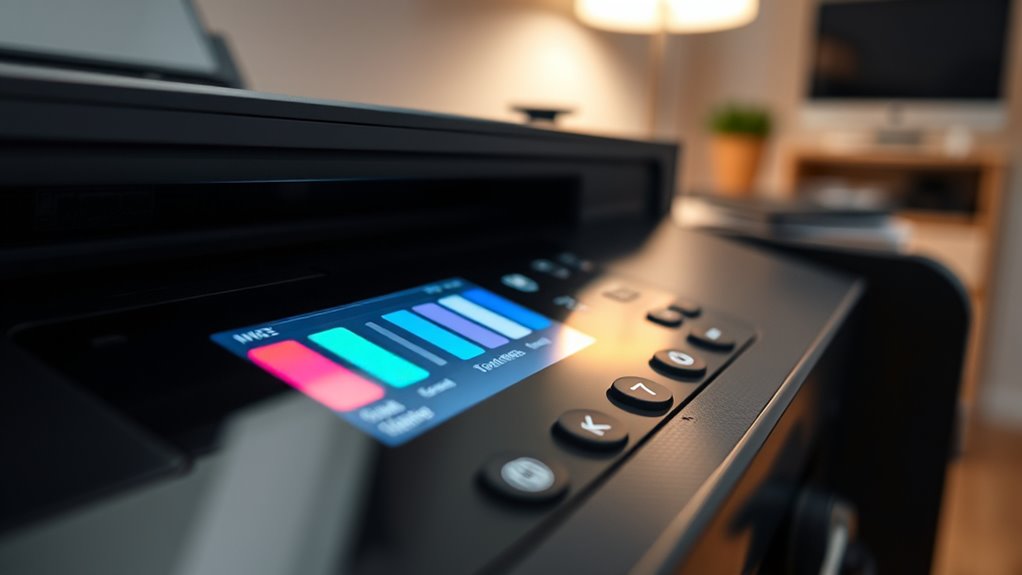
Although it varies by printer model, you can usually check your ink levels directly from your device. Most modern printers feature an ink level indicator accessible through the control panel or printer software on your computer.
Simply navigate to the maintenance or settings menu, and you’ll find a section dedicated to ink or toner status. This indicator often shows color-coded bars or percentages representing how much ink remains in each cartridge.
If you see any color running low or empty, it’s a clear sign to replace that cartridge soon. Checking the ink level indicator regularly helps you avoid unexpected print interruptions and ensures you maintain print quality.
Perform a Test Print or Print a Nozzle Check Pattern
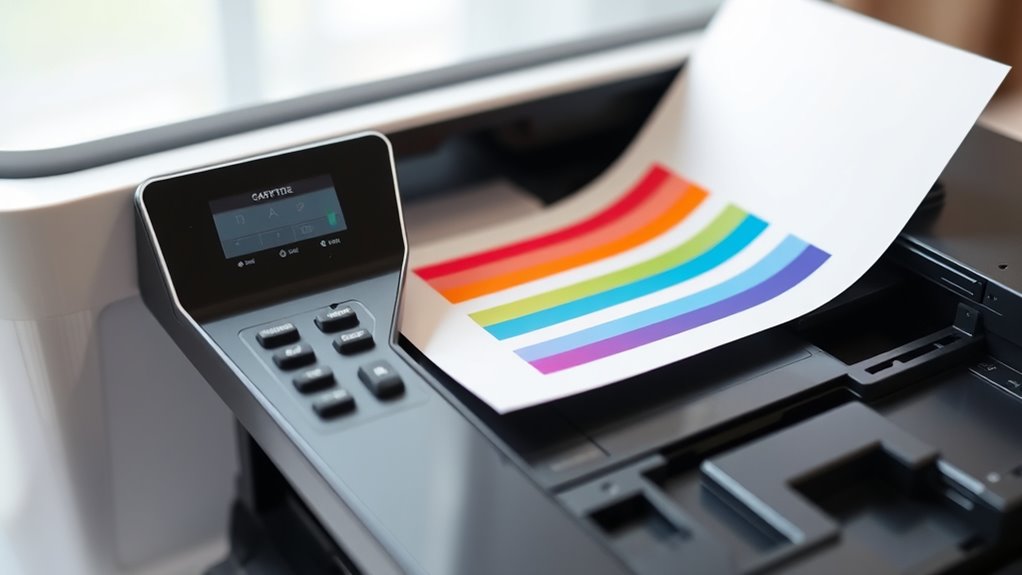
When you want to confirm if your ink cartridge is empty, performing a test print or printing a nozzle check pattern gives you a clear, visual indication of your printer’s ink status. Most printers have a built-in option in their control panel or software to print these patterns.
Start by accessing your printer’s maintenance or tools menu, then select the test print or nozzle check option. Once printed, examine the pattern carefully.
Access the maintenance menu, select test print or nozzle check, then carefully examine the printed pattern.
If you notice gaps, streaks, or missing lines, it often means your cartridge is running low or empty. This quick step helps you avoid wasting paper and time on incomplete prints.
Plus, it lets you decide if it’s time to replace or refill your cartridge. It’s a simple trick but super helpful!
Inspect the Print Quality for Faded or Missing Colors
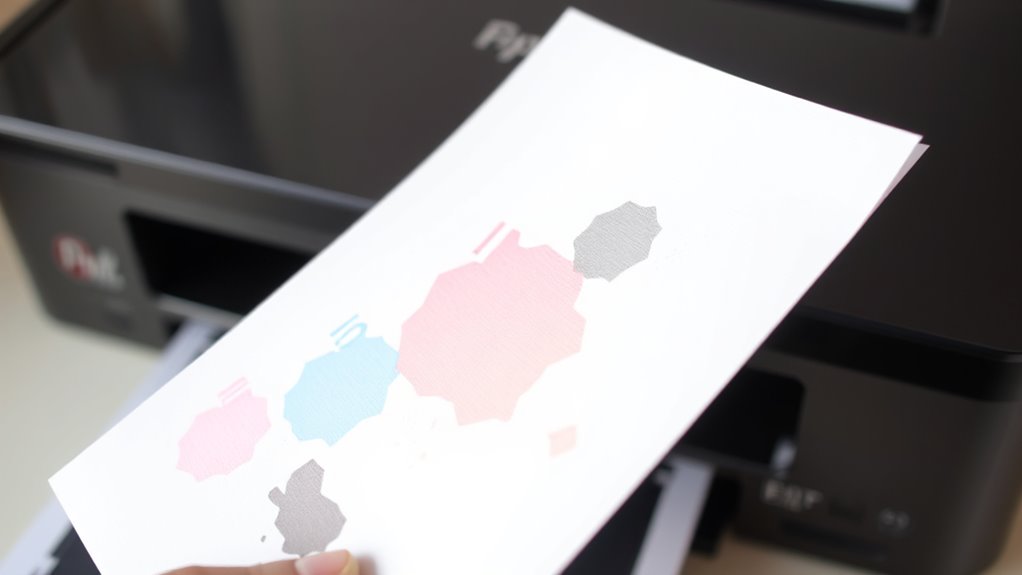
If your prints start showing faded areas or missing colors, it’s a clear sign your ink cartridge might be running low. Check your recent printouts carefully for uneven color distribution or light patches.
These issues often mean the cartridge can’t supply enough ink, which affects print quality. Use the table below to quickly identify common print quality problems and what they suggest about your ink levels:
| Print Quality Issue | Possible Ink Cartridge Problem |
|---|---|
| Faded colors | Ink running low |
| Missing colors | One or more cartridges empty |
| Streaks or lines | Ink flow disruption or clogging |
| Patchy or blotchy prints | Cartridge nearing empty or damaged |
Remove and Visually Examine the Ink Cartridge
Since print quality issues often point to cartridge problems, you should remove the ink cartridge to inspect it closely. Start by turning off your printer and opening the cartridge access door.
Gently lift out the cartridge and examine it for visible signs of ink levels or damage. Look for things like transparent ink windows showing if ink is low or empty.
Also check for dried or clogged nozzles that might affect printing. And keep an eye out for leaks or ink smudges that could indicate cartridge malfunctions.
If the cartridge looks empty or damaged, it’s probably time to replace it. Just be careful handling it to avoid getting ink stains or damaging the contacts.
After you’ve checked everything, reinstall the cartridge securely before closing the printer door. Doing this helps confirm whether a cartridge issue is causing your print problems.
Listen for Printer Warnings or Error Messages
Although you’ve inspected the ink cartridge physically, your printer often provides immediate clues through warnings or error messages. Pay close attention to any alerts on your printer’s display screen or flashing lights.
Many printers will notify you when ink levels are low or if a cartridge needs replacement. Your computer may also show pop-up messages indicating which cartridge is empty or low.
Don’t ignore these warnings—they’re designed to help you avoid poor print quality or printer damage. If you see a message like “Ink Low” or “Replace Cartridge,” it’s a clear sign that your ink supply is running out.
Listening for these notifications saves time and ensures you address the problem promptly before print jobs fail or appear faded. So keep an eye out for those little alerts!
Replace the Cartridge and Verify Improved Printing Results
Once you remove the old cartridge, install the new one carefully to avoid any damage.
After that, run a test print to check if the print quality has improved.
This quick step helps you confirm the cartridge replacement worked as expected.
Remove Old Cartridge
Before installing a new ink cartridge, you need to carefully remove the old one to prevent any damage to your printer. Start by turning off your printer and unplugging it for safety.
Next, open the printer cover to access the cartridge holder. Gently press the release tab or lever holding the cartridge in place, then pull the cartridge out slowly.
Keep these tips in mind when removing the old cartridge: Avoid touching the copper contacts or nozzles to prevent clogs or damage. Also, be sure to dispose of the empty cartridge according to local recycling guidelines.
And don’t forget to handle the cartridge with care to avoid ink spills. Removing the cartridge properly guarantees your printer stays in good shape and is ready for the new ink.
Install New Cartridge
How do you properly install a new ink cartridge to guarantee your printer works smoothly? First, unpack the new cartridge carefully, removing any protective tape without touching the copper contacts or nozzles.
Then, align the cartridge with the printer’s color-coded slots and gently push it in until it clicks securely. Close the printer cover and power the printer on if it was off.
Your printer should recognize the new cartridge automatically. To confirm the replacement, check the printer’s display or software interface for cartridge status updates.
If everything looks good, you’re set to continue printing without interruptions. Proper installation ensures consistent ink flow and prevents errors, helping your printer perform reliably every time you replace a cartridge.
Test Print Quality
After installing your new ink cartridge, you’ll want to print a test page to make sure the print quality has improved. This step confirms the cartridge is properly seated and functioning.
Look closely at the test print for any streaks, faded areas, or missing colors. If the print looks crisp and vibrant, you’re good to go. If not, you may need to check the cartridge installation or clean the print heads.
To effectively evaluate your test print, compare it with a previous print to spot differences. Using the printer’s built-in test page option can help you get consistent results.
Also, inspect both black and color sections for clarity and completeness. This quick test guarantees your printer is ready for high-quality printing tasks.
Frequently Asked Questions
Can Expired Ink Cartridges Damage My Printer?
Yes, expired ink cartridges can damage your printer by clogging nozzles or leaking ink. You should replace them promptly to avoid print quality issues and potential hardware problems.
Always check cartridge dates before use. It’s a small step that can save you a lot of hassle down the road.
How Long Do Ink Cartridges Typically Last Unopened?
Typically, unopened ink cartridges last two to three years before they start drying out or losing quality.
You’ll want to store them in a cool, dry place to preserve their performance and prevent premature problems.
Trust me, keeping them in the right environment really makes a difference!
Are Third-Party Ink Cartridges Reliable?
Third-party ink cartridges can be reliable, but quality varies. You should check reviews and buy from reputable sellers.
Sometimes they save money but might cause print issues or damage your printer if poorly made. So, it’s a bit of a gamble, but many find them worth it!
Can I Refill My Ink Cartridge at Home?
You can refill your ink cartridge at home, but it’s tricky. While saving money sounds great, risking leaks or poor print quality isn’t.
If you’re careful and follow instructions, it’s definitely doable, though. Just make sure you take your time and maybe watch a few tutorials before you start.
How Should I Store Unused Ink Cartridges?
You should store unused ink cartridges in a cool, dry place, sealed in their original packaging or an airtight container.
Keep them away from direct sunlight and extreme temperatures to maintain ink quality and prevent drying out.
This way, your cartridges will stay fresh and ready to use whenever you need them.
Conclusion
Knowing when your ink cartridge is empty saves you time and frustration. For example, Sarah noticed faded colors and checked her printer’s ink levels before a big project.
By replacing the cartridge promptly, she avoided poor-quality prints and delays. So, trust your printer’s indicators, run test prints, and inspect your cartridges regularly.
This way, you’ll keep your prints sharp and vibrant without unexpected interruptions. Don’t wait—check your ink today! Knowing how to tell if your ink cartridge is empty is key to maintaining smooth printing. Keeping an eye on ink levels helps prevent messy, faded prints and keeps your printer running efficiently. Regularly inspecting your cartridges and using your printer’s built-in alerts can save you from last-minute printing headaches. So next time you print, remember these tips to ensure consistent, high-quality results every time!